Account, credits, and subscription
The account and billing pages show your account information, credit income and spending, membership benefits, and records tied to top-ups or subscriptions. Before running agent tasks, confirm your credit balance; before buying credit packs, opening membership, renewing, or refunding, verify the current price, validity, payment methods, and applicable rules.
Credits, wallet balance, and membership are distinct objects that do not substitute for one another: credits meter or consume platform features; wallet balance is the account's fund record; membership grants benefits for an agreed period. Available entries and benefit scope follow your current account page.
Account entry
Open the account menu from the avatar area at the bottom-left of the conversation page, then enter Settings or My wallet; Credit balance in the sidebar shows credit income and spending detail.
After signing in:
- Open the agent workbench.
- Find the avatar, account name, or credit area at the bottom of the left navigation.
- Select the avatar area to open the account menu.
- Enter Settings, My wallet, or Credit balance as needed.
Page names and menu positions may change between versions. If an entry is missing, expand the left navigation and confirm you are in a personal account or the right organization context.
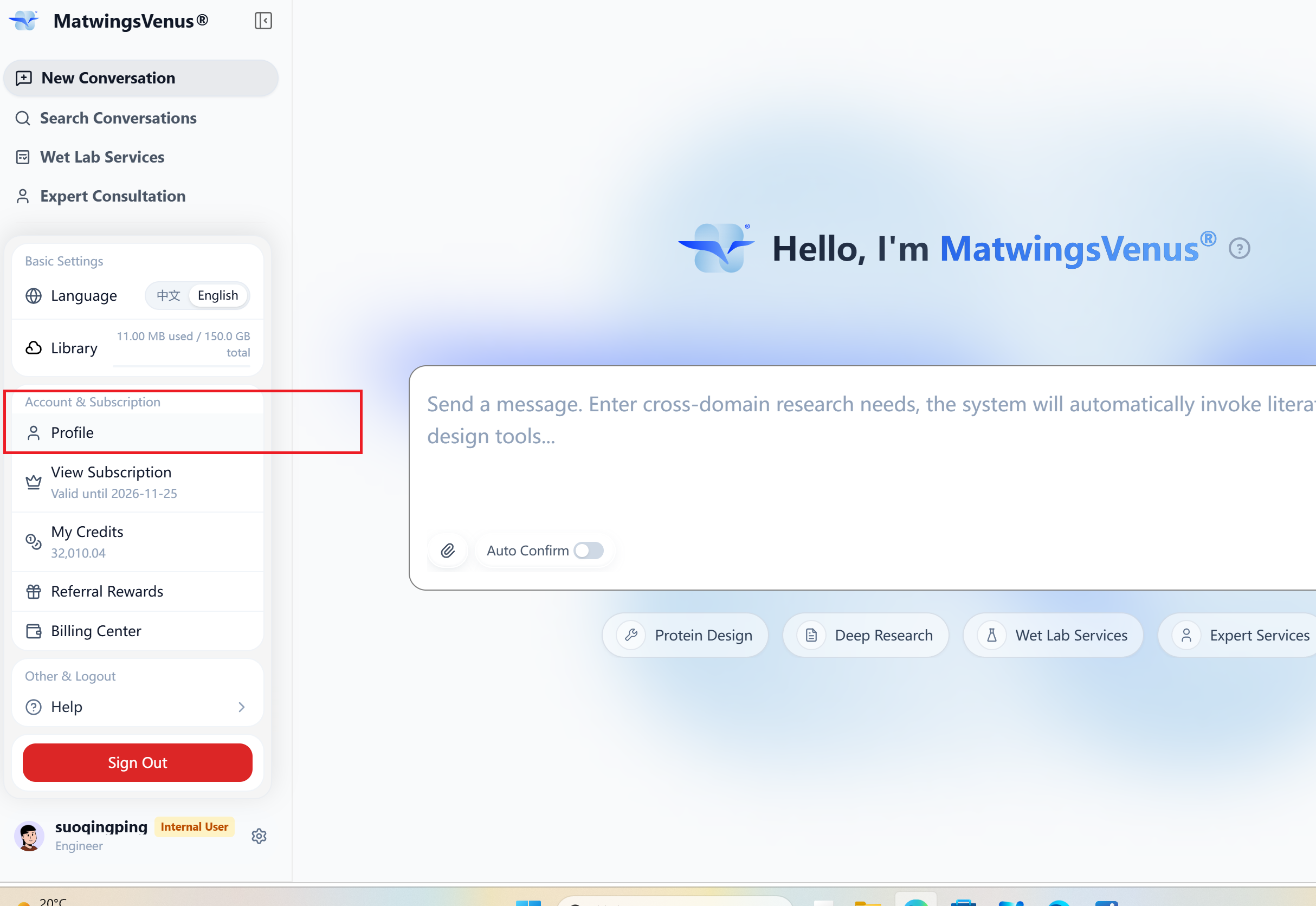
Profile, security credentials, addresses, API keys, billing, subscription, and organization permissions are covered in Profile and account settings.
Do not expose account data in screenshots or help requests
Account pages may show name, contact details, credits, balance, orders, and payment records together. Before capturing, keep only the troubleshooting area and mask account identifiers, amounts, order numbers, QR codes, and transaction details.
Personal center
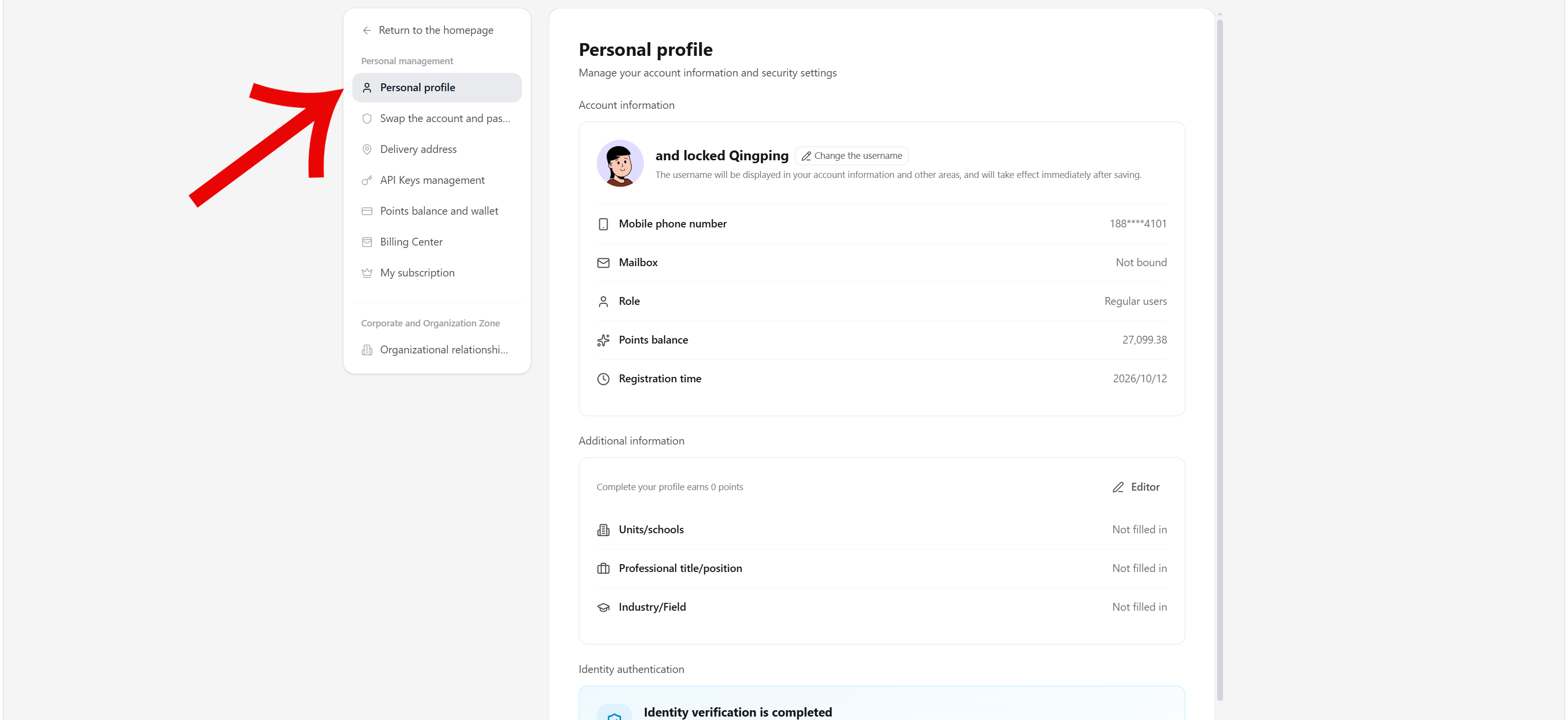
The personal center manages profile data, security credentials, addresses, API keys, and credit, billing, and subscription information. After entering Profile, switch between sections via the left navigation; visible sections and permissions vary by account type, role, or organization context—follow the current page.
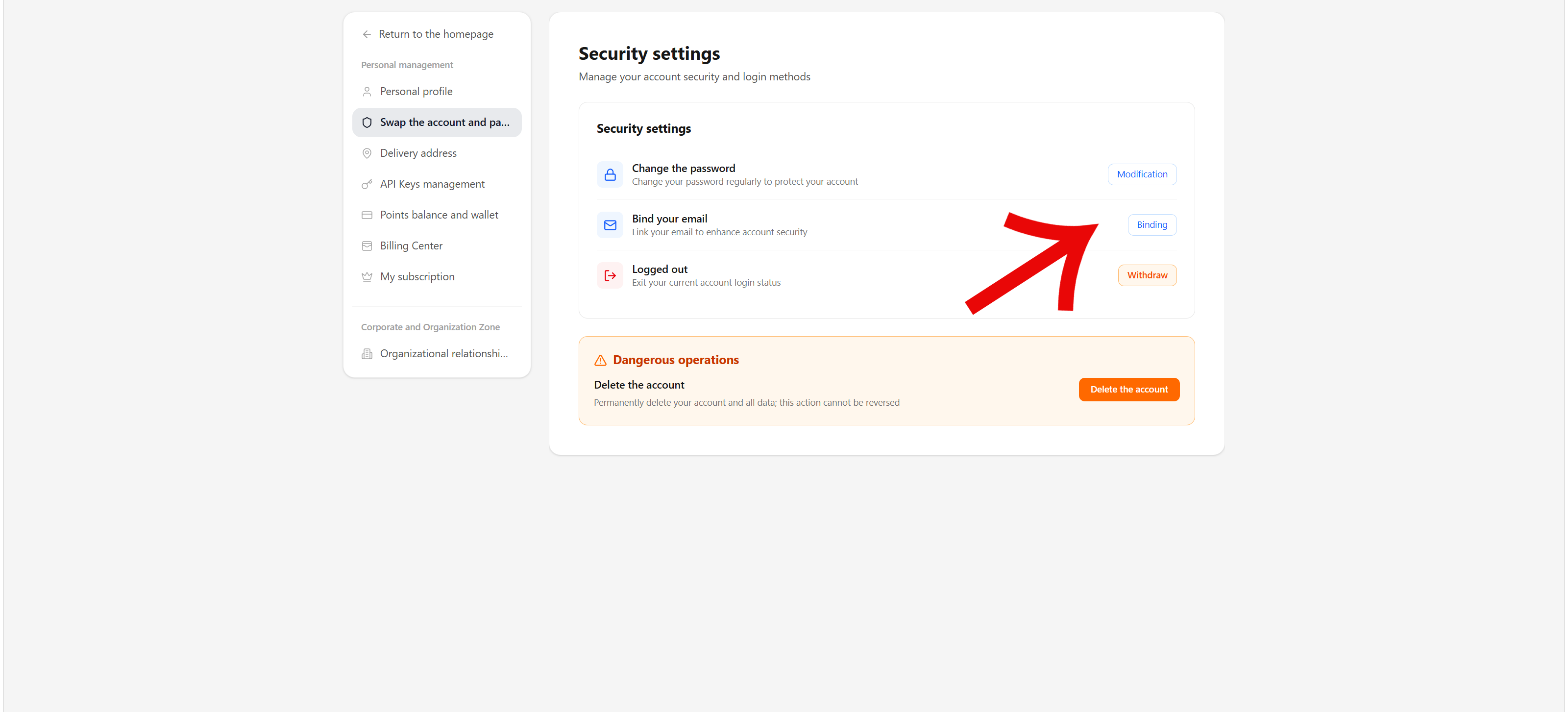
Account security and API keys
When changing the password or rebinding contact details, complete the current-credential or verification-code check under Account & password rebinding as the page requires. Before deleting the account, confirm no material, records, or credits remain needed—deleted accounts usually cannot be restored.
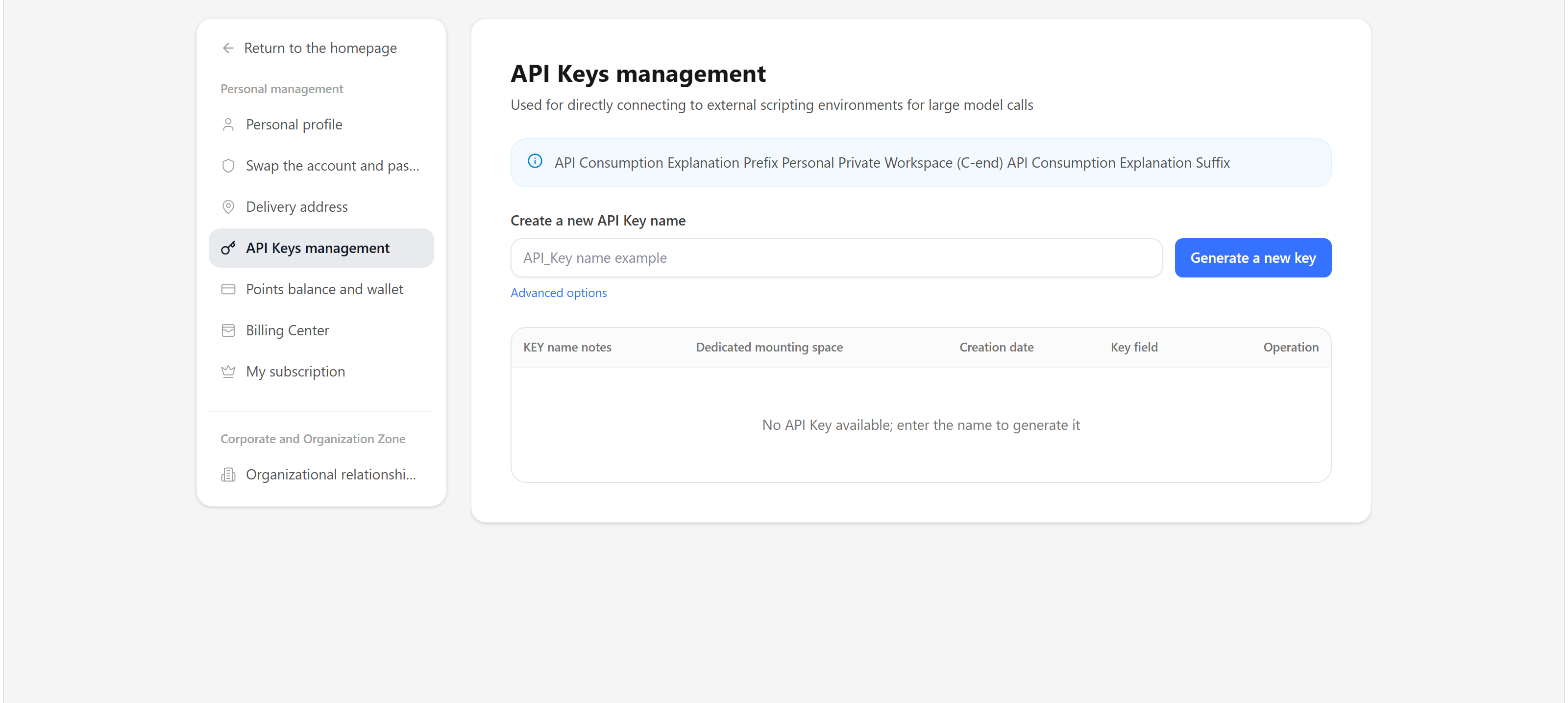
After creating an API key, store it somewhere safe immediately and configure least-necessary permissions for calling programs. Disable or delete keys no longer used or of unclear purpose, and update services that depend on them.
Account deletion and key leakage can both be irreversible
Before deleting, confirm data and benefits no longer matter. If you suspect an API key leaked, immediately disable or delete it, create a new one, and check the call records involved.
For full section operations, see Profile and account settings.
Billing-related objects
| Object | Main use | What to verify |
|---|---|---|
| Account | Identifies the user and stores personal records | Current identity, organization, permissions |
| Credits | Meter agent tasks and other uses the page marks as credit-consuming | Available balance, validity, sources, spending records, holds |
| Wallet balance | Records account funds or top-ups the platform supports | Currency, available balance, held amounts, transactions |
| Membership | Grants the benefits the page lists during the valid period | Plan name, benefit scope, effective and expiry dates |
| Auto-renewal | Extends membership when agreement conditions are met | Enabled or not, charge date, channel, cancellation entry |
| Refund | Returns payment for orders or subscriptions meeting page rules | Refundable scope, time limits, credit handling, channel, progress |
Do not read "credits sufficient" as "membership active", or "membership active" as "no task consumes credits". Before running tasks, subscribing, or paying, follow the current page prompt.
Credit center
The credit pages answer three questions: how many credits remain, where they came from, and where they went. Credit balance in the sidebar shows income and spending; conversation history may also show the credits and time a conversation consumed.
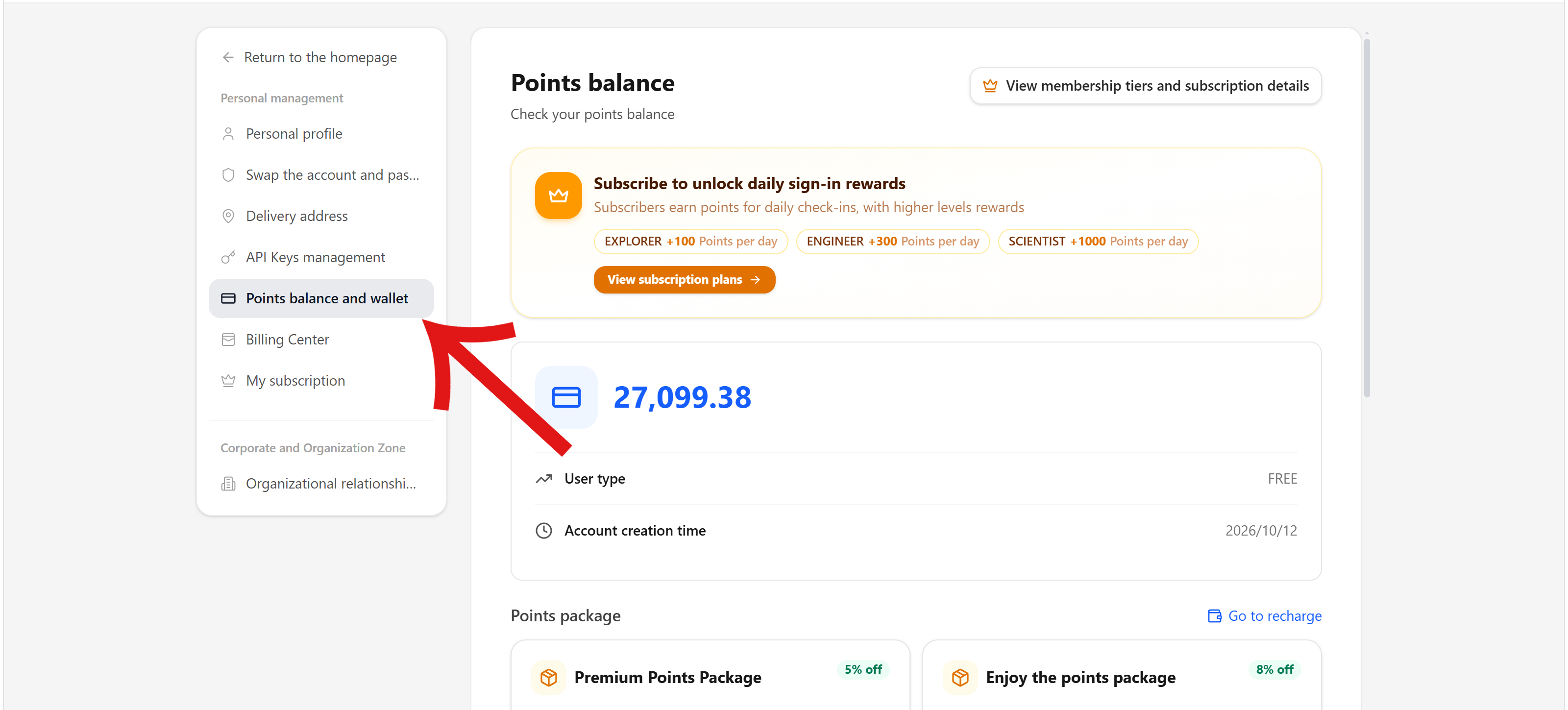
Check credits when:
- About to start a deep task that may consume many credits.
- A task cannot continue due to insufficient balance.
- After redeeming, buying packs, or receiving activity credits.
- Questioning a deduction for a task.
- After membership activation, renewal, refund, or expiry, to verify linked credits.
When reading credits, distinguish:
- Available credits: usable for tasks now.
- Validity: credits from different sources may expire at different times.
- Income records: registration, activities, redemption, purchases, subscription benefits, or other sources the page shows.
- Spending records: task runs or other credit uses explicitly marked.
- Deduction and pending settlement: task credits are deducted directly or counted as pending; whether holds or pre-deductions are shown follows the current page.
For earning, the ledger, redemption codes, packs, and handling insufficient balance, see Earning and using credits.
Judge credit numbers together with the ledger
A balance change alone explains nothing. On anomalies, record the time, task or order type, and page state before and after, then find the matching record in the detail; do not verify billing by rerunning tasks.
Membership
Membership grants the benefits the page lists for an agreed period. Before opening or upgrading, confirm:
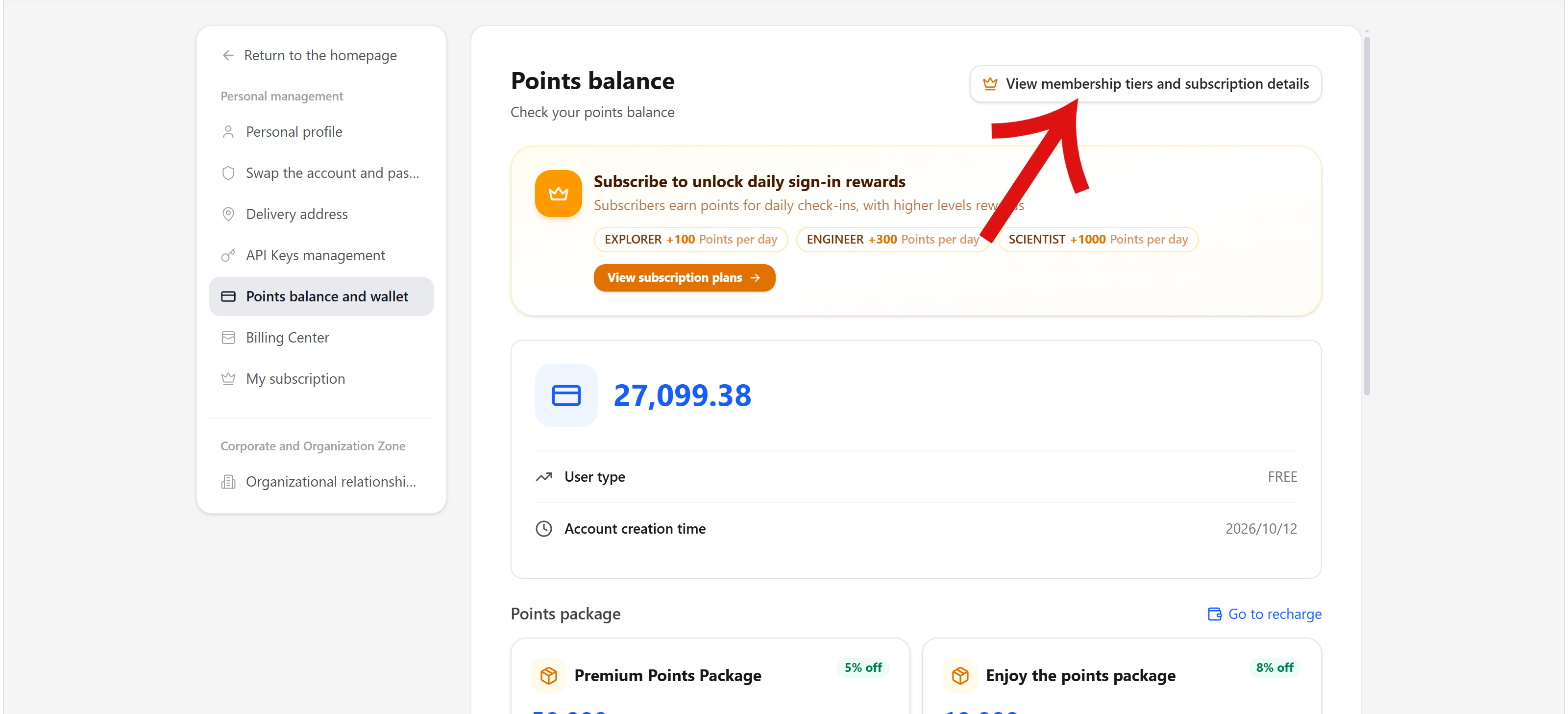
- The plan name and the account it applies to are correct.
- Which features, credits, quotas, or services the benefits include.
- Effective time, membership period, and expiry.
- How first-time activation, upgrades, and renewals are billed.
- Whether the page shows a one-time purchase or auto-renewal.
- After cancelling, how long benefits remain.
- Refund conditions, and how granted or used credits are handled.

Plans, prices, granted credits, and promotions change frequently; this overview records no fixed values. For operations and refund boundaries see Membership, subscription, and refunds, and read the formal rules on the current page before paying. Membership periods and expiry shown on the page use Beijing time as the cutoff basis.
| Situation | What to confirm |
|---|---|
| First activation | Plan benefits, effective time, payment amount, and whether auto-renewal is included |
| Upgrading | How old and new benefits connect, and how the price difference and period are computed |
| Near expiry | Expiry, renewal entry, and handling of unused benefits |
| Organization or team use | Whether the subscription belongs to a person or the organization, member sharing, admin permissions |
| Only need temporary credits | Compare credit packs with membership benefits, not just the displayed price |
Organization subscriptions and personal memberships may carry different permissions and quotas. Do not assume a personal purchase grants benefits to organization members, or that organization benefits transfer to personal accounts.
Renewal and refunds
Renewals and refunds touch real funds, membership periods, and credit benefits—save the current order or subscription information and read the corresponding agreement first.
For auto-renewal, check:
- Whether auto-renewal is currently enabled.
- The next charge date, how the amount is computed, and the charge channel.
- Whether a notice precedes the charge, and to which account it goes.
- The cancellation entry, the latest cancellation time, and the membership expiry after cancelling.
- What happens when a charge fails, the balance is insufficient, or the payment channel is unavailable.
See Auto-renewal and the Auto-renewal service agreement for details.
Before requesting a refund, prepare:
- The signed-in account and the matching order or subscription.
- Purchase time, payment channel, and order status.
- Membership benefits, credits, or services already used.
- The refund reason and supporting material.
- The refund scope, receiving channel, and progress you want confirmed.
Whether refunds are supported, refundable amounts, credit clawback, arrival time, and fees follow the current page, the Standard membership subscription and refund policy, and platform review.
Do not test pages by paying or refunding repeatedly
Purchases, top-ups, subscriptions, renewals, and refunds create real business and fund records. On page errors, keep the order state and prompt, then contact support; do not repeatedly create orders, double-pay, or resubmit refund requests.
Typical check path
Confirm the signed-in account
      ↓
Check credits, wallet, or membership status
      ↓
Open the matching detail or order record
      ↓
Verify sources, spending, validity, and current status
      ↓
Buy, renew, or request a refund as needed
      ↓
Re-check that balance, benefits, and records updated
When a billing problem appears, first identify whether it concerns credits, wallet, membership, or orders, then open the matching page. Each object may have its own balance, holds, payment, and refund records—one page alone can miss linked states.
Getting billing help
Before contacting support, prepare non-sensitive information:
- The approximate time and the page where it happened.
- Whether it involves credits, wallet, membership, auto-renewal, or refunds.
- The status and complete error message the page shows.
- The task or order type; provide order numbers only through the platform's private channel.
- Refresh, re-login, or ledger checks already tried.
- The outcome you want: explain a deduction, restore benefits, or check refund progress.
| Situation | Check |
|---|---|
| Benefits not effective | Payment status, plan, subscription owner, effective time |
| Unsure whether auto-renewal is on | Subscription details and the renewal state in the payment channel; not just a charge notice |
| Refund requested, not arrived | Refund status, the original payment channel, and platform processing notes |
| Billing records unexpected | Save time, status, and detail screenshots; verify through a private support channel |
When contacting support, never send passwords, SMS codes, payment passwords, full card numbers, API keys, or login tokens. For screenshots, mask account, contact, balance, price, order number, and payment information.