Conversations and projects
The agent workbench uses conversations to hold the context of one continuous task and projects to organize multiple conversations sharing a research goal. Splitting conversations and projects sensibly reduces subject mix-ups and makes questions, results, and files easier to find.
Know the conversation and project entries
The entries sit in the workbench left navigation.
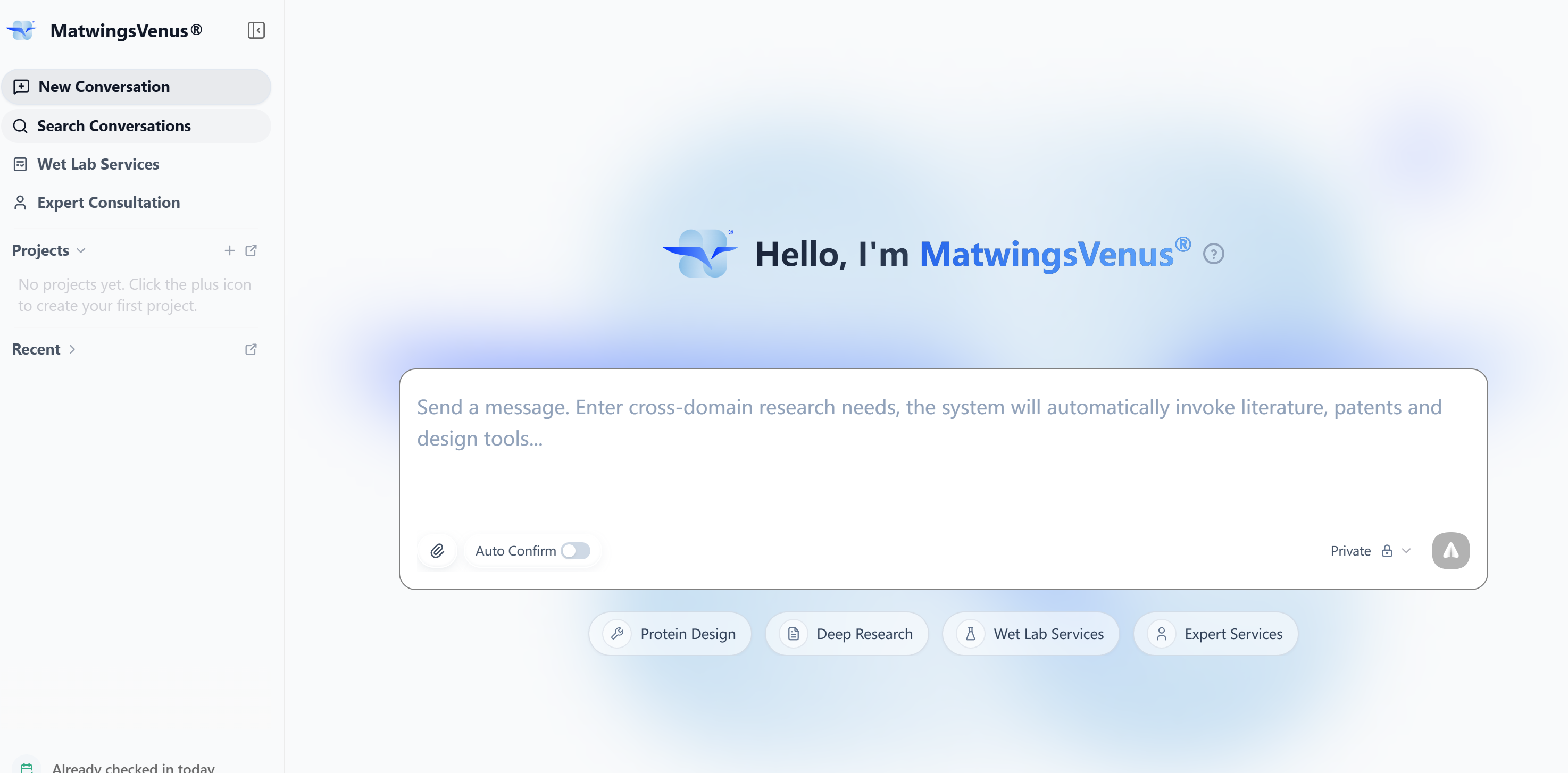
| Area | Purpose |
|---|---|
| Start a new conversation | Create a new task that does not carry over the current conversation |
| Search conversations | Find existing conversations by keyword |
| Projects | Expand or collapse the project list |
| New project | Create a new research project |
| Recent | Show recently used conversations |
The sidebar button at the top-left collapses the navigation to give the results area more room; select it again to restore.
A newly created conversation may first show the opening words of your question as a temporary title, replaced automatically once the system generates a formal one. For important tasks, rename afterwards to "subject + task type + key condition" for easier retrieval.
When to stay in the current conversation
Continue asking in the same conversation when you:
- Add screening conditions to the current result.
- Ask for an explanation of a parameter, score, or data source.
- Change ordering, grouping, or output format.
- Continue analyzing properties or designing validation around current candidates.
- Correct the agent's understanding of the previous question.
- Resume a task that was interrupted, paused, or failed—continue in the same conversation and pick up from saved progress without a new conversation or re-uploading attachments.
A running conversation keeps running when you switch away; on return, history is backfilled first and new content continues. Streaming content does not pile up in the background while you are away, avoiding a jumble on reopen.
When the concurrency quota is full, the page just shows the current queue or capacity state instead of repeating the same popup; queued states clear automatically after stopping. Do not resend the same question because of a capacity notice.
For example, after completing the PD-L1 × BMS-202 docking, you can continue with:
Compare only the poses that Vina and DiffDock returned successfully, listing input files, parameters, output files, and result limitations.
Follow-ups reuse the current context. When referring to "this protein", "the previous candidates", or "that structure", make sure the reference is unambiguous.
When to start a new conversation
Choose Start a new conversation when:
- You begin studying an unrelated protein or target.
- The new task should not inherit the previous task's assumptions and attachments.
- You want to restart with a completely different analysis approach.
- The conversation is too long to keep references clear.
- The task belongs in another project or permission scope.
When starting fresh, pick an agent mode suited to the new task. Modes differ in workspace scope—confirm the mode covers the objects or data the task needs before starting. For complex research tasks, the system first asks you to confirm a plan and analysis outline, then executes.
In the new conversation, restate the needed protein names, database IDs, files, and constraints. A new conversation does not automatically receive all input files and specific requirements from the previous one.
Find past conversations
Select Search conversations to open a search window listing conversations by date.
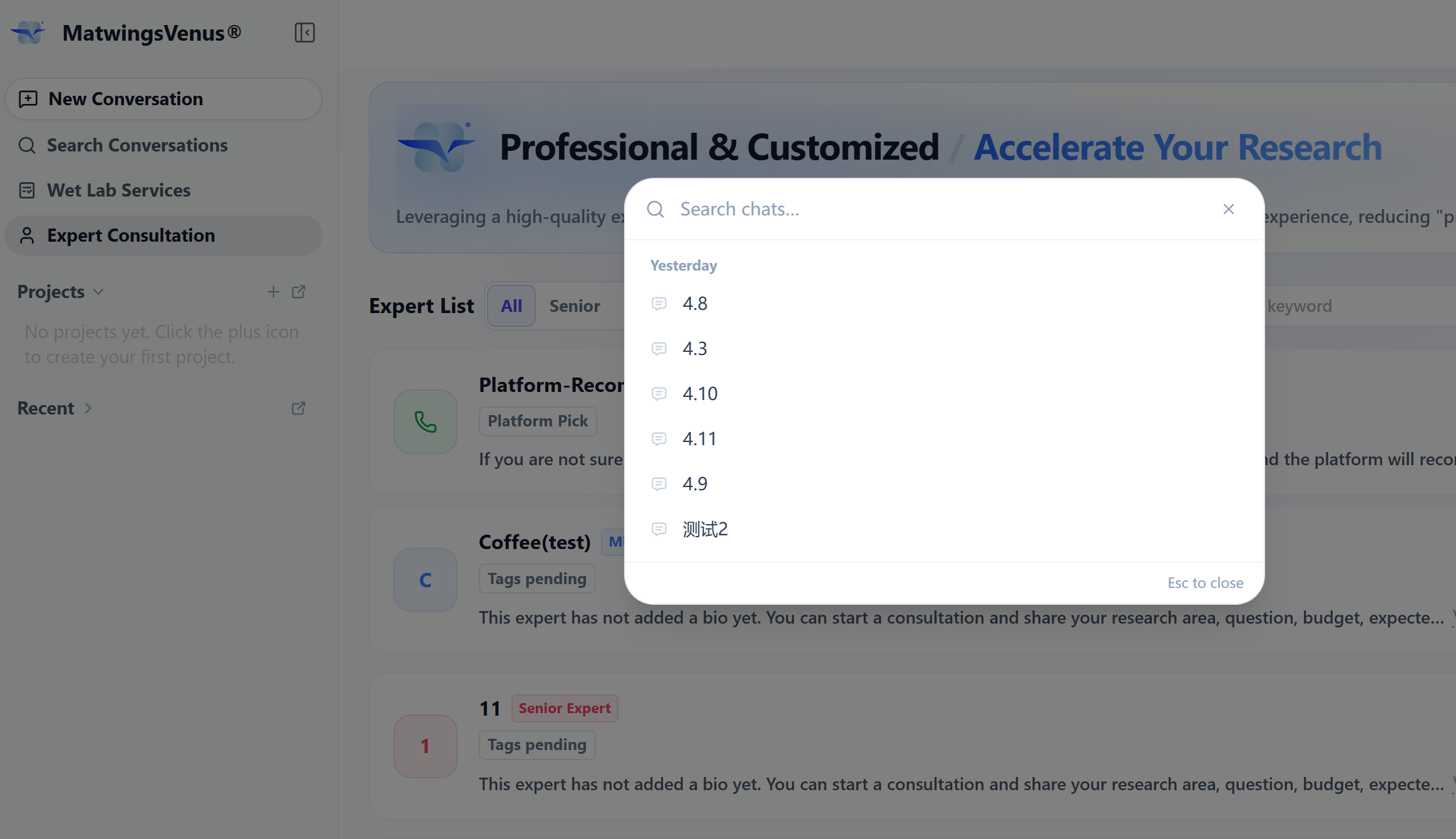
- Type keywords into the Search chats box.
- Prefer distinctive content: protein names, database IDs, ligand names, or task types.
- Wait for results to load, then select the conversation.
- Close with
Escor by clicking outside the window.
For example, to find a docking task, search BMS-202, PD-L1, or 5IUS rather than just "analysis" or "protein".
Make conversations easier to search
After finishing an important task, name the conversation after its subject and goal—"PD-L1 + BMS-202 dual-tool docking" is easier to spot than "analysis results".
Manage a past conversation
Hover over a conversation under Recent and select the more-actions button on the right to open its menu.
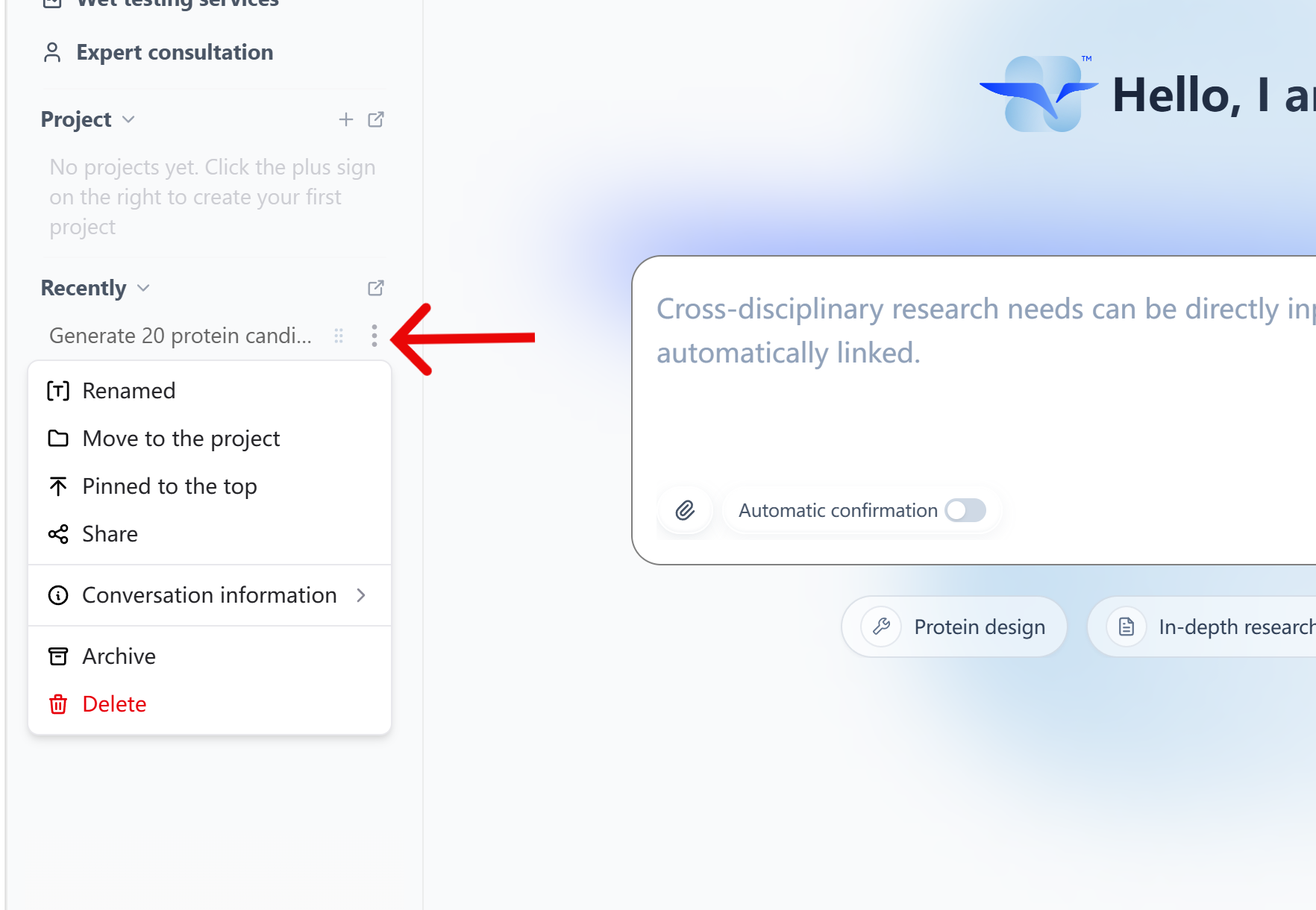
| Action | Purpose | Suggestion |
|---|---|---|
| Rename | Change the display name in the list | Use "subject + task" naming |
| Move to project | File the conversation into an existing project or the unclassified area | Confirm the target project and memory scope first |
| Pin | Keep important conversations prominent | Good for tasks used often at this stage |
| Share | Open the conversation sharing flow | Check questions, attachments, and results for sensitive information first |
| Archive | Tidy unused conversations out of the active list | Confirm how retrieval works on the current platform first |
| Delete | Delete the conversation | Download result files you need to keep before acting |
Rename a conversation
After selecting Rename, the name becomes editable.
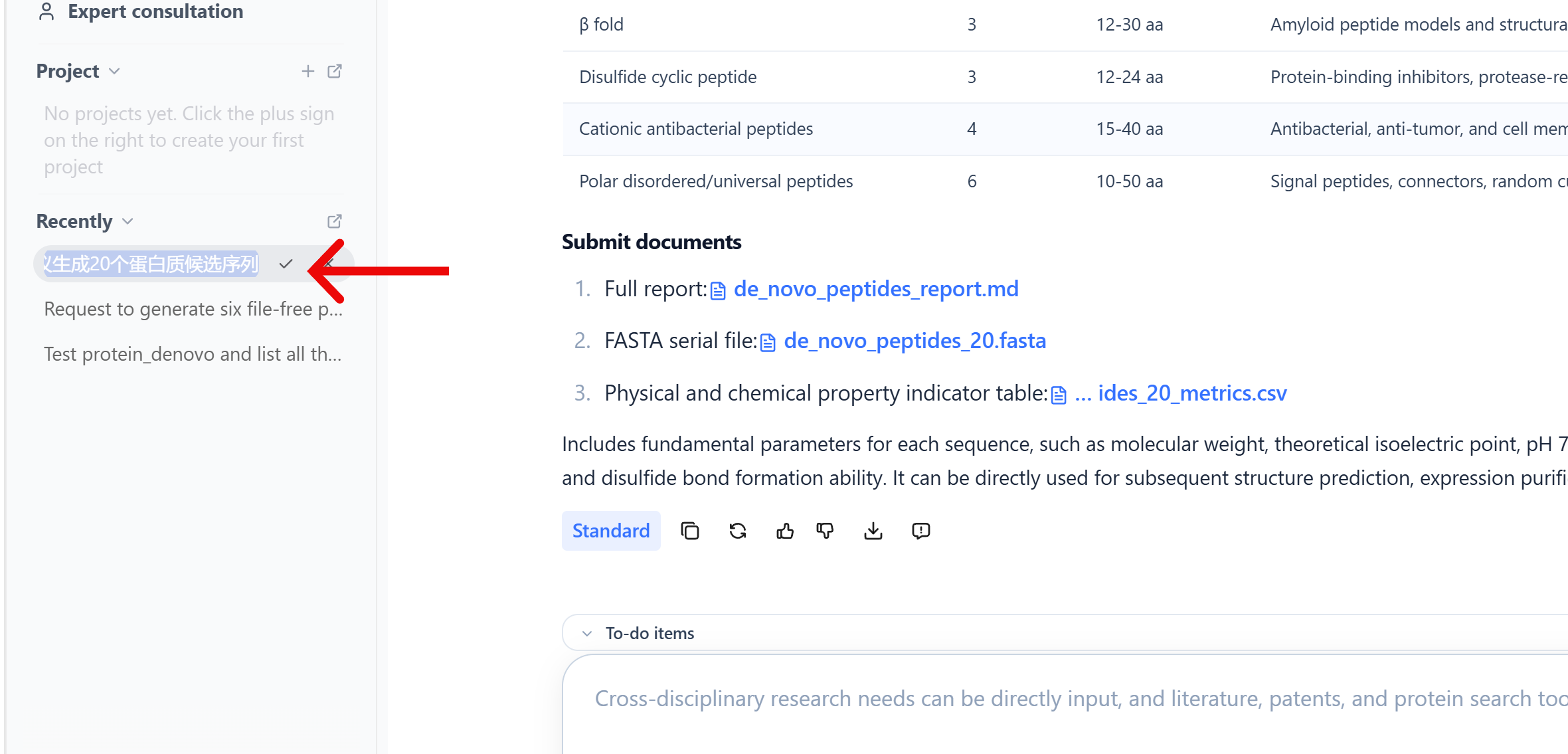
- Type the new name and select the check mark to save.
- Select the X to cancel.
- Renaming only changes the list label; it never re-runs the task.
Recommended naming:
For example:
PD-L1 + BMS-202 dual-tool molecular docking
CXCL12 human high-affinity receptor retrieval
PET hydrolase candidate screening
Before deleting
Deletion is a high-risk action. Check the conversation files panel first and download input files, results, and reports worth keeping; do not assume deletion is reversible.
Create a project
Projects organize multiple conversations under one R&D goal—for example, target research, candidate screening, structural analysis, and experiment planning each live in their own conversation, all filed into one project.
Select New project and fill in the basics.
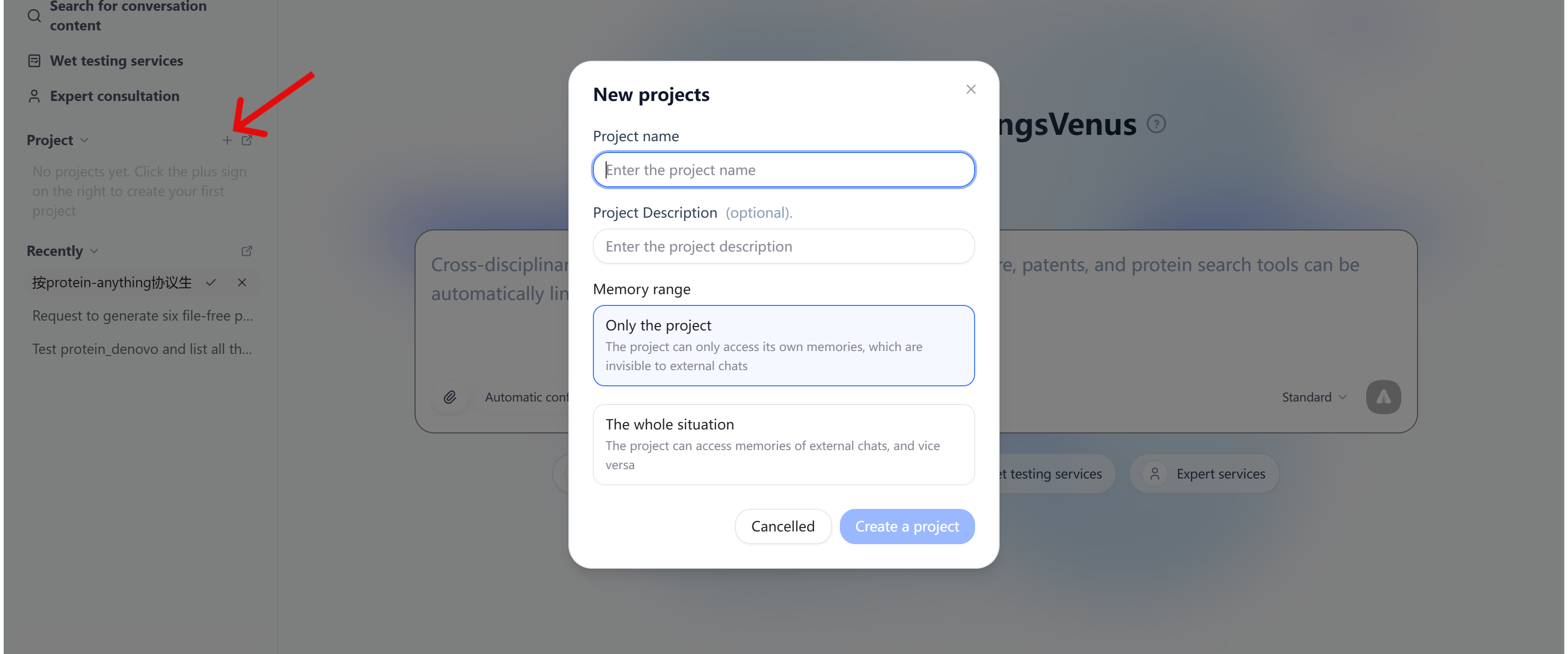
| Field | Requirements and suggestions |
|---|---|
| Project name | Required, up to 50 characters on the current page; state the subject and stage |
| Description | Optional, up to 100 characters; state goal, scope, and key constraints |
| Memory scope | Required; decides how memory is shared between the project and outside chats |
Select Create project when done.
Choose the project memory scope
When creating a project, choose between Project only and Global.
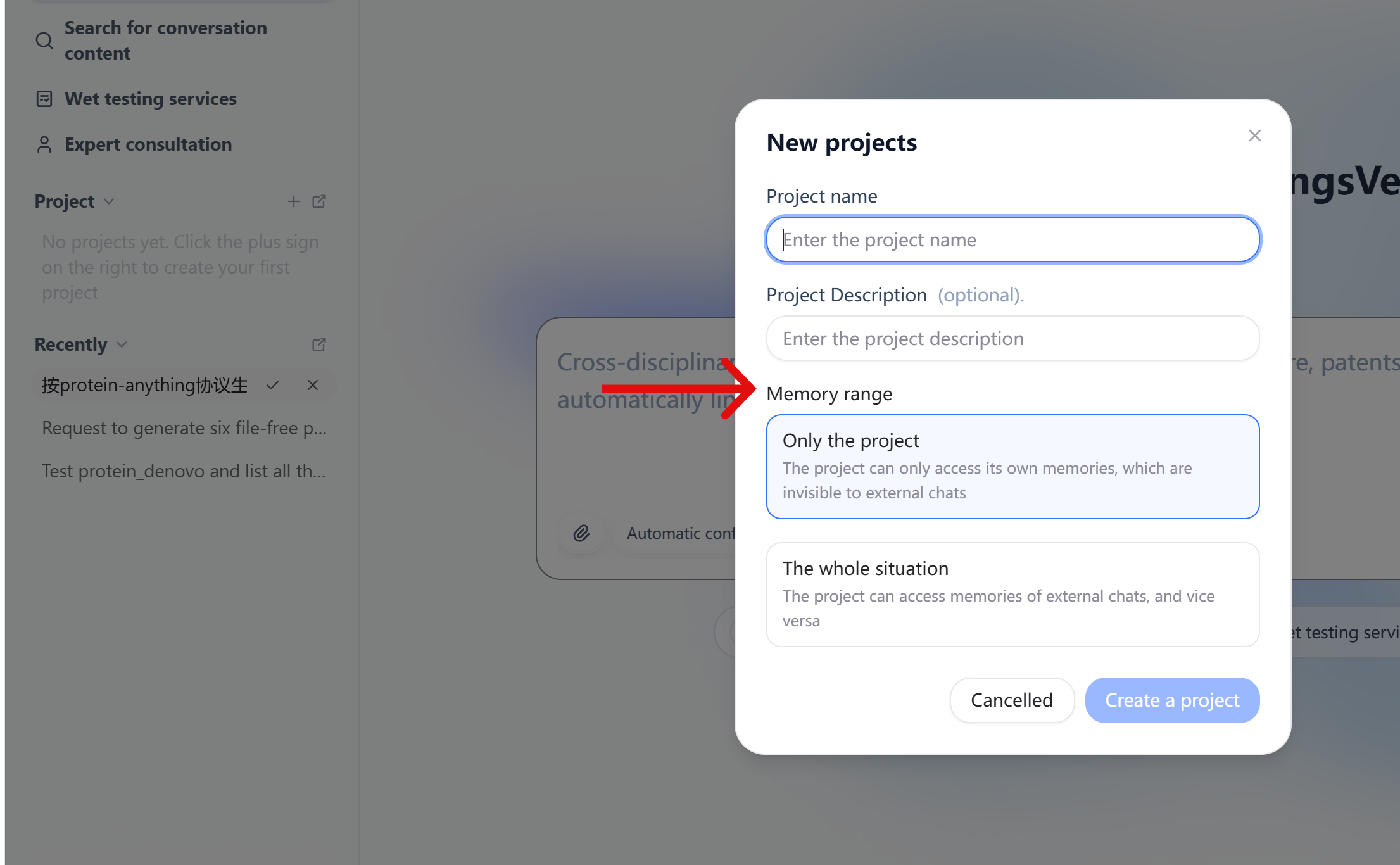
Project only
The page describes it as: the project can access only its own memory, and its memory is invisible to outside chats.
Suited when:
- Research context must stay inside one project.
- Other ordinary conversations should not reference this project's memory.
- The project involves an independent client, target, or internal R&D scope.
Global
The page describes it as: the project can access the memory of outside chats, and vice versa.
Suited when:
- The project reuses general background from outside conversations.
- Project knowledge should participate in other conversations.
- Cross-conversation use of this information is confirmed to meet data governance requirements.
Memory scope is not a file-permission substitute
Memory scope affects how context is used between the project and outside chats, but it is not an organization permission, sharing permission, or data-masking mechanism. For internal data, also review account, organization, and sharing settings.
Whether the memory scope can be changed after creation follows the settings the project page currently offers. Decide isolation needs before creating.
Recommended project organization
Do not create a project for every question. A project corresponds to an ongoing research goal; conversations correspond to relatively independent tasks within it.
For example:
Project: PD-L1 small-molecule inhibitor research

Conversation: PD-L1 structures and known binding pockets
Conversation: BMS-202 literature and co-crystal retrieval
Conversation: BMS-202 dual-tool molecular docking
Conversation: candidate pose interaction analysis
Conversation: follow-up validation plan
This avoids one oversized conversation carrying retrieval, computation, and experiment planning at once, and lets you retry or share each stage separately.
Checklist before sharing, archiving, or deleting
Before acting on an important conversation, check:
- Result files you need are downloaded.
- The conversation name does not disclose unpublished project or client information.
- Questions and attachments contain no internal sequences, structures, or experimental data.
- The sharing scope matches your data usage permissions.
- You are deleting the right conversation, not one with a similar name.
- The project memory scope permits the information to be used in outside conversations.
For viewing and downloading files in a conversation, see Review analysis and results; for entering new tasks, see Ask questions and upload files.