Meet the agent workbench
The agent workbench is the unified page for submitting protein R&D questions, watching task progress, and asking follow-ups. Tasks such as protein query, protein engineering, protein discovery, protein generation, molecular docking, and protein properties are all completed here.
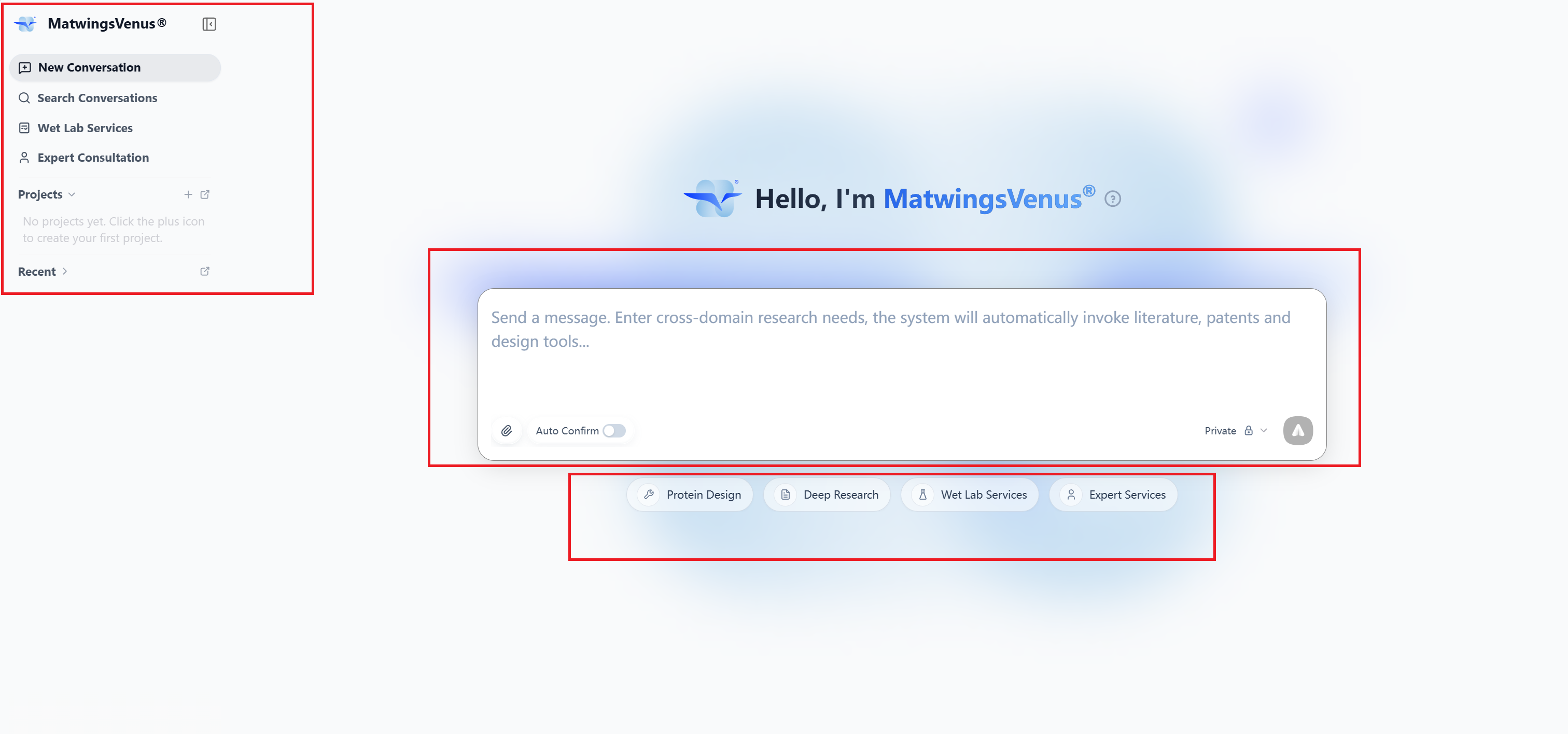
The workbench has three main areas:
- Left navigation: start and find conversations, and open projects, wet-lab services, or expert consultation.
- Question input area: enter your research question, add attachments, and choose how the task runs.
- Task categories and examples: browse example questions by common task direction.
After you submit a question, the main area switches to the conversation page and progressively shows task status, the analysis process, tool calls, and the final answer.
Left navigation
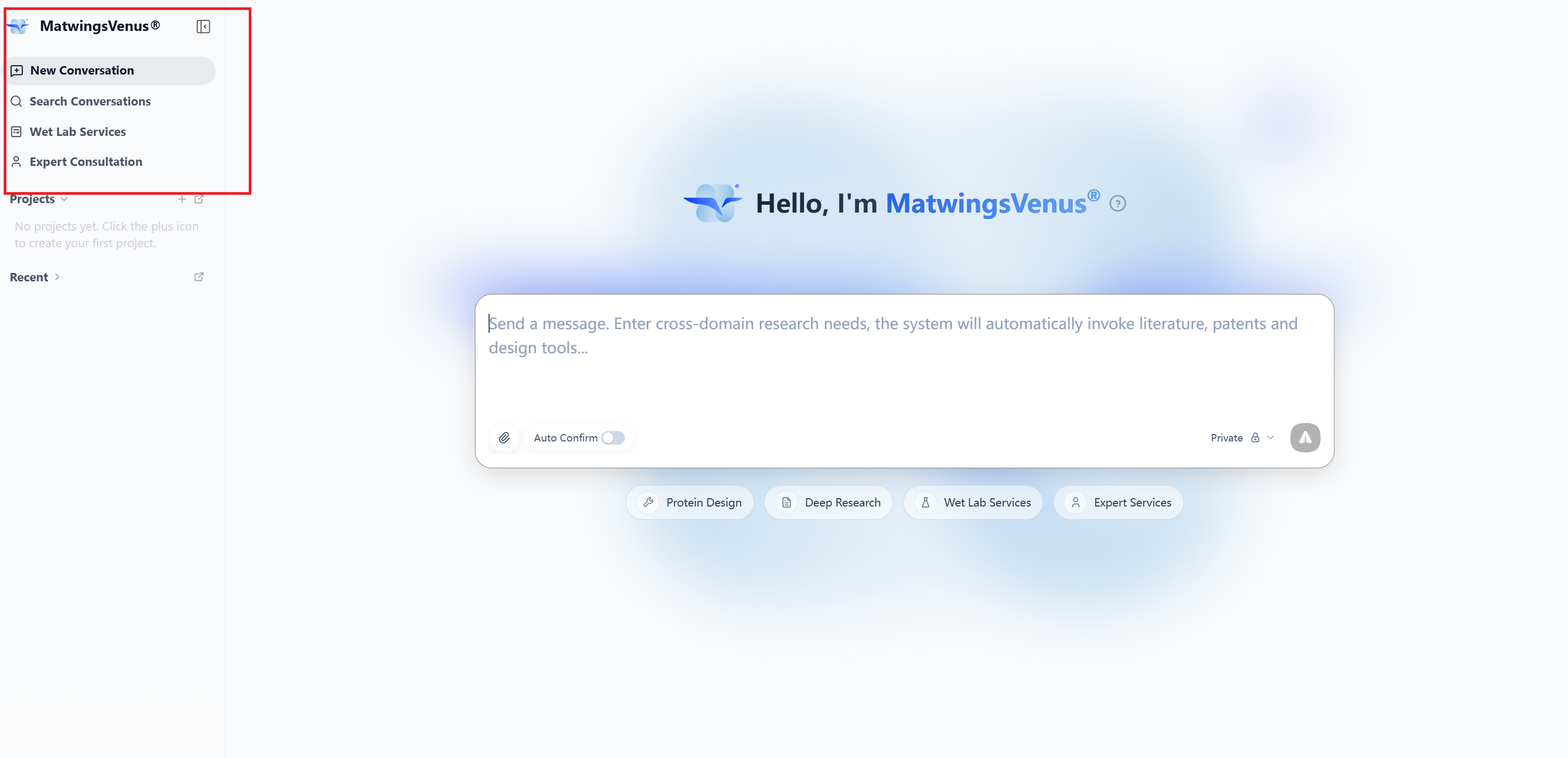
| Entry | Purpose |
|---|---|
| Start a new conversation | Open a blank workbench and begin a new research task |
| Search conversations | Find existing conversations by keyword |
| Wet-lab services | Browse experiment services offered by the platform and submit requests |
| Expert consultation | Find experts in relevant fields and start a consultation |
| Projects | Group related conversations under one research project |
| New project | Create a new project space |
Existing projects and recent conversations appear in the left navigation. When handling different subjects or independent tasks, start a new conversation so the previous task's context does not influence the current question.
New project
New project creates a dedicated space for an ongoing research goal. A project can hold multiple related conversations—for example, background research, candidate screening, structural analysis, protein engineering, and experiment planning for the same target can each live in their own conversation, all grouped into one project.
After selecting New project, fill in or choose:
| Field | Current requirement | Suggestion |
|---|---|---|
| Project name | Required | Use "subject + goal or stage", e.g. "PD-L1 inhibitor screening" |
| Description | Optional | Briefly state the research goal, data scope, and key constraints |
| Memory scope | Required: "Project only" or "Global" | Choose based on whether the project needs to share memory with outside conversations |
After creating a project, use the more-actions menu on a past conversation and choose Move to project to add it. If no project exists yet, the Move to project dialog prompts you to create one first.
Project memory scope
Memory scope determines whether a project and chats outside it can use each other's memory:
| Memory scope | Meaning | When to use |
|---|---|---|
| Project only | The project can access only its own memory; project memory is invisible to outside chats | Independent clients, separate targets, internal R&D, or tasks whose background should not be referenced by ordinary conversations |
| Global | The project can access memory from outside chats, and outside chats can use this project's memory | Tasks that reuse general research background and where cross-conversation information use is confirmed to be allowed |
When choosing, prioritize information isolation:
- If the project contains client materials, internal sequences, unpublished structures, or sensitive experimental data, choose Project only.
- If the project uses only public material and needs to reuse general background from outside conversations, consider Global.
- If unsure whether cross-conversation use is allowed, choose Project only first, and confirm on the current page whether the scope can be changed later before creating.
Memory is not a full history
Project memory helps the agent use relevant background, but it does not guarantee that a new conversation automatically receives the full text, attachments, parameters, and results of every past conversation in the project. When starting a critical task, restate the subject, database IDs, file versions, experimental conditions, and output requirements; when using old files, confirm the current conversation can access them.
Memory scope is not a permission setting
"Project only" and "Global" describe memory usage only. They do not replace account permissions, organization permissions, file sharing, conversation sharing, or data masking. Before moving a conversation into a project, check that its attachments, results, and sensitive information fit the project's data scope.
Projects suit long-term research goals; do not create one for every simple question. To keep filtering, interpreting, or sourcing a single result, stay in the current conversation. Start a new conversation or project when the subject or data scope clearly changes. For full creation, moving, renaming, and organizing instructions, see Conversations and projects.
Account and credits
The bottom of the left navigation also shows credit and account entries. Agent tasks may consume credits; actual consumption is shown while the task runs and on the account page.
Question input area
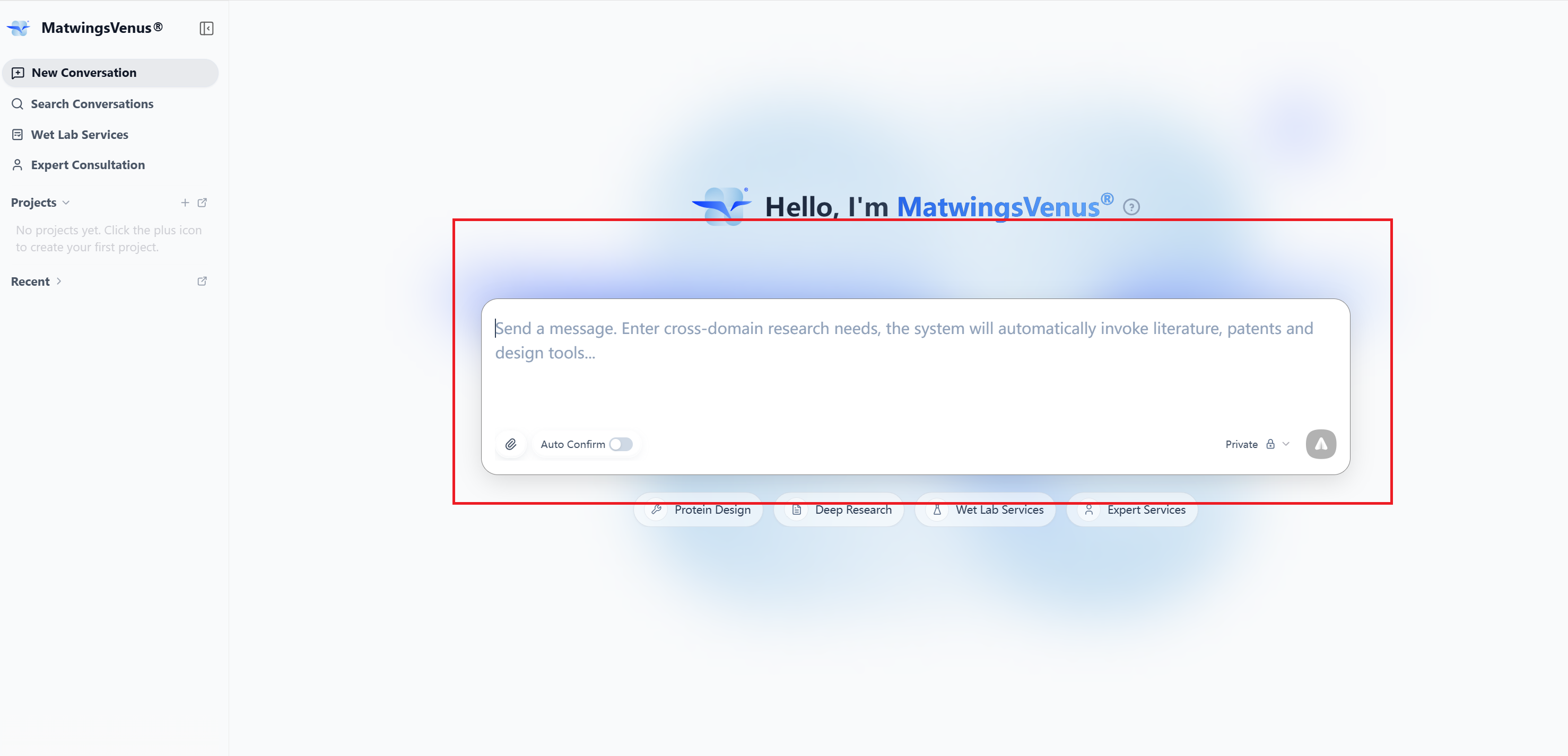
The question input area contains:
- Text box: describe the subject, goal, constraints, and expected output.
- Attachment button: add sequences, structures, or other supporting files the task needs.
- Deep research report: for research tasks that need multi-step retrieval and fairly complete material; deep research mode produces a structured research report with citations.
- Run mode: the page shows the current mode, e.g. Turbo; select the mode name to see the available options. Available modes include general conversational agents and deep-research agents, among others.
- Send button: submit the task once the question meets the requirements.
Modes differ in processing depth, run time, and credit consumption; the data or features available may also differ by mode, and some capabilities depend on your subscription—what is available is shown on the page.
The workbench also supports general capabilities such as web search, image generation or editing, and document export; you can also have the agent remember or update long-term preferences and facts. Document export supports only Markdown files in the workspace; the number of web search results and generated images may be capped. Available capabilities are set by the platform; see the page for actual entries and availability.
For how to organize questions and add files, see Ask questions and upload files.
Task categories and examples
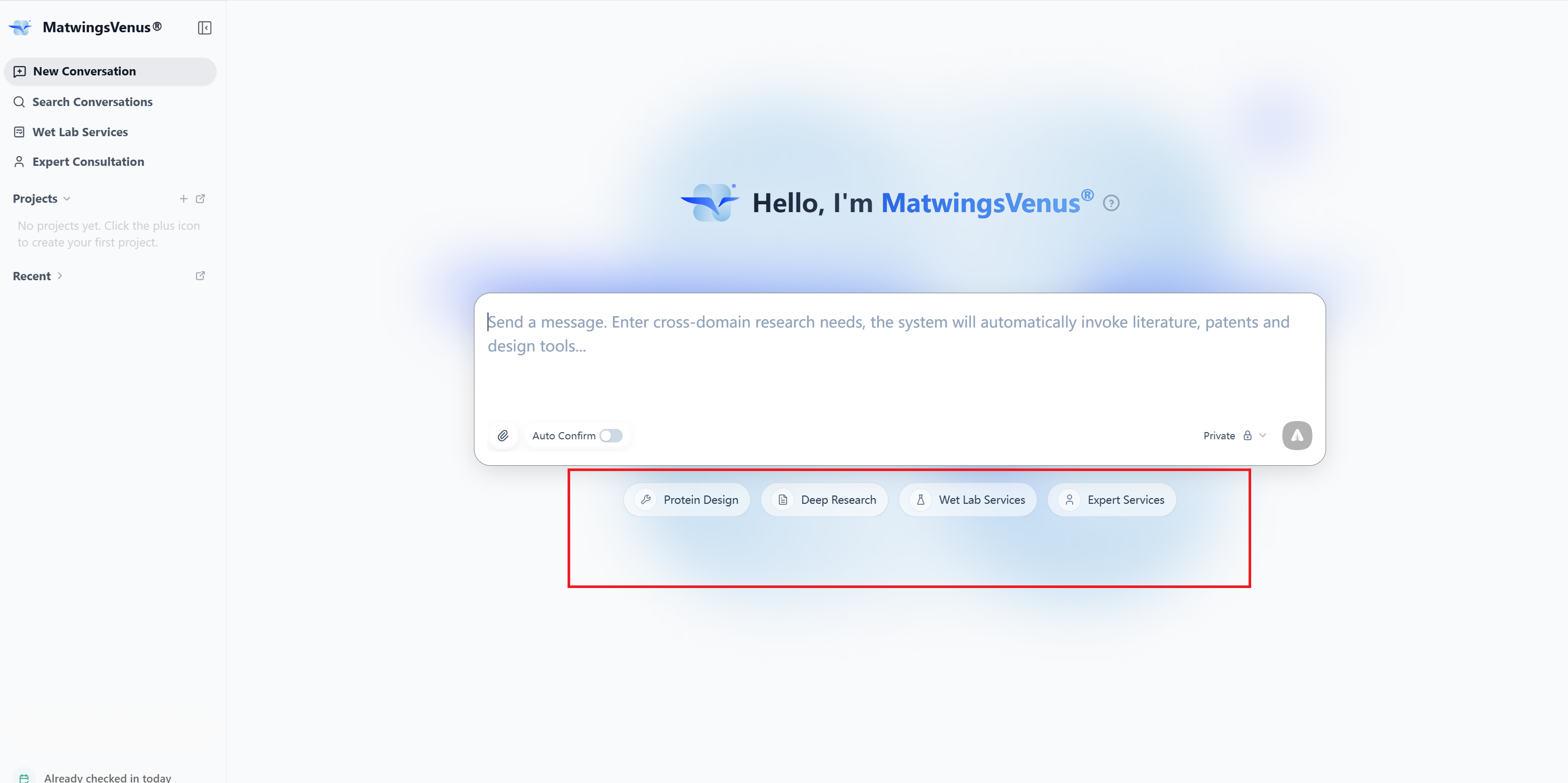
The workbench shows example tasks by common research direction:
| Category | Example requests |
|---|---|
| Protein query | Look up function, localization, expression, pathways, or disease associations |
| Protein engineering | Design engineering plans that improve activity, stability, solubility, or affinity |
| Protein discovery | Find candidate proteins by target function, screening criteria, sequence, or 3D structure |
| Protein generation | Generate candidate designs from a structure, binding partner, or design constraints |
| Molecular docking | Analyze how a protein may bind small molecules, peptides, or proteins |
| Protein properties | Predict or organize catalytic activity, solubility, stability, pH-related properties |
Selecting a category narrows the examples. Example cards show how common questions are written and can guide your own wording.
For the data sources, models, and computational tools each domain can draw on, see Feature domains and capabilities.
Categories are not separate pages
All categories share the same agent workbench. What the agent actually does is determined by your question, input files, and constraints—not by the category name. One question can also combine several steps such as query, screening, and engineering.
Conversation and reply area
After a question is sent, the page enters the conversation. The reply area may contain:
- Your original question.
- The running status of the current task.
- The agent's analysis process.
- Tool call records for data retrieval or computation.
- The consolidated final answer.
- An input area for adding constraints or follow-up questions.
Complex research tasks may ask you to confirm an execution plan or report outline; the task continues only after you confirm or adjust per the page prompt.
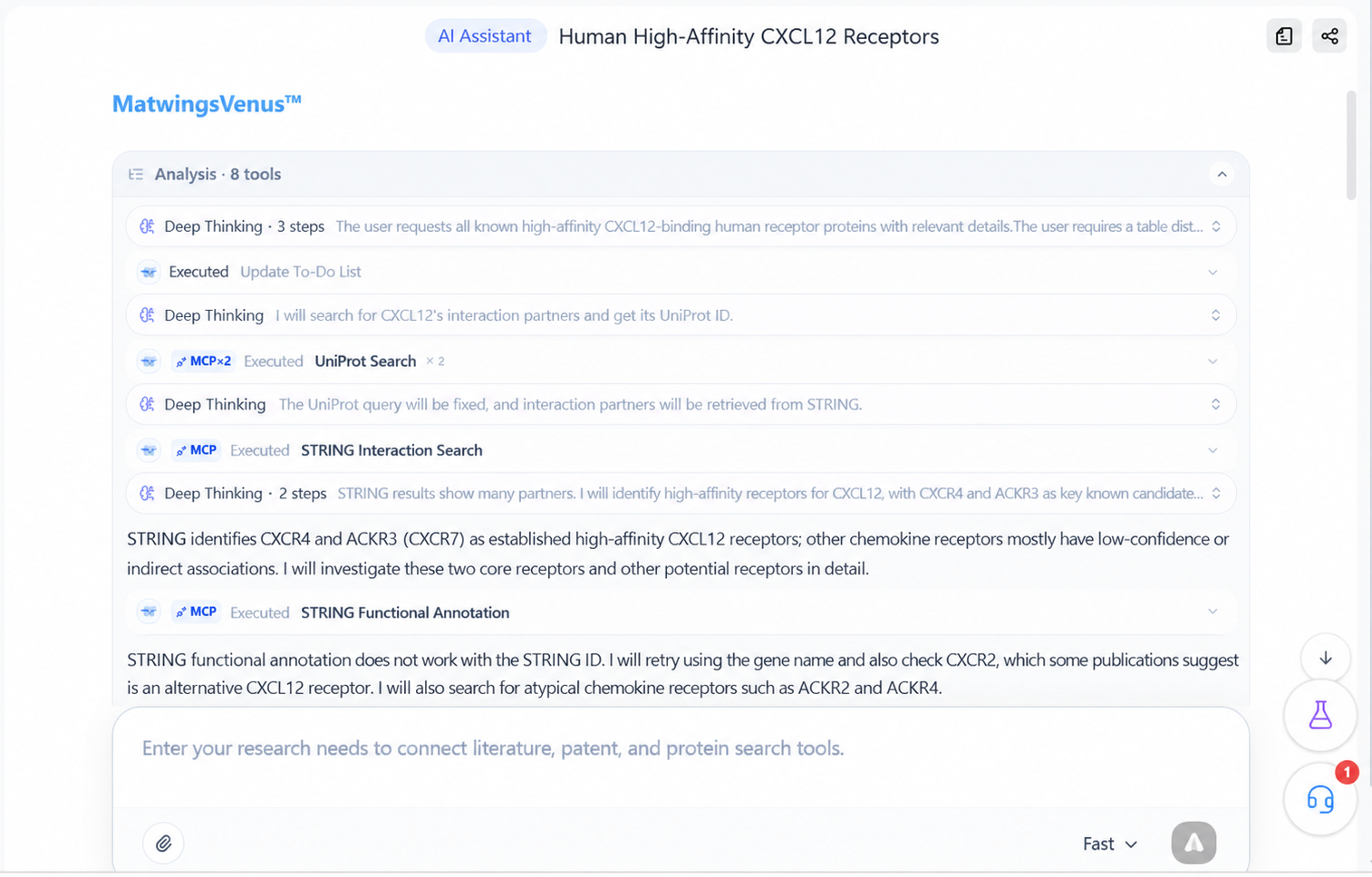
The analysis process and tool outputs are intermediate information and should not be taken as final conclusions. For how to expand tool records, read run states, and verify the final answer, see Review analysis and results.
What to do next
| What you want | Read |
|---|---|
| Run a real task end to end | Complete your first agent task |
| Write questions or upload your own files | Ask questions and upload files |
| Review the analysis process and final result | Review analysis and results |
| Organize past conversations and projects | Conversations and projects |
Before using research results
Database information and computational predictions organized by the agent are not experimental conclusions. Verify critical results against the original databases, literature, or input files, and arrange experimental validation or expert review as your research requires.