Membership, subscription, and refunds
Membership grants the feature benefits and plan credits the page lists for an agreed period. Activating, renewing, upgrading, or refunding affects real funds, the membership term, and credits—verify the current plan, payment amount, benefit period, and auto-renewal state before acting, and read the formal rules shown at payment.
Membership benefit period
The current official rules define the standard benefit period as:
| Membership | Period under current rules | Note at expiry |
|---|---|---|
| Monthly | Fixed 30-day cycle | Without renewal before expiry, current benefits and remaining plan credits expire to zero |
| Annual | 12 consecutive months, fixed 360 days | Benefits, credit grants, expiry clearing, upgrades, and refunds uniformly follow current rules |
When membership expires without prior renewal, the current rules state:
- The membership's benefits expire.
- Remaining credits included in the current plan expire automatically to zero.
- Re-subscribing after expiry restarts the benefit period and the plan's initial standard credits.
- Plan credits already cleared in the previous period are not restored, accumulated, or credited.
"Plan credits" here must be checked separately from activity bonus credits, stacked credit packs, or other sources. How credits from different sources expire should be read together from the credit ledger and the purchase-page notes—not judged from the account total alone.
Check plan credits before expiry
Current rules clearly warn that remaining plan credits clear when membership lapses unrenewed. Before expiry, review the expiry date, credit sources, and validity; do not run unneeded tasks just to avoid the clearing.
Activate membership
After signing in, find plans from the account menu, membership center, or the subscription entry the page offers. Check in order:
- Confirm the signed-in personal account or organization is the one meant to subscribe.
- Open the plan page and compare benefits and scope.
- Review plan credits, benefit period, effective time, and expiry handling.
- Confirm whether the page shows a single subscription or one with auto-renewal.
- Verify the amount, currency, discount, invoicing, and payment channel.
- Read the standard membership rules, auto-renewal agreement, and privacy notice.
- Re-confirm the plan and account ownership before paying.
On the plan page choose monthly or yearly and compare Free, Explorer, Engineer, and Scientist on price, subscription credits, cloud storage, and concurrent task quota.
During promotions, the page's promo price governs; whether struck-through original prices show, button states, and purchasable plans follow the page at the time. Do not judge this payment from old screenshots or past order prices.

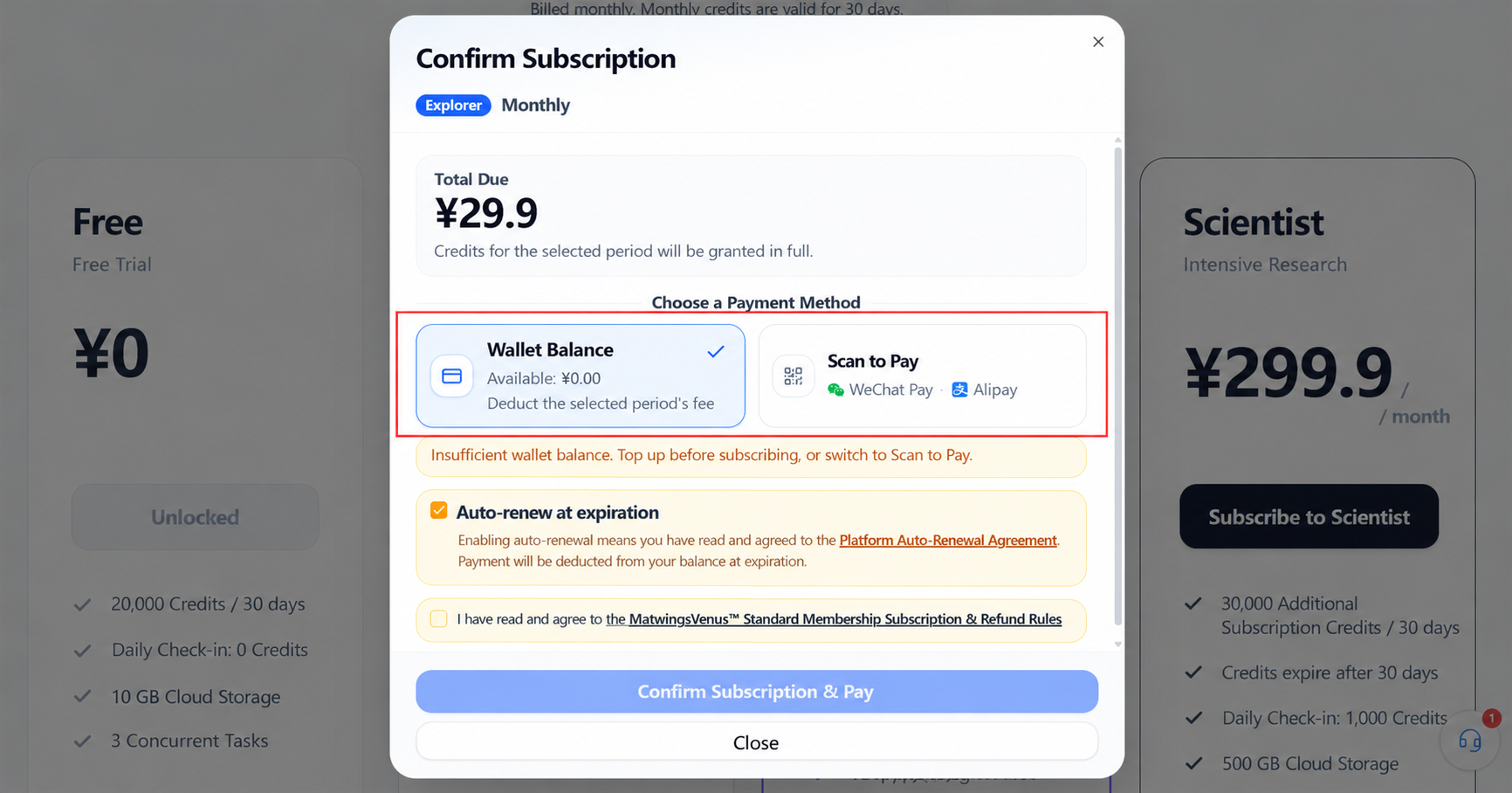
After clicking a plan's subscribe button, verify the plan name, period, and total in the confirmation dialog, then choose balance or QR-code payment. Before enabling auto-renewal, read the auto-renewal agreement; check the subscription and refund rules box, then confirm payment.
A charge in the payment channel alone does not prove activation. Return to the membership page and verify:
- Plan name and current status.
- Effective and expiry dates.
- Whether plan credits arrived and their validity.
- Whether auto-renewal matches your choice.
- Whether the order or payment record shows success.
If payment succeeded but membership is not active, save desensitized screenshots of the payment state and membership page; do not create duplicate orders.
Credit expiry rules
Membership-related credits split by source:
| Source | What to verify at expiry or handling |
|---|---|
| Current plan standard credits | Current rules: remaining plan credits clear on unrenewed expiry |
| Activity bonus credits | Check the activity validity; whether upgrades protect them follows current activity and membership rules |
| Stacked credit packs | Check the validity at purchase; linked refund settlement applies when the base membership is cancelled |
| Other activity or redeemed credits | Follow the matching activity, code, and ledger validity |
View balance, sources, and the ledger in Earning and using credits. When the page shows only a total, confirm each batch's source and validity—do not mistake membership expiry clearing for all credits sharing one date.
Requesting a refund
Current official rules: mid-term membership cancellation and refund requests go through official support for manual compliance reconciliation. The rules promise no fixed review or arrival deadline.
Prepare before applying:
- Current membership plan and subscription status.
- Purchase time, amount paid, and original payment channel.
- Membership start date, application date, and days used.
- The plan's initial standard credits and current available balance.
- Sources, balances, and status of bonus credits and stacked packs.
- Refund reason and any anomaly to explain.
Suggested order:
- Stop tasks that may consume plan credits.
- Screenshot membership status, expiry, and the credit ledger, desensitized.
- Contact the refund reviewers from the current page or official support entry.
- Provide the needed order identifier, payment status, and reason.
- Verify the remaining days, remaining credit ratio, and estimated refund the support gives.
- Confirm whether stacked packs enter the linked settlement.
- After submitting, save the refund status and await review—do not apply repeatedly.
Refund calculation
Current rules anchor on both the "remaining benefit days ratio" and the "account available credits remaining ratio", taking the lower of the two.
Remaining days ratio
= (30 − days used) ÷ 30

Remaining credits ratio
= current available credit balance ÷ plan initial standard credits

Final refundable amount
= total paid for the plan
  × Min(remaining days ratio, remaining credits ratio)
Notes on the calculation:
- Partial days used count as 1 day under current rules.
- The lower of the two ratios applies—not the average, and not the user's choice.
- If the result is zero or negative, current rules refund nothing.
- The "current available credit balance" follows the account and ledger at review time.
- The final refund still requires manual compliance reconciliation by support.
Worked example
Illustrative only; not current pricing or credit configuration:
Suppose a member paid 300 CNY, the initial standard credits were 30,000, the refund is requested on day 15, and 24,000 credits remain:
Remaining days ratio = (30 − 15) ÷ 30 = 50%
Remaining credits ratio = 24,000 ÷ 30,000 = 80%
Lower value = 50%
Example refundable = 300 × 50% = 150 CNY
This figure comes from a virtual scenario in the official rules and only explains the "lower value" principle. Actual refunds use the current order's paid amount and the review-confirmed days used and credit balance.
Your own calculation is not the final refund
Discounts, bonus credits, ledger adjustments, stacked packs, and payment state can all affect reconciliation. Use the formula to cross-check the settlement logic; the refundable amount and eligibility follow the current effective rules and review results.
Linked handling of credit packs
Current rules treat "stacked credit packs (boost packs)" bought on top of membership as attached assets. When you voluntarily cancel the base plan, unconsumed stacked packs must enter the same cancellation and refund settlement—they cannot be kept for use after the base cancellation.
Stacked packs settle independently by their own remaining credit ratio, not by membership days:
Pack refund amount
= total paid for the pack
  × (pack's current remaining credits ÷ pack's initial granted credits)
After manual review passes, current rules state the final refund combines the following and returns via the original payment channel:
When applying, list each stacked pack's purchase time, amount paid, initial credits, and current remaining credits—do not provide only the account total.
After the refund
On receiving the result, verify:
- Membership status updated.
- When benefits stop.
- Plan credits and stacked packs adjusted per the review.
- Refund status completed or still processing in the channel.
- The refund returned to the original channel.
- The credit ledger, membership order, and payment record correspond.
| Situation | How to check |
|---|---|
| Expiry date differs from expectation after upgrade | Confirm the upgrade day counts as day 1 of a new 30-day cycle |
| Credits abnormal after upgrade | Check "remaining credits + new plan credits − old plan credits" and inspect bonus credits separately |
| Refund lower than a days-only estimate | The refund takes the lower of remaining days and remaining credit ratios; check the credit ratio |
| Credits vanished after expiry | Check whether they were current plan credits and whether renewal preceded expiry |
| Pack also handled when cancelling | Current rules require unconsumed stacked packs to enter linked cancellation and refund settlement |
| Review taking long | Check the review status and ask through the original channel; do not resubmit |
| Channel has not arrived | Confirm both platform refund status and channel processing |
Rule changes and help
Current official rules reserve the right to adjust settlement ratios based on compute costs, server bandwidth, and operating strategy, and state that changes will be announced via notices, in-site messages, or system pop-ups.
Before activating, upgrading, or refunding:
- Check the rules page for update notices.
- Save the plan, price, credits, and agreement version shown at the time.
- Do not rely on this summary in place of the complete rules.
- Disputing refund eligibility, settlement data, or credit ownership—request manual verification through official support.
For auto-renewal charges and cancellation, see Auto-renewal and the Auto-renewal service agreement.