Gene synthesis
The gene synthesis service takes DNA or amino acid sequences and configures the expression host, codon optimization, vector, restriction sites, and delivery requirements. The page uses a stepped confirmation flow: after filling in the form, you verify the order, enter quoting, and finally submit.
This page demonstrates the workflow with a 66 bp public demo DNA sequence.
Open the gene synthesis form
- After signing in, open wet-lab services from the left of the agent workbench.
- Find Gene synthesis.
- Select Order now.
The top of the page shows four stages:
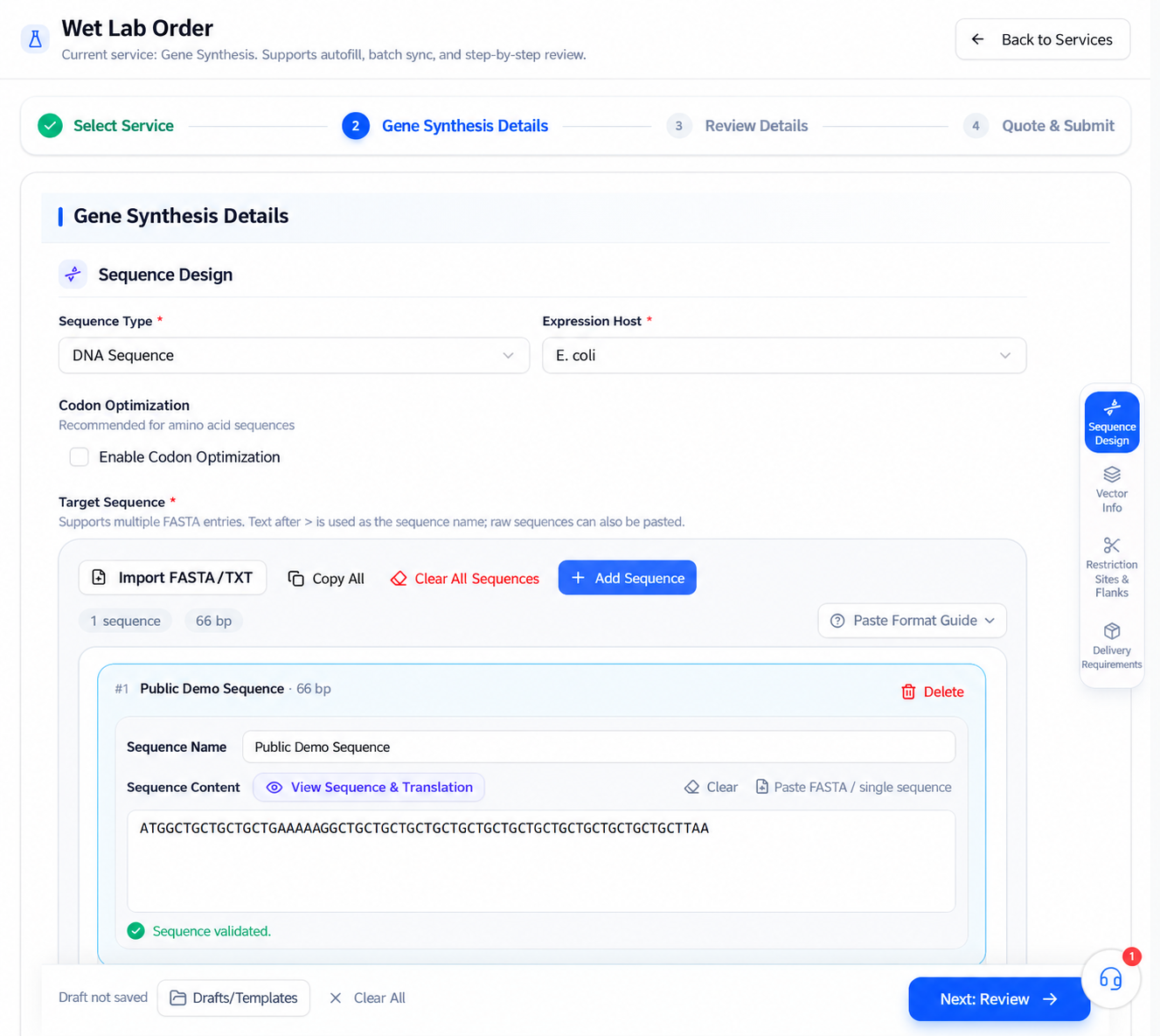
Until you finish Confirm information, enter quote and the final submission, the form does not mean a formal order has started.
Before you start
| Information | What to confirm |
|---|---|
| Sequence type | DNA or amino acid sequence |
| Target sequence | Direction, name, length, version, and legal characters |
| Expression host | The current form offers E. coli, Pichia pastoris, and others |
| Codon optimization | Whether to optimize for the expression host |
| Vector | Standard or custom vector; whether the platform already has it on file |
| Tags and resistance | Whether they fit downstream expression and screening |
| Restriction plan | Flanking sites, protective bases, and internal sites to avoid |
| Delivery requirements | Contents, number of synthesis tubes, and special notes |
Before filling in the real form, confirm the sequence source and usage rights. Do not create real production orders with the demo sequence on this page.
Fill in the sequence builder
Choose sequence type and host
- Under Sequence type, choose DNA sequence or Amino acid sequence.
- Under Expression host, choose the host you plan to use.
- Decide whether to enable codon optimization based on sequence type and expression plan.
The page suggests enabling codon optimization for amino acid sequences, but the decision should still match your host, vector, and experiment plan.
Add target sequences
The page offers:
- Import FASTA/TXT: import one or more sequences from local files.
- Paste directly: accepts FASTA or a single bare sequence.
- Add one: manually add a sequence card.
- Copy all: copy all current sequences.
- Clear all: remove current sequences; keep originals before acting.
For multi-entry FASTA, the text after > becomes the sequence name. After importing, check every name, content, and length—do not rely only on the displayed totals.
Give each sequence a unique, recognizable name. Even after the page shows "Sequence validation passed", manually check direction, start/end positions, stop codons, and the expected reading frame.
View sequence and protein translation
Select View sequence & protein translation on a sequence card to open the detail view.
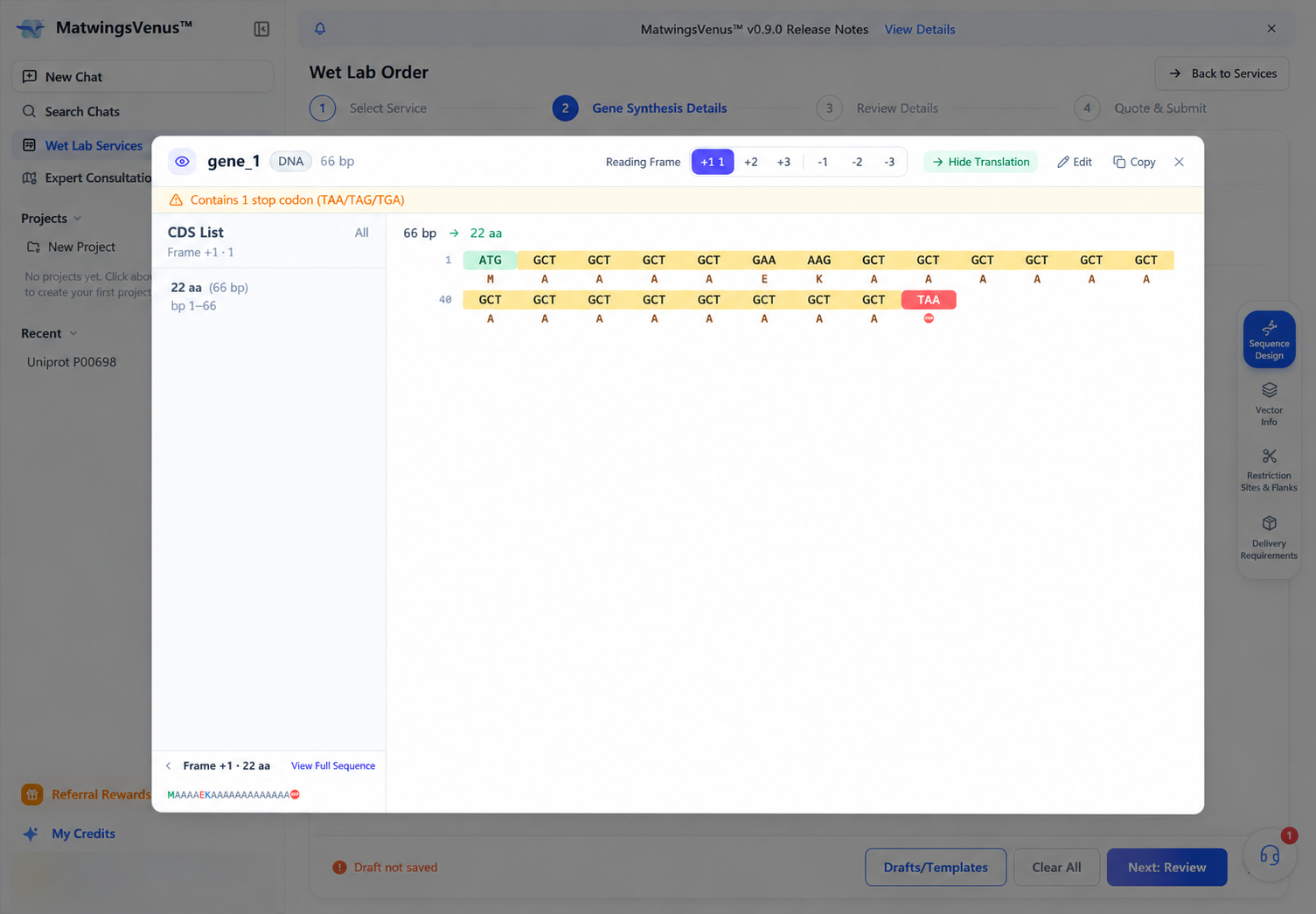
The detail view currently provides:
- DNA sequence name and length.
- Reading frames
+1,+2,+3,-1,-2,-3. - Show/hide for the protein translation.
- Coding region list and amino acid length.
- Stop codon hints.
- Edit and copy actions.
- Full sequence view.
The demo sequence translates to 22 aa in the +1 frame and contains one stop codon. For real sequences, verify the frame and stop position against the intended coding region; the page translation does not replace checking the original sequence.
Configure vector, tags, and resistance
After the sequences are done, choose a standard or custom vector under Vector information.
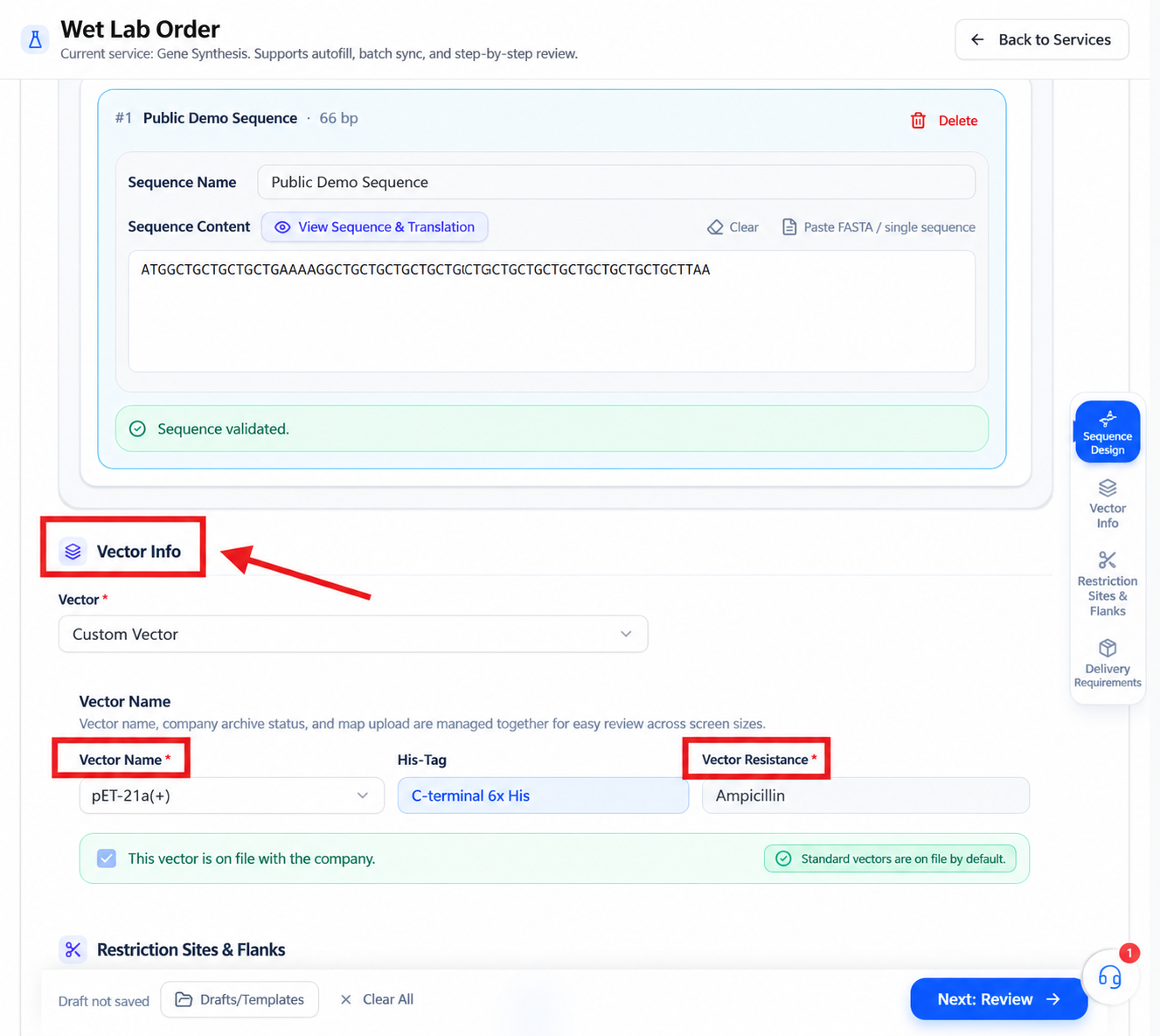
Check:
- Vector type and name.
- Tag type and position, e.g. C-terminal
6×His. - Vector resistance.
- Whether the platform already has this vector on file.
- Whether a custom vector needs a map upload.
The standard-vector page may auto-fill tags, resistance, and archive status. Auto-fill reduces typing but does not replace verifying the formal vector documentation.
For a custom vector, fill in the name and provide the required map as the page asks. Vector, tags, resistance, expression host, and the later purification plan must be mutually consistent.
Set restriction sites and flanking sequences
The page configures the 5' and 3' ends separately:
- Choose a restriction site; leave it unselected or "no site" when not needed.
- After selecting, check the flanking protective bases auto-filled by the system.
- Review Internal sites to avoid (exclusion pool).
- Manually add any other sites your construction plan must avoid.
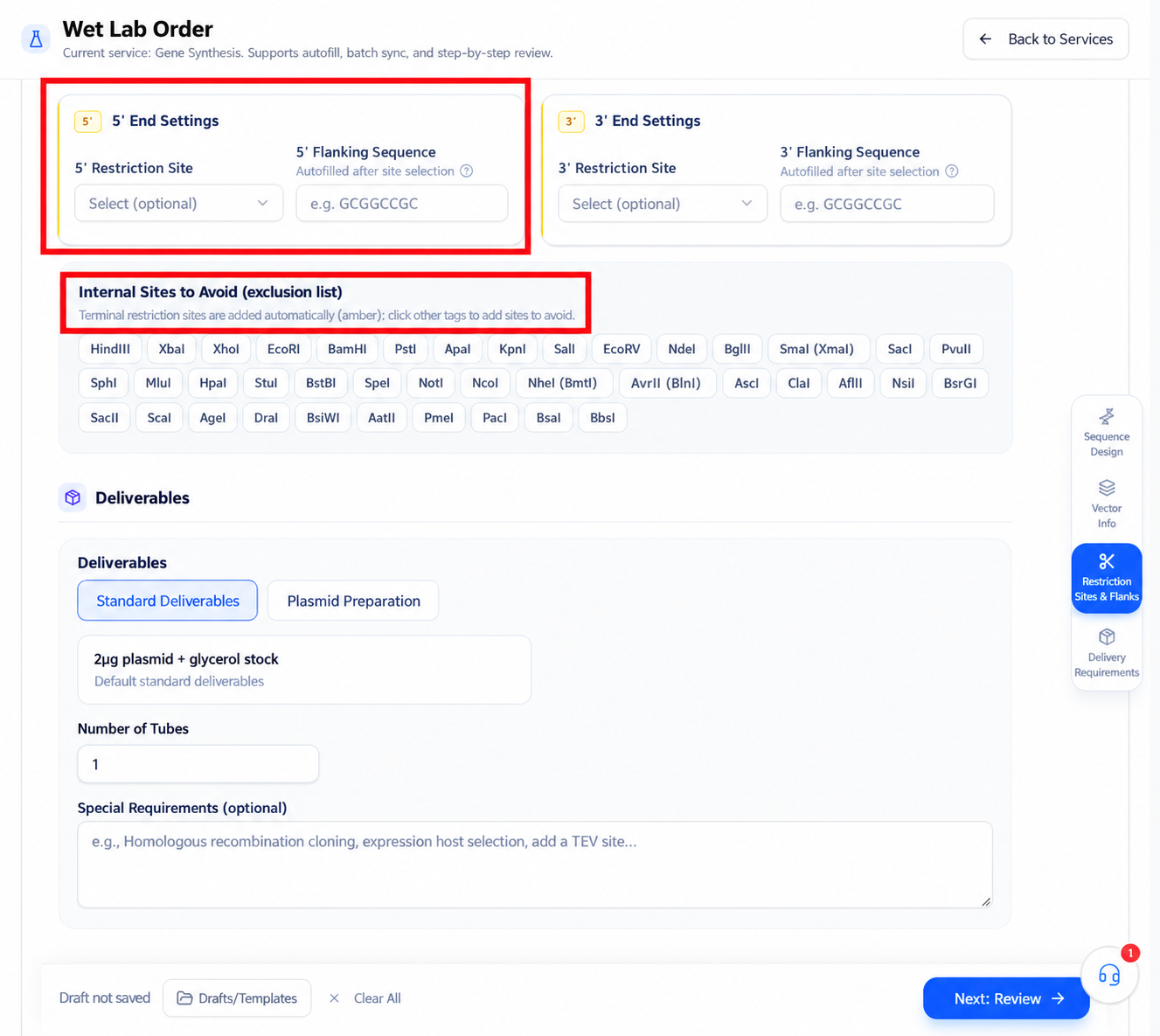
The page adds terminal restriction sites to the exclusion pool automatically. Before choosing a site, still check:
- The vector's multiple cloning site and construction direction.
- Whether the target sequence contains the same site internally.
- Whether the reading frame stays continuous.
- Whether tags and start/stop codons match the design.
- Whether the flanking protective bases meet the actual digestion requirements.
If the restriction plan is uncertain, stop and confirm with the platform instead of picking a site just to pass the form.
Set delivery requirements
In the current demo, the standard delivery contents are 2 μg plasmid + glycerol stock with 1 synthesis tube. Real orders follow the page's current options and the subsequent quote.
Special notes can cover:
- Homologous recombination construction requirements.
- Expression host choice.
- Tag or TEV site requirements.
- Maps, QC, and delivery conditions.
- Any other constraints the standard fields cannot express.
Key requirements must not live only in attachment names—enter them in the form or notes and re-check them at the confirmation stage.
Drafts and form actions
The bottom of the page offers Draft/template and Clear all actions, and may auto-restore the last draft.
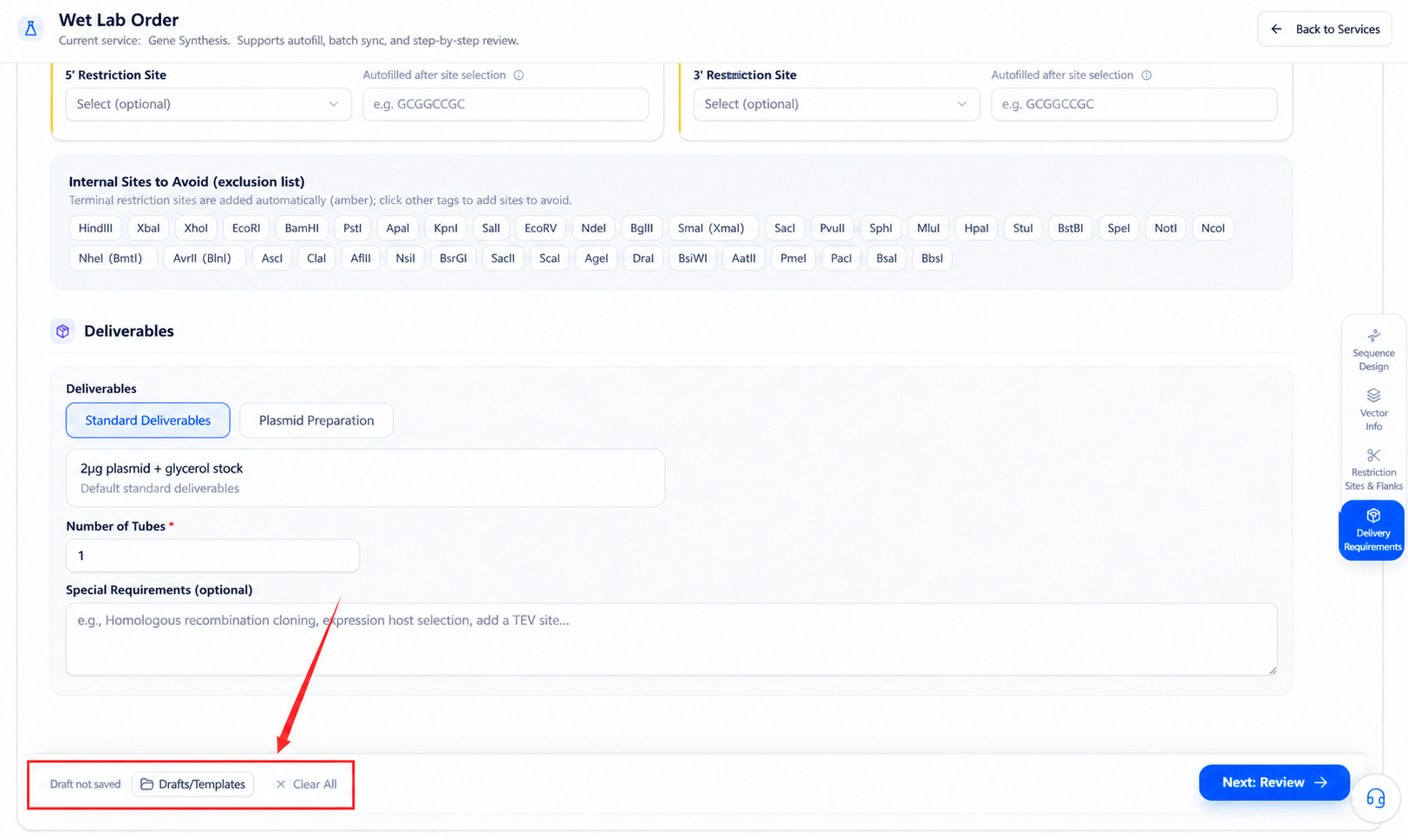
- Before resuming an old draft, check the sequences, vector, and delivery requirements still belong to the current task.
- After using a template, re-verify every auto-filled field.
- Clear all removes current input; keep original sequences and key configuration before acting.
- When the page shows "Draft not saved", do not assume refreshing or leaving will restore all changes.
Enter information confirmation
When done, select Next: information confirmation. The page summarizes the current order.
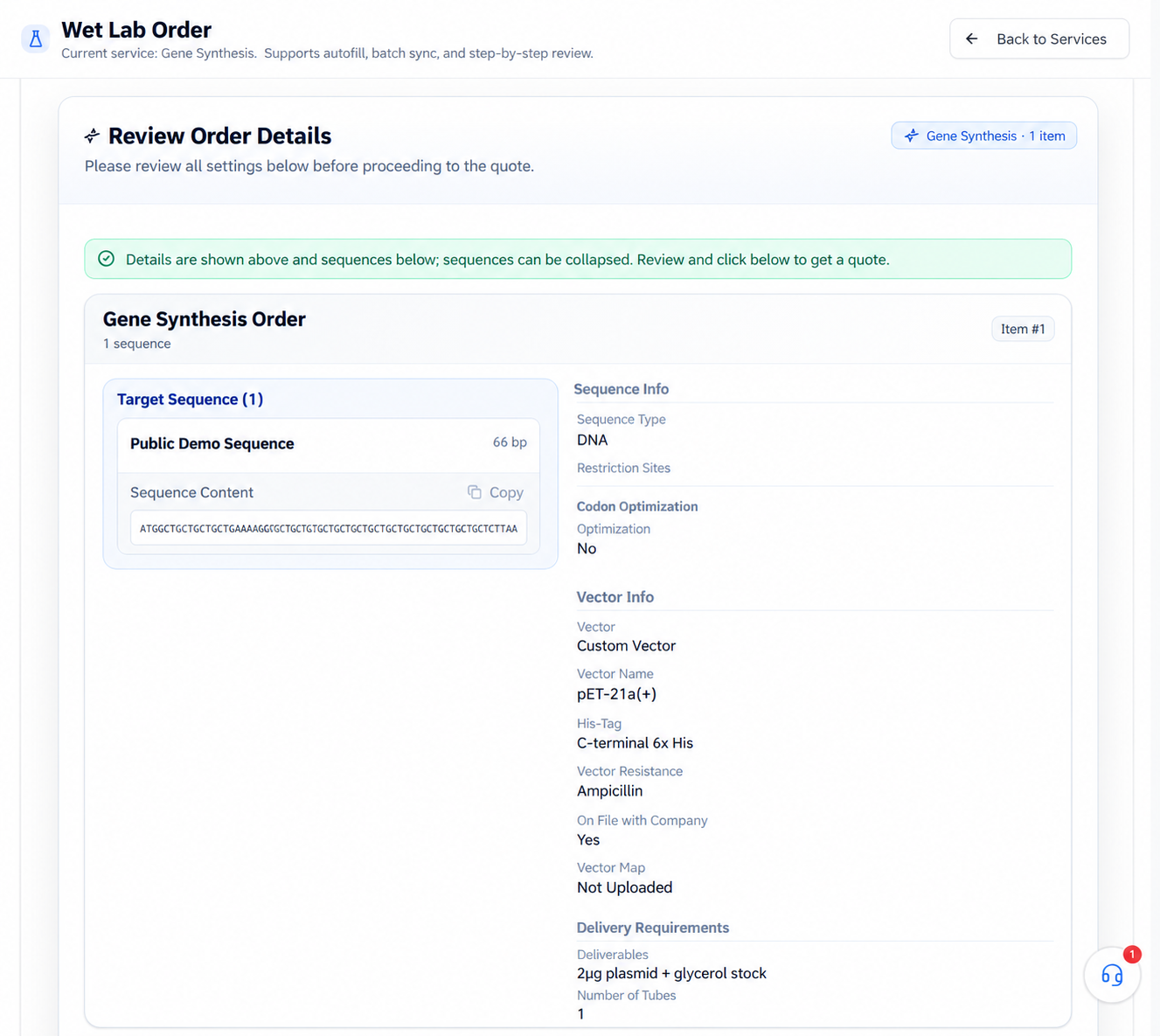
Back to edit returns to the form; Confirm information, enter quote advances to the next stage.
Before entering the quote, check item by item:
- Sequence names, content, length, direction, and version.
- Expression host and codon optimization settings.
- Vector, tags, resistance, and map.
- Terminal restriction sites, protective bases, and exclusion pool.
- Delivery contents, synthesis tubes, and special notes.
Quote and submission
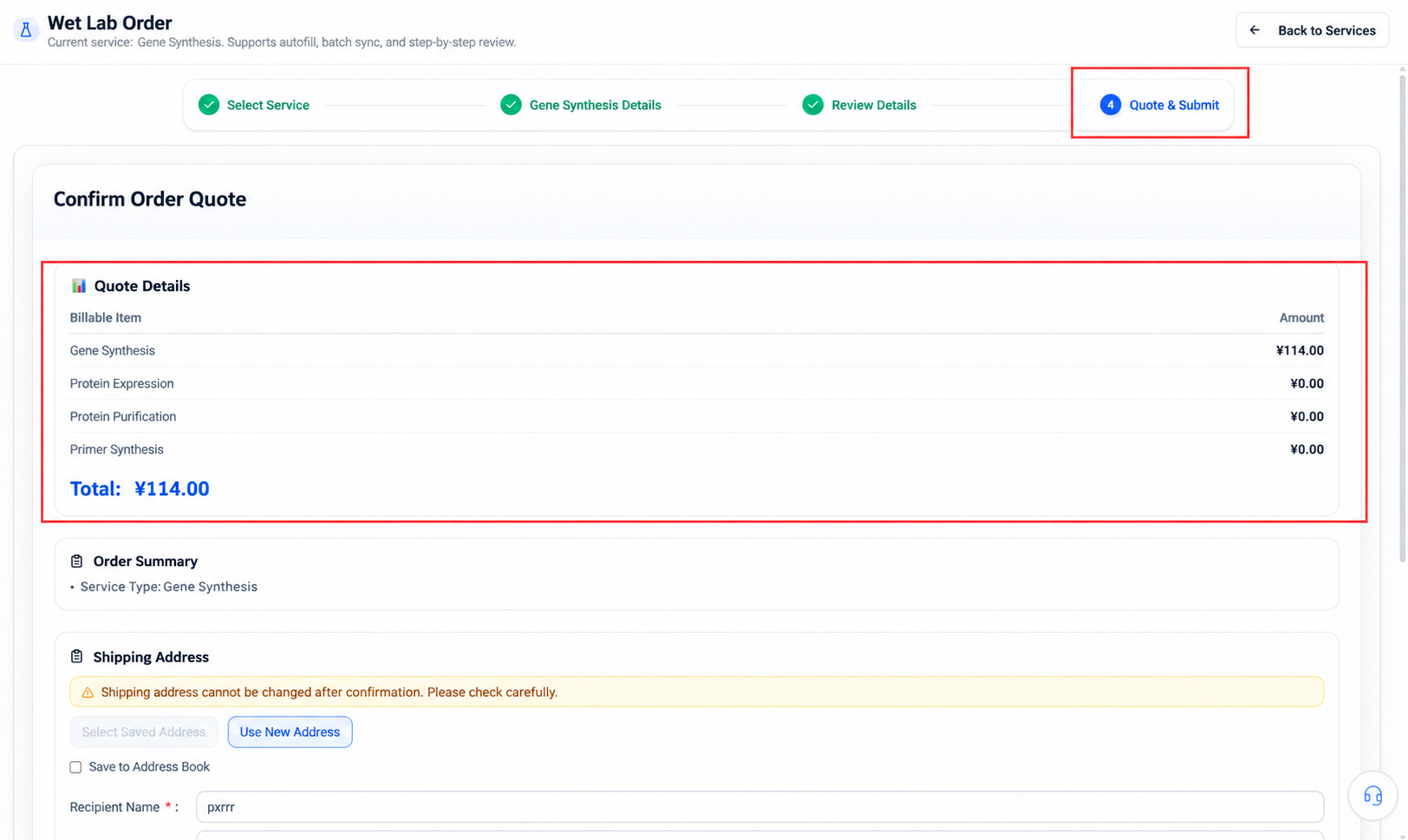
What the confirm buttons mean
Next: information confirmation only opens the review page; Confirm information, enter quote enters the quoting stage; the final submission may create a real business record. Read the page's wording at each step—do not click through the review.
Troubleshooting the form
| Situation | How to check |
|---|---|
| Sequence validation fails | Check sequence type, illegal characters, FASTA headers, and empty records |
| Translation looks wrong | Check direction, reading frame, start/stop codons, and sequence completeness |
| Cannot enter confirmation | Look for required fields marked * and make sure all sequences pass validation |
| Vector information inconsistent | Re-select the vector; verify tags, resistance, archive, and map status |
| Restriction plan conflicts | Check internal sites in the target, terminal sites, and the exclusion pool |
| Draft is for a different task | Re-verify the form item by item; clear and refill if necessary |
| Unsure standard service fits | Pause submission; use other custom services or confirm with the platform |
For order status after creation, see Order workflow and status.