Complete your first agent task
This page runs a CXCL12 receptor query and checks the database IDs, data sources, and evidence types in the result. The task requires no file uploads, but it consumes credits; the actual consumption and run time are shown on the page.
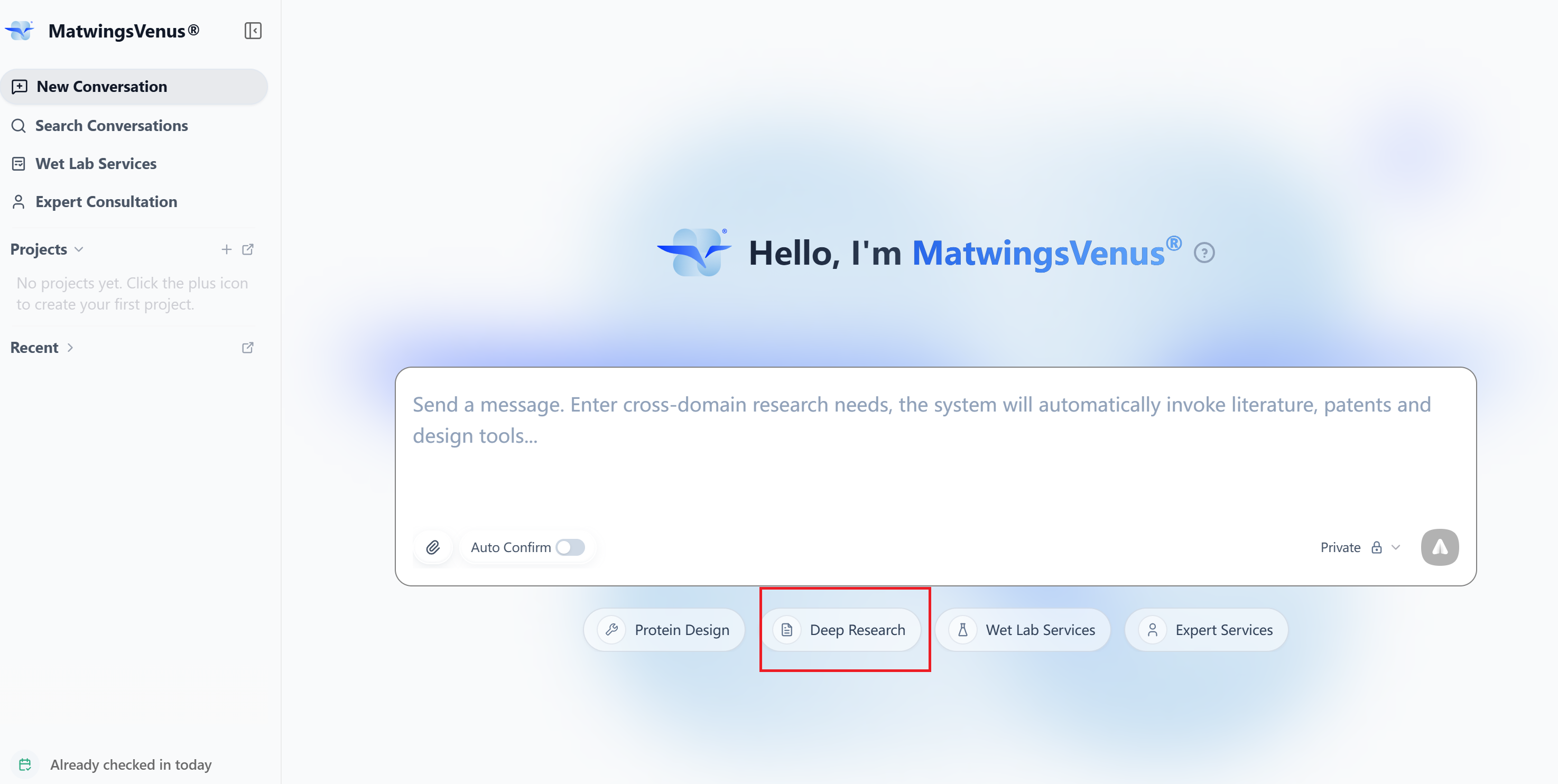
1. Start a new conversation
- After signing in, open the agent workbench.
- Select Start a new conversation on the left.
- Confirm that the question input area appears in the middle of the page, with task examples below it, such as protein query, protein engineering, protein discovery, protein generation, molecular docking, and protein properties.
Task categories exist to help you find similar example questions. All tasks are completed in the same agent workbench—you do not need to enter six separate pages.
2. Choose a run mode
Open the mode menu at the bottom-right of the input area and choose a run mode based on task complexity. In this example, the subject, scope, and output fields are already well defined, so choose Turbo.
| Mode | When to use | Typical tasks |
|---|---|---|
| Turbo | The goal, scope, and output requirements are already clear and you want a fast answer or a quick check of your question wording | Querying standard information about a single protein, explaining a well-defined term, organizing a small amount of known data, or lightly rewriting existing content |
| Standard | Everyday research tasks that balance speed, analysis depth, and credit consumption | Summarizing key material on a topic, comparing a few candidates, routine analysis based on attachments, or generating structured tables and summaries |
| Pro | More complex questions that need stronger domain analysis, reasoning, or multi-tool coordination while the research scope stays relatively clear | Protein engineering plans, integrated structure-function analysis, ranking multiple candidates, or comparing plans and risks under complex constraints |
| Deep research report | Multi-step retrieval across many sources, cross-checking evidence, and producing a fairly complete research report | Systematically reviewing research progress, consolidating literature and database evidence, analyzing conflicting conclusions, or producing a sourced, evidence-graded report |
Choose in this order:
- If you only need to quickly verify that the question is clear, or the answer is short with a well-defined scope, choose Turbo.
- If the task needs routine retrieval, analysis, and organization but no long reasoning chain, choose Standard.
- If the task involves domain constraints, multiple data types, or several tools and needs deeper comparison and reasoning, choose Pro.
- If the focus is broad retrieval, cross-validation, and a complete report, choose Deep research report.
The mode affects processing depth, run time, and credit consumption; the modes actually available and their costs are shown when you submit. A deeper mode does not guarantee a more correct answer: if the subject, attachments, constraints, or evidence requirements are unclear, improve the question first. On your first try, use Turbo to validate your wording, then switch to Standard, Pro, or Deep research report as the task requires.
3. Enter the example question
Type the following question into the input area:
Retrieve all known human receptor proteins that bind CXCL12 with high affinity, and summarize their UniProt IDs, subcellular localization, tissue expression, downstream signaling pathways, and known disease associations. Present the results in a table, distinguishing experimentally validated from predicted information.
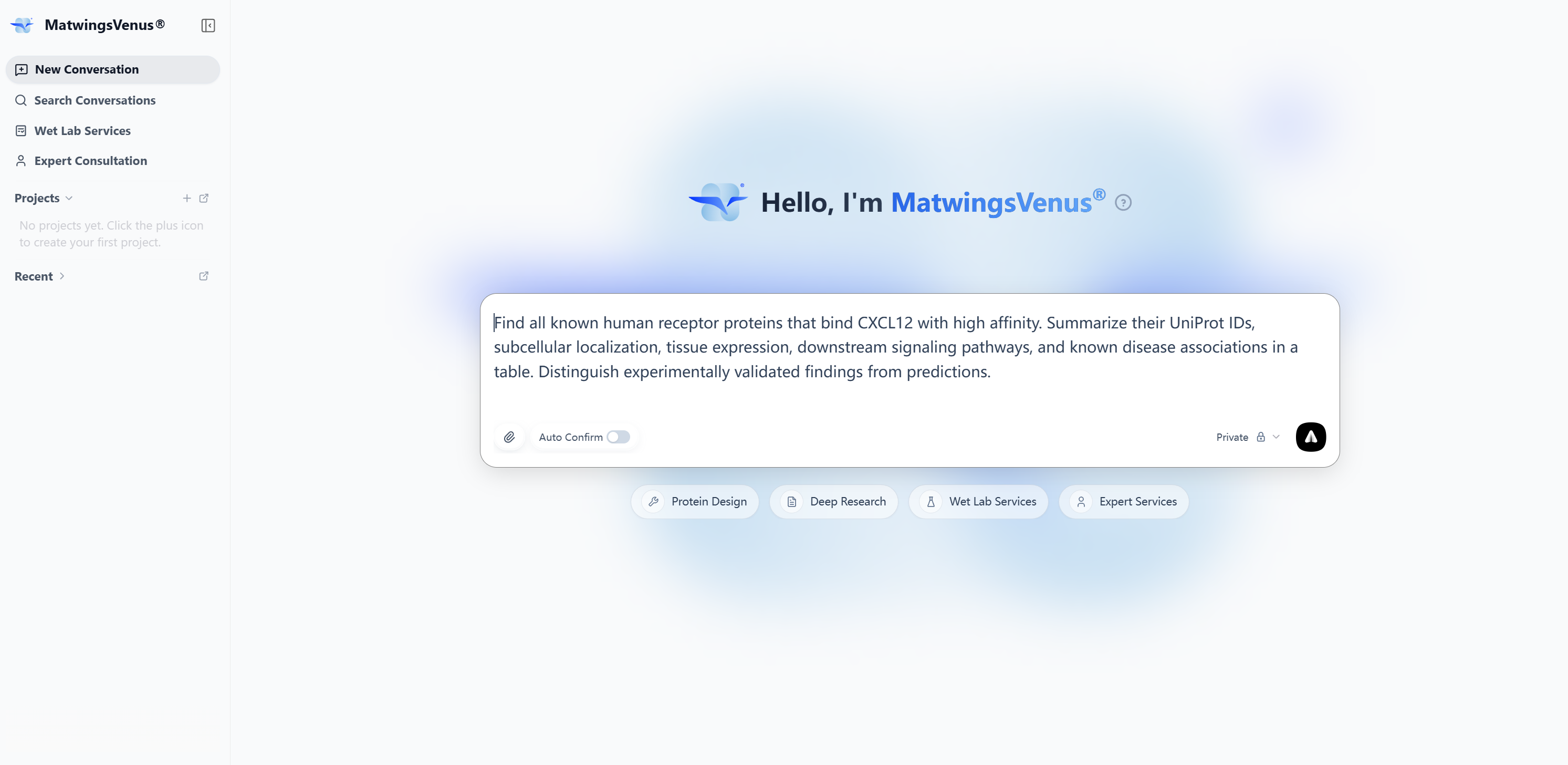
This question contains the key information the agent needs:
| Element | Requirement in this example |
|---|---|
| Subject | Receptor proteins of CXCL12 |
| Scope | Human, high-affinity binding |
| Output fields | UniProt, localization, expression, pathways, and disease associations |
| Output format | Table |
| Evidence requirements | Distinguish experimentally validated from predicted information |
Before sending, confirm the current mode and the question, then select the send button.
4. Wait for the task to finish
After sending, the conversation enters the Running state. The page may progressively show the analysis process, tool counts, data source names, and tool execution status.
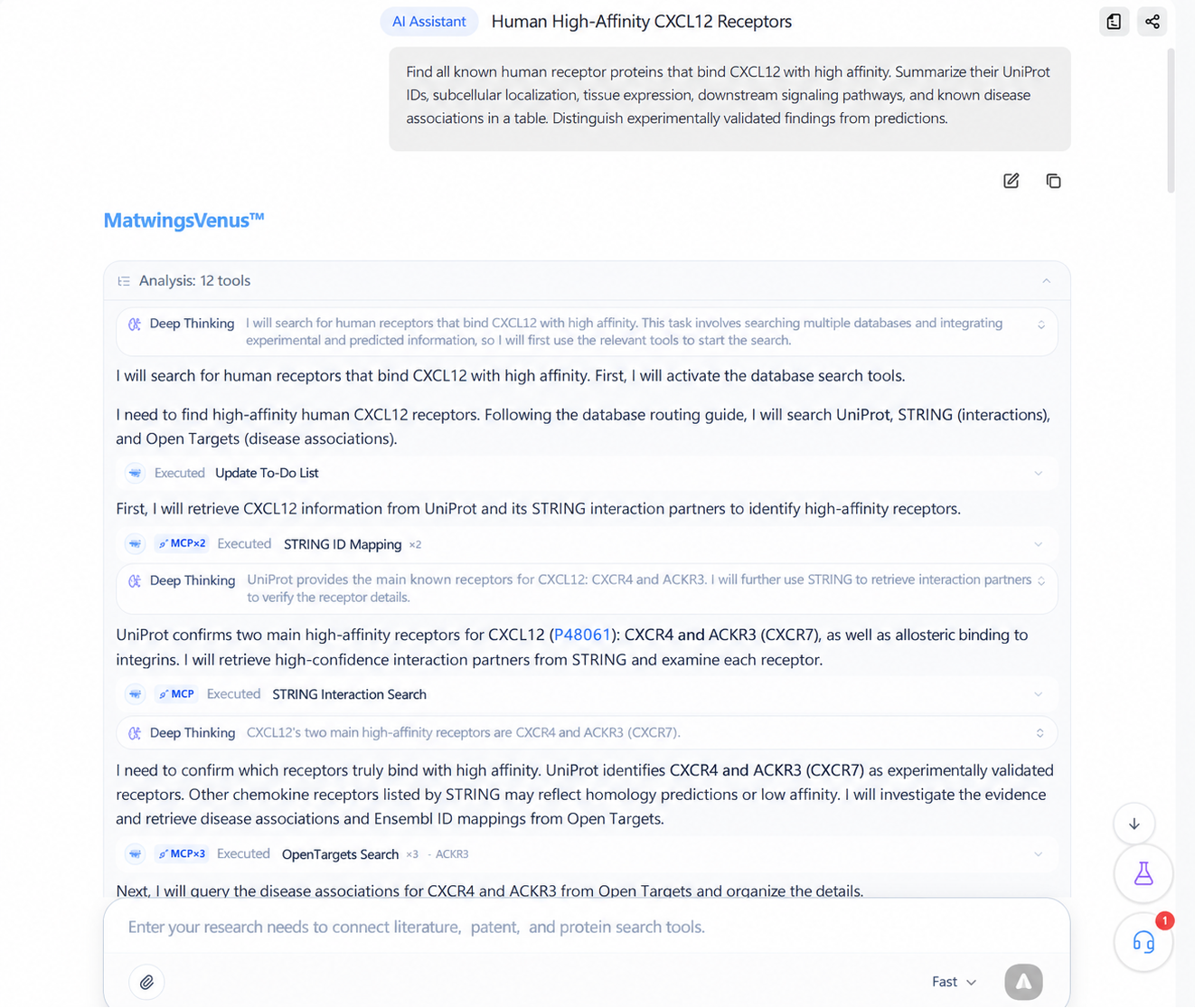
While waiting, check that:
- The analysis is still about CXCL12 and human receptors.
- The data sources being called relate to protein information, interactions, or disease associations.
- The page is not asking you to supply IDs, sequences, or other required details.
- The task in the left-side conversation history shows as Running.
Do not resend the same question while the task is running. If the page pauses and waits for confirmation or additional information, follow the on-page prompt to confirm or supply it, and the task will continue. If you must stop, use Stop response (terminating background tools first shows a bubble confirmation to prevent accidental taps), but tool and compute costs already incurred may already have been billed.
If you switch to another conversation or leave the page, returning to this conversation will backfill existing messages and continue showing subsequent output. When the concurrency quota is full, the page shows a queue or capacity notice; do not resend the same question repeatedly because of the notice.
5. Understand the agent reply page
An agent reply is not a single generated block of text. While the task runs, the page progressively presents the analysis process, tool calls, and the final answer.
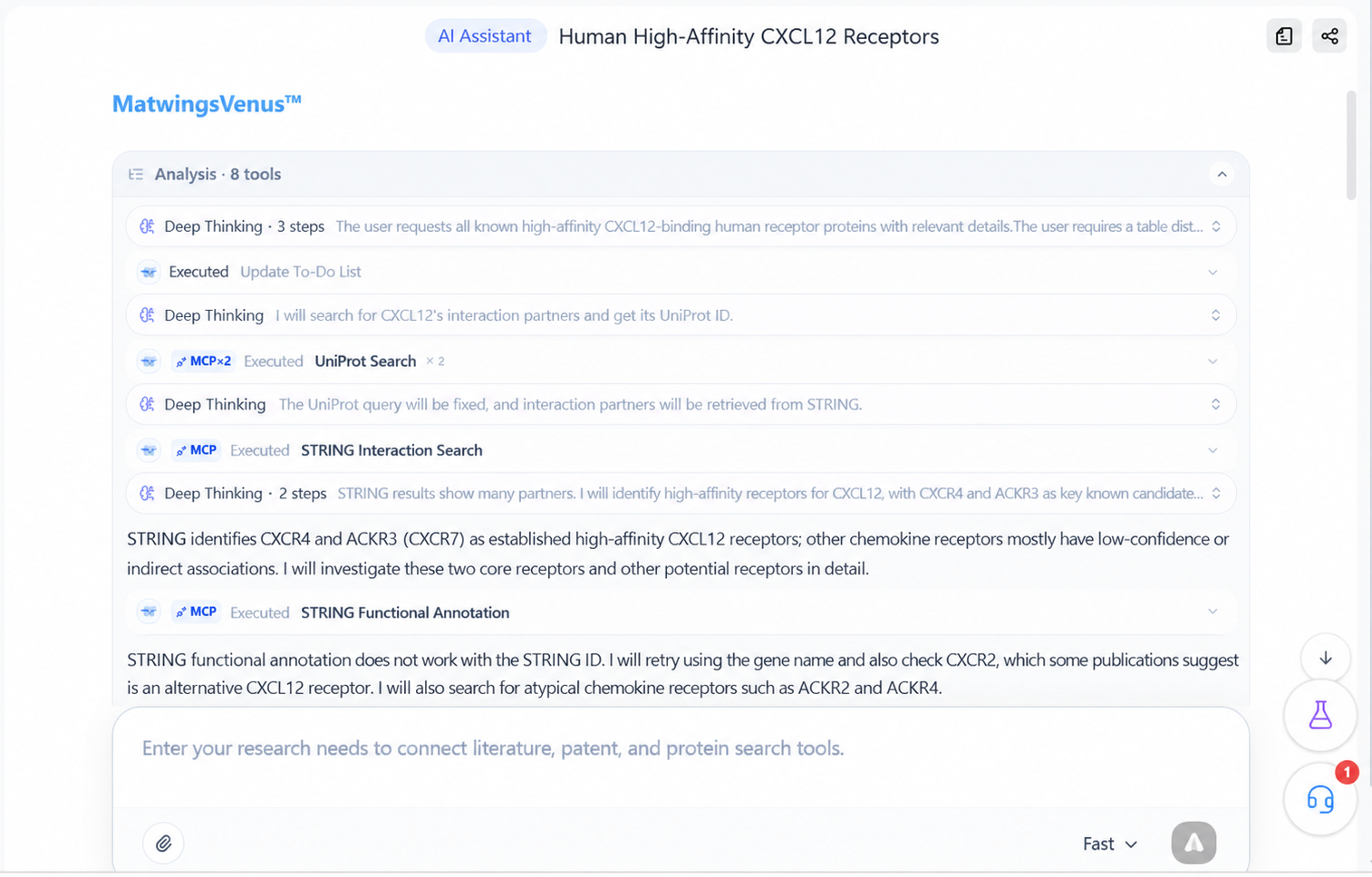
Expand or collapse the analysis process
Click Analysis process · 8 tools to expand or collapse the execution steps of this task. The tool count varies by task and does not indicate result quality.
Deep thinking shows the agent's current line of analysis. Collapsing this area only changes the display; it does not pause or stop a running task.
Review tool calls
Tool call records usually show the tool category, execution status, and tool name:
- Running: the tool is still retrieving or computing—do not treat the current content as the final result yet.
- Executed: this group of calls has finished, but the overall task may still be running.
- MCP×n: this step contains n tool calls; click MCP to see the individual tools.
- Done: a single tool has returned a result, which does not mean its output has been verified by the agent as a final conclusion.
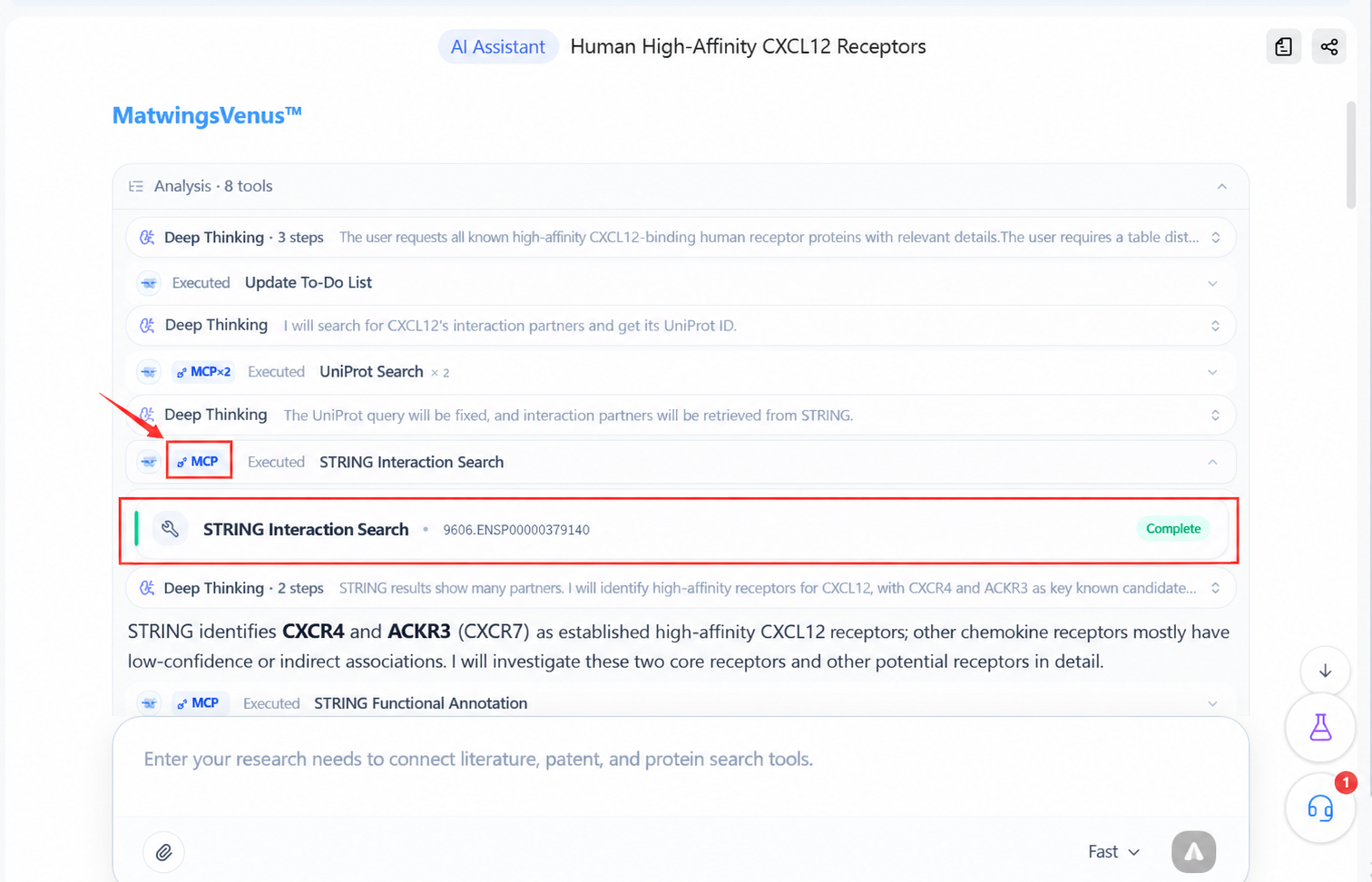
After expanding the records, you can confirm which data retrieval or analysis tools the agent actually called. In this example you will see UniProt search and STRING ID mapping. Tool parameters and returns are intermediate steps; the final conclusion should still be based on the complete answer at the end of the reply.
No need to inspect every tool
On first use, mainly confirm that the subject, species, and data sources match your question. Only expand specific tool records when the final result looks abnormal, lacks sources, or you need to trace the analysis path.
For the full set of reply-area interactions, abnormal states, and how to read evidence, see Review analysis and results.
6. Check the final result
When the task finishes, Running and Stop response disappear, and the page shows the final answer. The core result of this example should include CXCR4 and ACKR3, with their UniProt IDs and evidence notes.
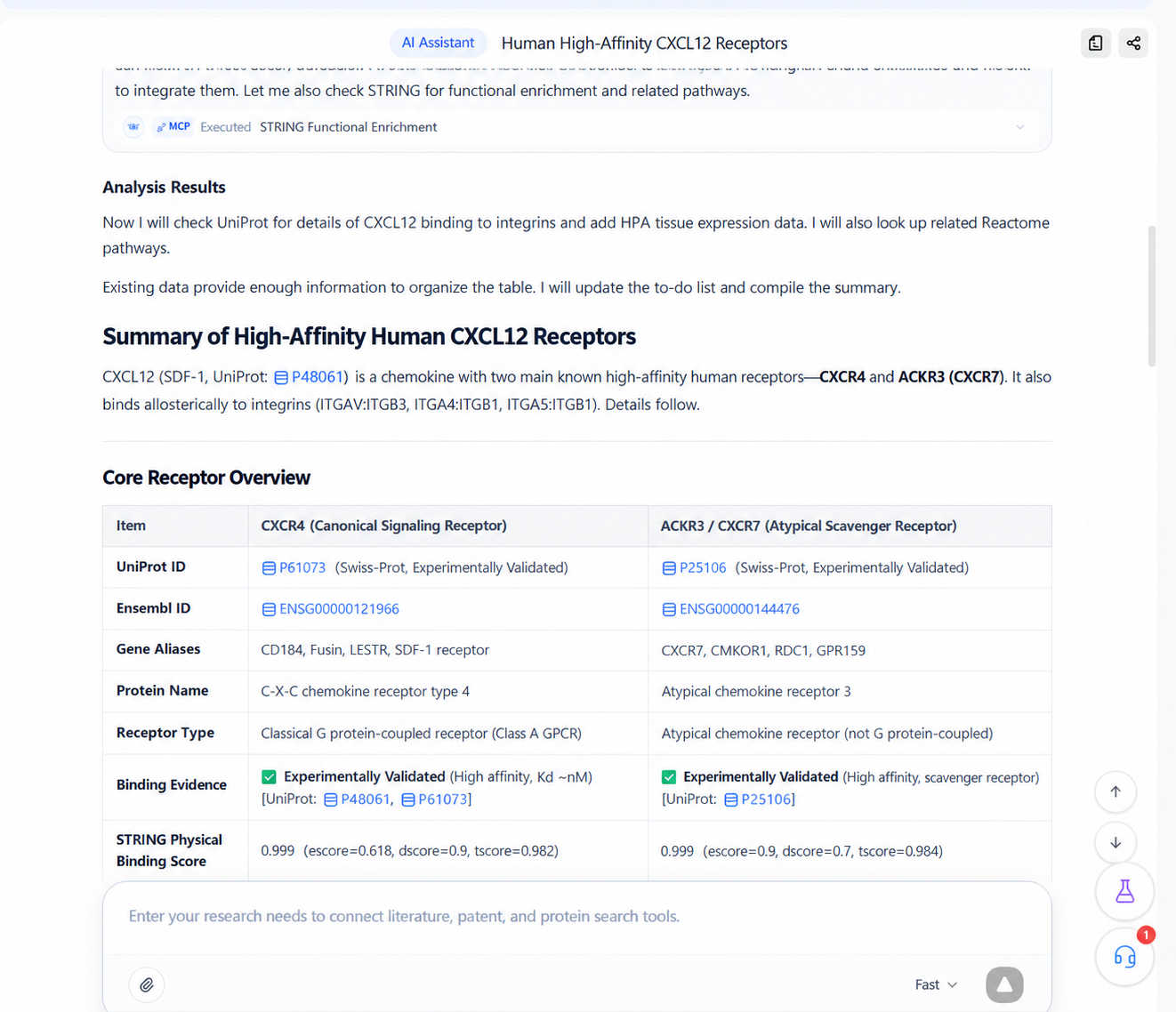
After it is generated, confirm that:
- Every record has a traceable UniProt ID.
- The protein species matches "human" as stated in the question.
- Direct experimental evidence, database associations, and predictions are distinguished.
- Tissue expression, pathways, and disease associations state their data sources.
- Indirectly associated proteins are not mislabeled as high-affinity receptors.
If these checks pass, you have successfully run and read your first agent task.
Distinguish tool output from the final answer
Candidate records returned by tools may include homologs, indirect associations, or unfiltered database hits. Check that the agent filters them, explains the evidence, and answers the original question in the final answer, rather than taking the output of a single tool call at face value.
7. Continue asking in the same conversation
You do not need a new conversation. Under the current result, you can keep sending messages such as:
Keep only receptors with direct binding experiment evidence, and list the corresponding database record or literature identifier for each conclusion. Move other indirectly associated proteins into a separate table.
When following up, you can add constraints, correct the subject, ask for more sources, or change how results are organized. The context still belongs to the current conversation.
After the task
Continue with:
- Meet the agent workbench
- Ask questions and upload files
- Review analysis and results
- Example: query high-affinity CXCL12 receptors
Before using the results
Agent-generated analyses and computational predictions are not experimental conclusions. Verify important conclusions against the original databases and literature, and validate them through wet-lab experiments or expert consultation when needed.