Wet-lab order workflow and status
Wet-lab orders record the whole process from request submission and information confirmation to experiment execution and delivery. Order types pass through different states—gene synthesis involves sequence review and vector construction, purification involves purification and QC, and custom projects may involve requirement discussion and contract confirmation.
This page covers the ordering workflow shared by all wet-lab services and how to find and read order progress in My orders.
General ordering workflow
1. Choose a service
Sign in, select Wet-lab services on the left, then enter the matching service:
- Gene synthesis: select Order now directly.
- Protein expression: continue from a qualifying gene synthesis order.
- Protein purification: continue from a qualifying source order.
- Antibody services: select Order now directly.
- More services: submit custom needs beyond the standard services.
See Using wet-lab services for each entry's scope.
2. Fill in the service information
Enter sequences, experimental conditions, testing items, and delivery requirements per the page. Forms differ, but before submitting usually confirm:
- Subject, sequences, and versions are correct.
- The source order corresponds to this expression or purification task.
- Expression system, vector, tags, purity, and testing requirements are complete.
- Sample form, quantity, storage, and shipping are clear.
- Attachments and notes are the final versions.
Do not record key requirements only in attachment names—conditions affecting execution or acceptance also belong in the form or notes.
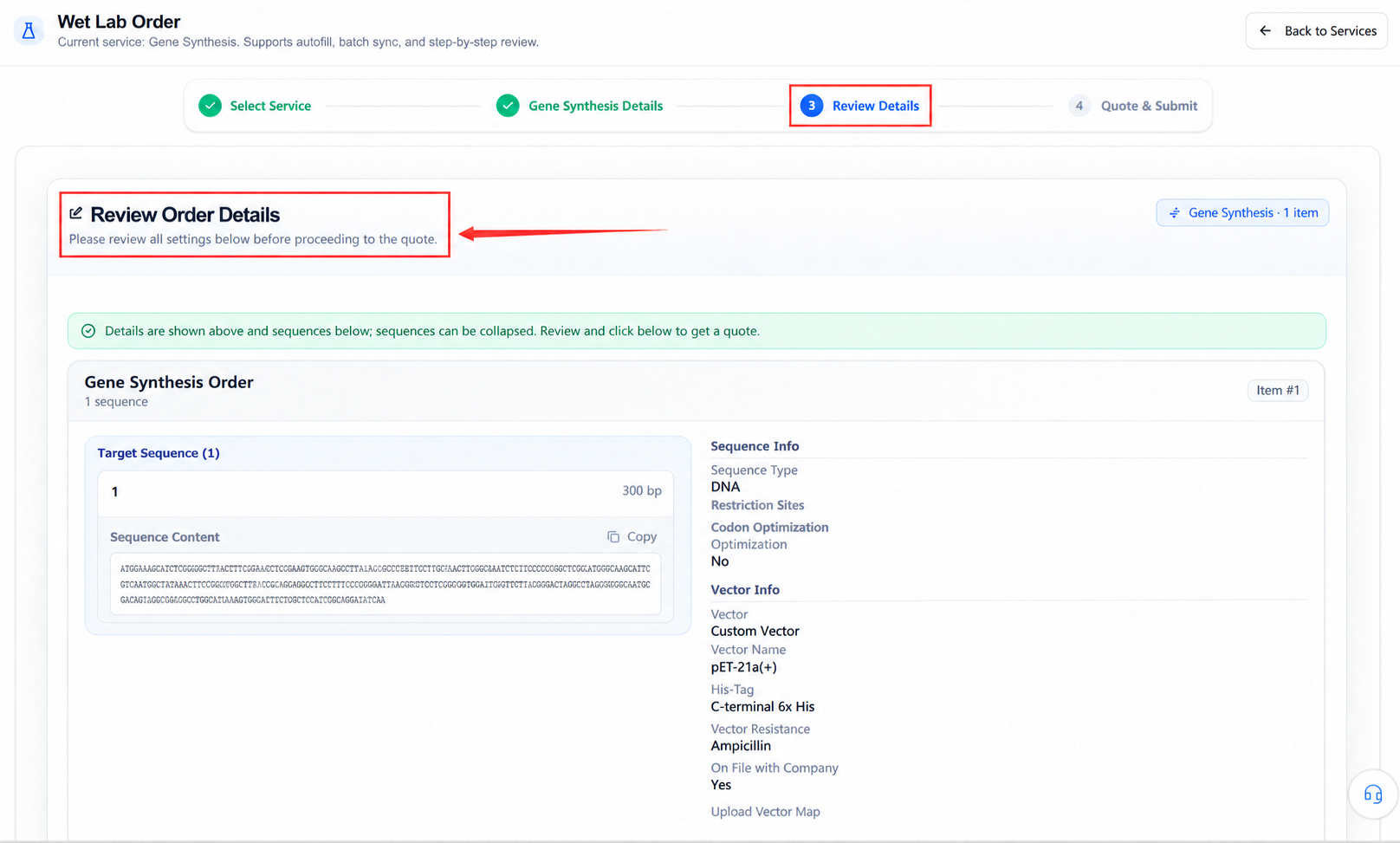
3. Confirm the information
On the confirmation page, verify every item. If sequences, quantities, conditions, or delivery requirements are wrong, go back—do not proceed to quoting or submission.
4. Quote and submission
Standard services may price from the selected options; complex needs may require manual plan and quote confirmation. The final step shown follows the specific service.
Before submitting, check:
- Service items and quantities match the need.
- The quote covers the experiments, QC, and deliverables required.
- Contact and customer information is correct.
- Special requirements are inside the confirmed scope.
- Timeline and acceptance methods are clear.
Submitting a request is not the experiment starting
After creation, an order may still need information confirmation, sequence review, quoting, payment, or manual communication. Whether execution has started follows the order's current status and platform confirmation.
Open order history
Enter order management from either entry:
- Select Order history in the upper-right of the wet-lab services home page.
- From My orders, select Back to services to return.
My orders shows filters, search, counts, download, and the order list together.
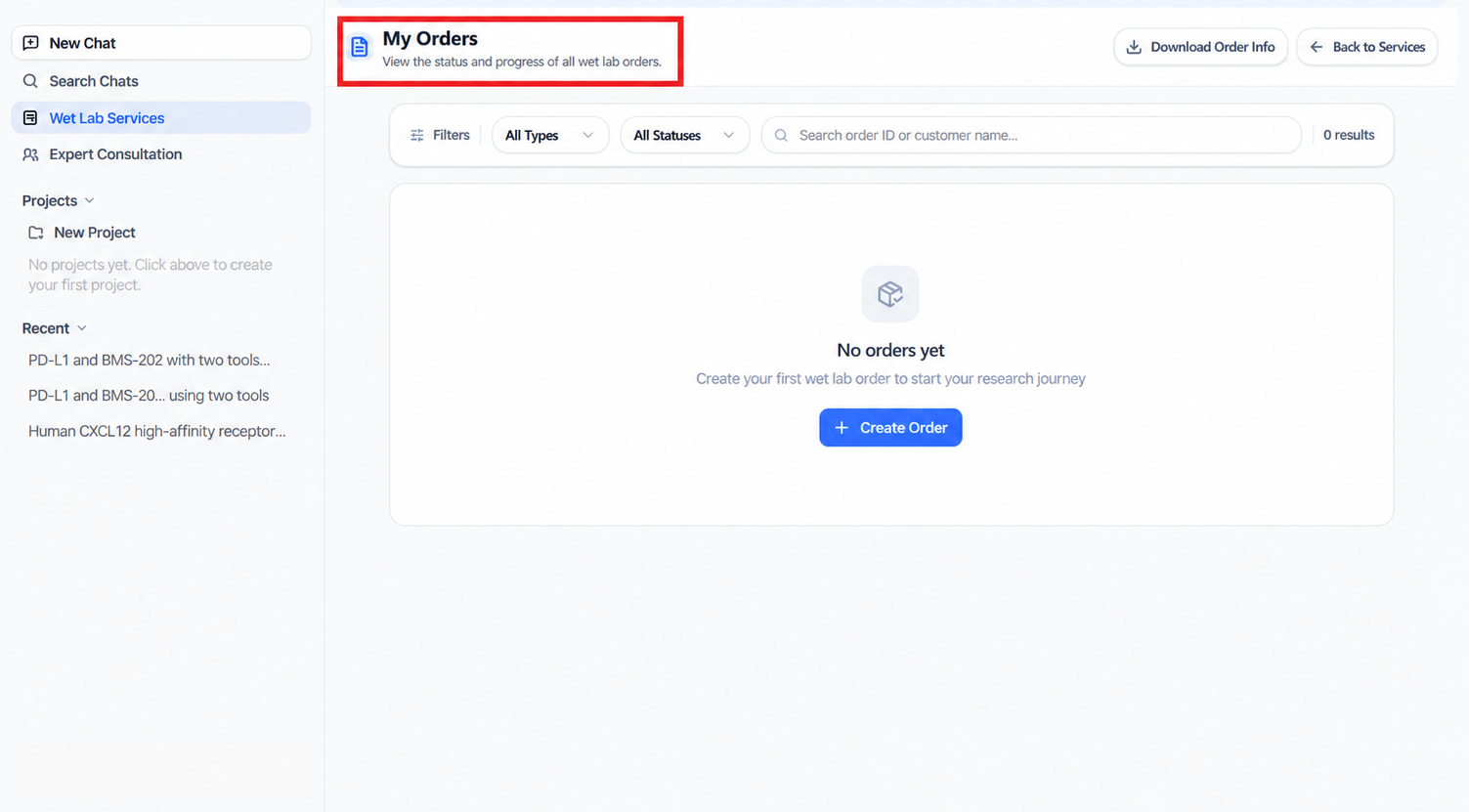
With no orders, the page shows "No order records". Create order returns to service selection.
Find orders
Filter by service type
Expand All types to choose:
- Gene synthesis
- Protein expression
- Protein purification
- Antibody services
- More services
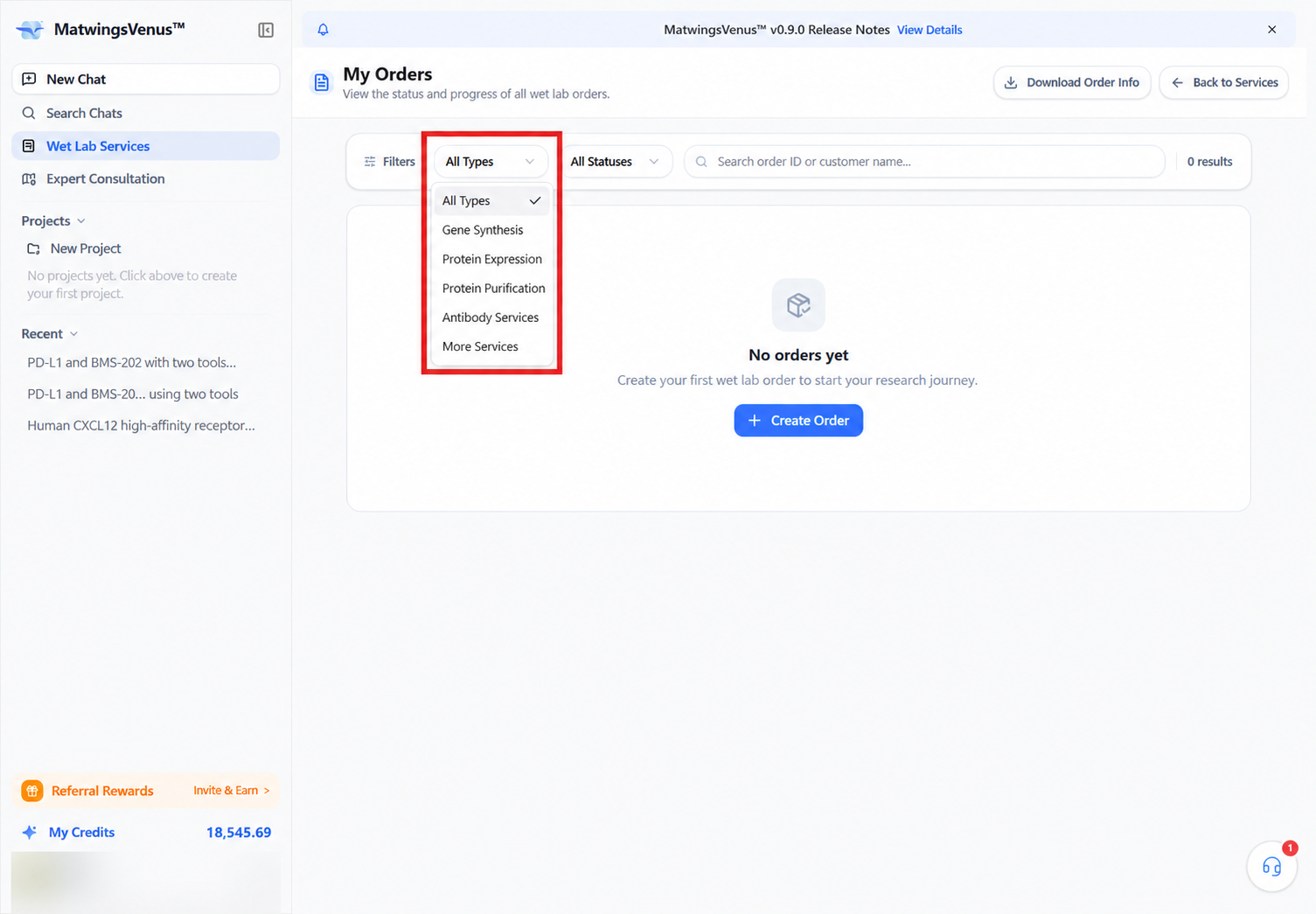
Type filters narrow the business scope first. When tracking only purification, choosing Protein purification avoids confusing it with upstream synthesis or expression orders.
Filter by order status
Expand All status to see the stages the platform currently supports.
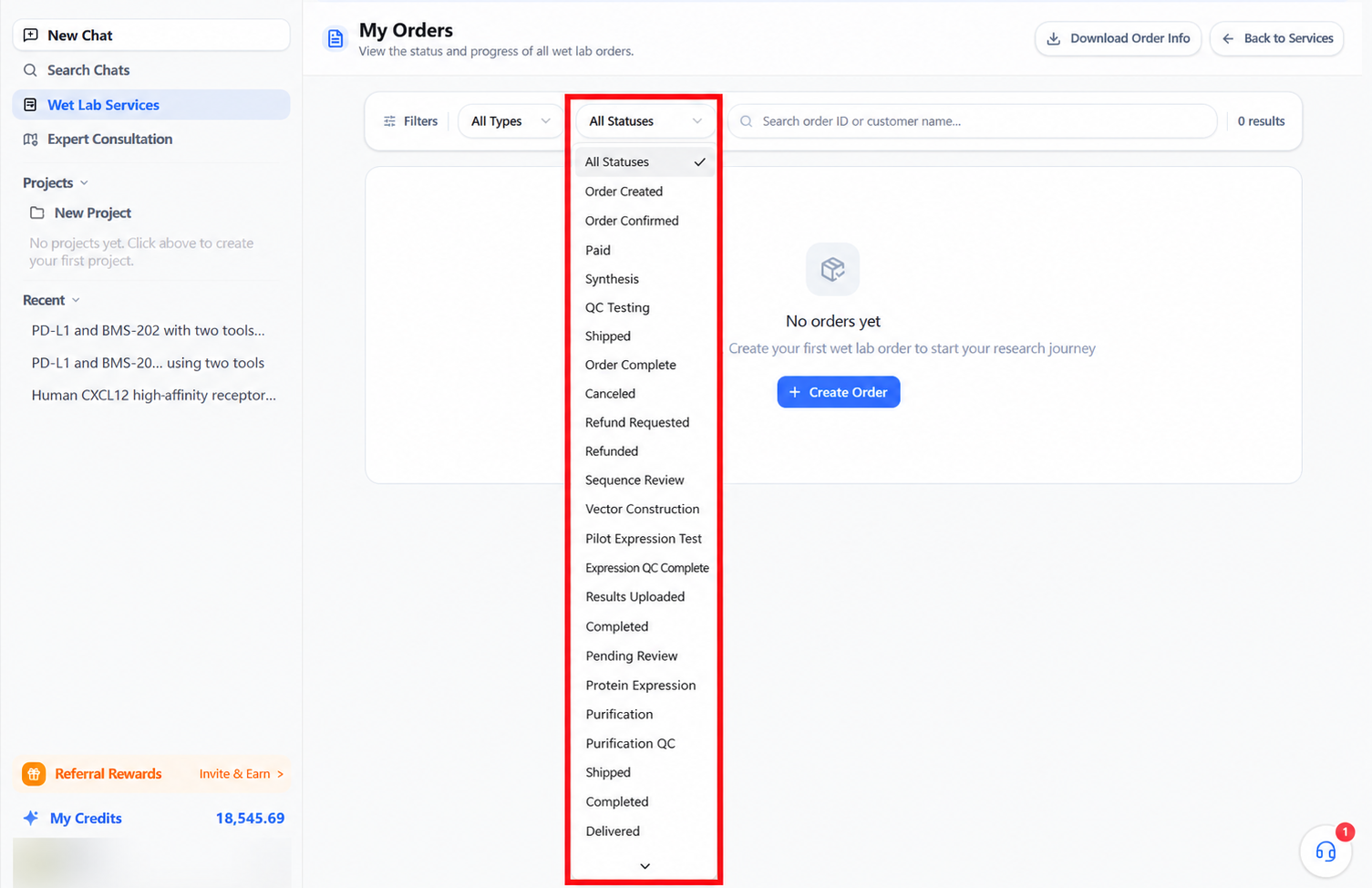
The status menu shows states used by several services; it is not a fixed sequence every order passes through. Select the service type first, then the relevant status.
Search and counts
The search box finds orders by number or customer name; the right side shows the count under current conditions.
- With a known order number, search the full number first.
- When searching by customer name, confirm it matches what was entered at ordering.
- If an order cannot be found, clear type, status, and keywords, then retry.
- After switching accounts or organizations, confirm the order belongs to the current identity.
Understanding order status
Common business states
| Status | Meaning | Suggested action |
|---|---|---|
| Order created | The request exists as an order record | Review contents; complete page requirements or wait for confirmation |
| Order confirmed | Scope or order information confirmed | Verify quote, delivery, and follow-up prompts |
| Pending payment | The order awaits payment | Pay per the page prompt |
| Paid | Payment recorded | Wait for the experiment stage to begin |
| Shipping | Deliverables are being shipped | Track logistics, recipient details, and storage |
| Order complete / Completed | The service is finished | Download and verify results; accept per agreement |
| Delivered | Project results delivered | Confirm files, samples, and the delivery list are complete |
| Cancelled | The order will not proceed | Check the reason; recreate a correct order if needed |
| Refund requested | A refund request was submitted | Wait for processing; do not resubmit |
| Refunding | The request was accepted and is processing | Wait; do not resubmit |
| Refunded | The refund flow is complete | Verify the original payment channel or records |
"Order complete", "Completed", and "Delivered" may be used by different flows. Before closing a task, also verify actual samples, files, and acceptance requirements.
Gene synthesis states
Orders may show Sequence review, Vector construction, Synthesis, or QC testing.
- Sequence review: the platform is checking the sequence and construct requirements; watch for requests to supplement or revise.
- Vector construction / Synthesis: production has reached that stage; do not change sequence versions without confirmation.
- QC testing: quality checks before delivery; await results and notifications.
Protein expression states
Orders may show Small-scale expression validation, Expression QC complete, or Results upload.
- Small-scale expression validation: target protein expression is being verified.
- Expression QC complete: expression tests are done; awaiting confirmation or the next step.
- Results upload: the platform is organizing or uploading viewable results.
A finished expression state does not guarantee the target yield or solubility—rely on actual test results and the order agreement.
Protein purification states
Orders may show Under review, Protein expression, Purification, Purification QC, Shipping, or Delivered.
- Under review: source material and purification requirements are still being reviewed.
- Protein expression: this purification task includes or depends on expression.
- Purification: samples are being purified.
- Purification QC: purity, concentration, or agreed tests are being verified.
Antibody and other custom service states
Antibody services may show Experiment started, In experiment, and Experiment completed. More services may show Requirement discussion, Order confirmation, Contract signing, Project start, In progress, and Project delivery.
These states reflect different project management styles. For complex custom projects, judge the current milestone by the confirmed plan, contract, or communications—not from the status name alone.
States may be skipped or repeated
Depending on service type, order plan, and manual handling, an order may not pass through every menu stage. The page status, order details, and platform notifications together constitute the progress record.
View order details and results
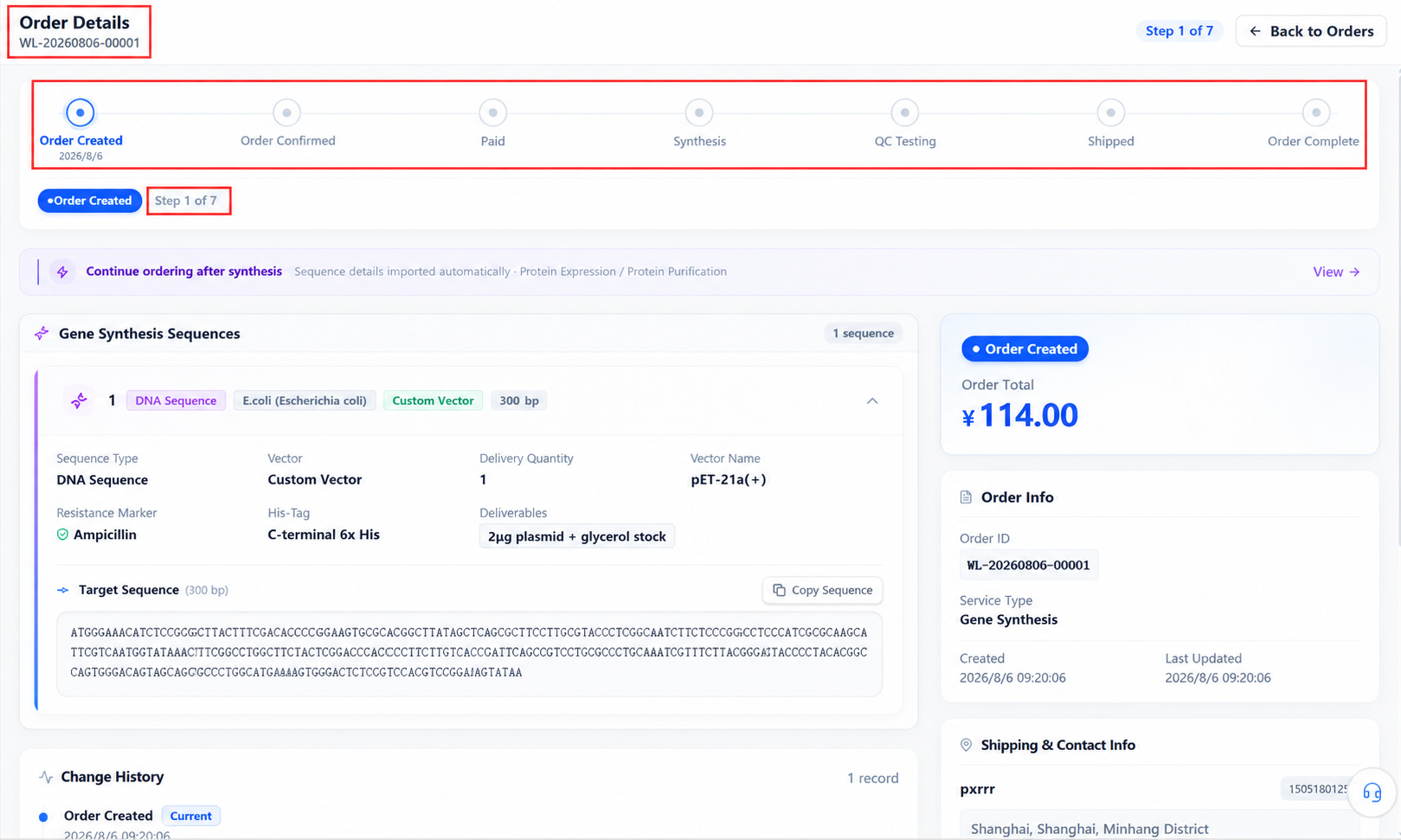
With orders present, open a record from the list and focus on:
- Order number, service type, and creation time.
- Customer information, source order, and links.
- Current status and last update time.
- Confirmed experiment parameters and delivery requirements.
- Quote, payment, or contract information.
- Test results, experiment files, logistics, or delivery information.
Download order information
Download order information sits in the upper-right of My orders. Set type, status, or search filters first and check the download matches the expected scope.
Downloaded data may contain customer or project information or other sensitive data. Keep and share it only within authorized bounds; do not upload it to public documents or unrelated systems.
Changes, cancellation, and refunds
The status menu includes Cancelled, Refund requested, and Refunded. Whether payment, cancellation, or refund is allowed depends on the order stage, page support, and work already started: pay, cancel, or refund only in states the page supports; refund amounts cannot exceed the refundable amount; payment cannot complete with insufficient balance.
To change an order:
- Record the order number and current status.
- Identify the fields to change, why, and the desired outcome.
- Contact the platform as early as possible—before experiments start—to confirm feasibility.
- When sequences, vectors, systems, or delivery standards are involved, request re-confirmation of scope.
- Pay, cancel, or refund only where the page or platform explicitly supports it.
Do not replace a change request by recreating the order—that can cause duplicate execution or billing.
FAQ
| Situation | How to check |
|---|---|
| Order history is empty | Clear filters and keywords; confirm the account or organization |
| Known order not found | Use the full order number; check it belongs to the current identity |
| Too many status options | Choose the service type first, then the experiment stage |
| Status unchanged for a long time | Record number, status, and last update; verify with the platform |
| Parameters differ from what was submitted | Pause further confirmation; keep screenshots and ask for correction |
| Cannot modify or cancel | The order may already be executing; confirm scope with the platform |
| Completed but no results visible | Check order details, result files, logistics, and notifications |
| Download contains sensitive data | Stop sharing externally; handle per your organization's data policy |