Review analysis and results
An agent task may run through literature retrieval, file processing, computational tool calls, and result consolidation in turn. The reply page preserves these intermediate steps and ends with the final answer. Using the real task "PD-L1 × BMS-202 dual-tool docking analysis" as an example, this page introduces everything you can expand, view, download, or act on.
Example scope
The example uses AutoDock Vina and DiffDock to analyze PD-L1 with BMS-202.
First, tell whether the task is finished
While a task runs, the reply keeps gaining analysis steps and tool records, and Stop response may appear near the input area. Do not conclude the whole task is over from any single tool return.
The loading indicator for streaming replies always shows at the end of the current message. After switching conversations and returning, history is backfilled without duplication; file links in the body and files produced by tools are moved into the results-files area or the conversation file viewer—scattered file links should not be read as repeated final output.
Use these signals to judge the state:
| Page signal | Meaning |
|---|---|
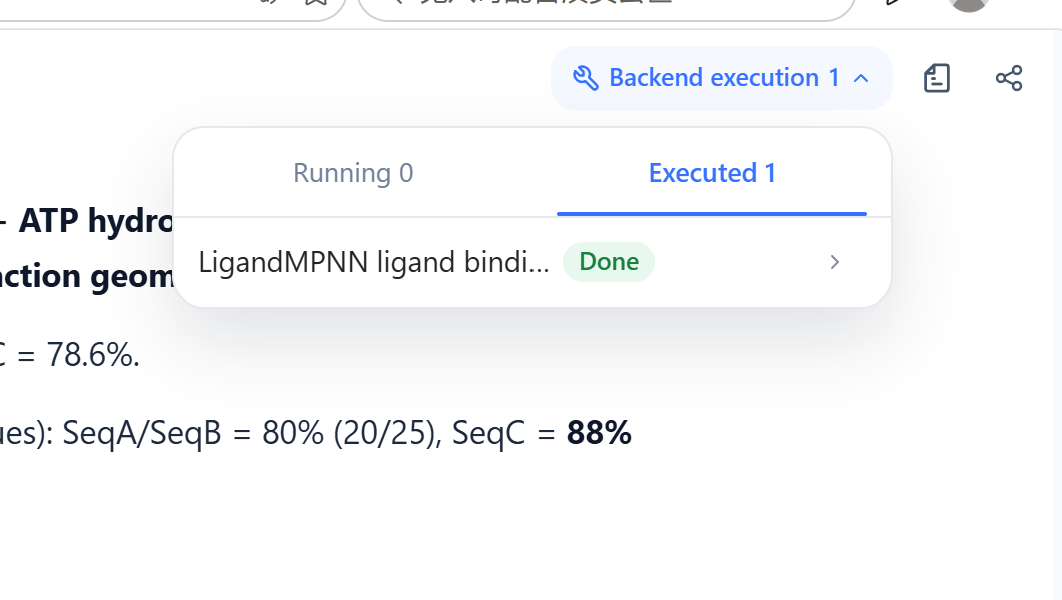
| Running | The current tool is still retrieving or computing |
| Executed | That tool call has ended; the overall task may still be running |
| Done | The expanded single tool has returned a result |
| Confirmed | That MCP tool call has been confirmed |
| Approved | The tool execution request shown at the time received user approval |
| Stop response still visible | The agent is usually still generating or executing |
| Complete answer plus action bar | The current round of the answer has finished generating |
One tool failing does not necessarily fail the whole task. In this example, Slurm, file paths, and format handling each had problems, yet the agent adjusted and still completed the Vina, DiffDock, and PLIP analyses. Keep checking whether successful results and the final summary appear later.
Expand or collapse the analysis process
Analysis process · N tools is an expandable group. N is the number of tools in that stage, not a quality score.
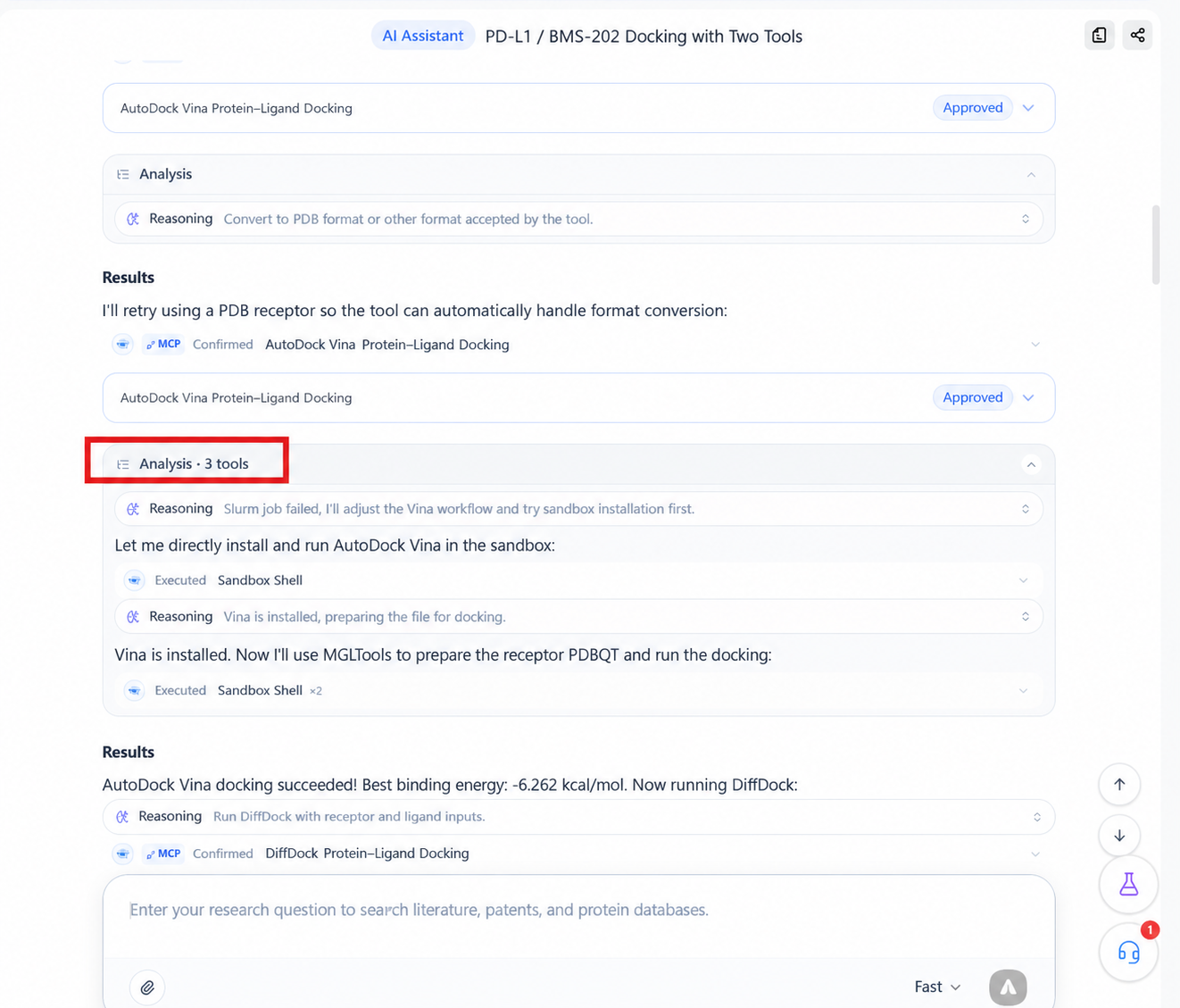
Select the analysis title to expand or collapse the whole group. Expanded, you usually see:
- Deep thinking: the analysis direction or next-step plan for the current stage.
- Analysis result: interim judgments before and after tool execution.
- Tool records: web retrieval, file operations, sandbox commands, or domain computational tools.
- Count badges: e.g.
×2,×4—several operations of the same kind merged in one place.
Collapsing the analysis process only changes the display; it never stops a running task.
Clean bench mode
Message display in clean bench mode is independent of Auto and Pro modes and never mixes with them. Each reply round keeps exactly one analysis process: process notes render as body text, result notes no longer leak into the analysis process, and analysis results are not attached to the process area before generation completes.
After a new message starts, the page does not mistake conclusions already delivered in the previous round as still generating. When reading, still rely on the current round's tool status, the complete answer, and the result files.
Review grouped tool records
Records marked ×N expand further, showing every call in the group and its completion state.
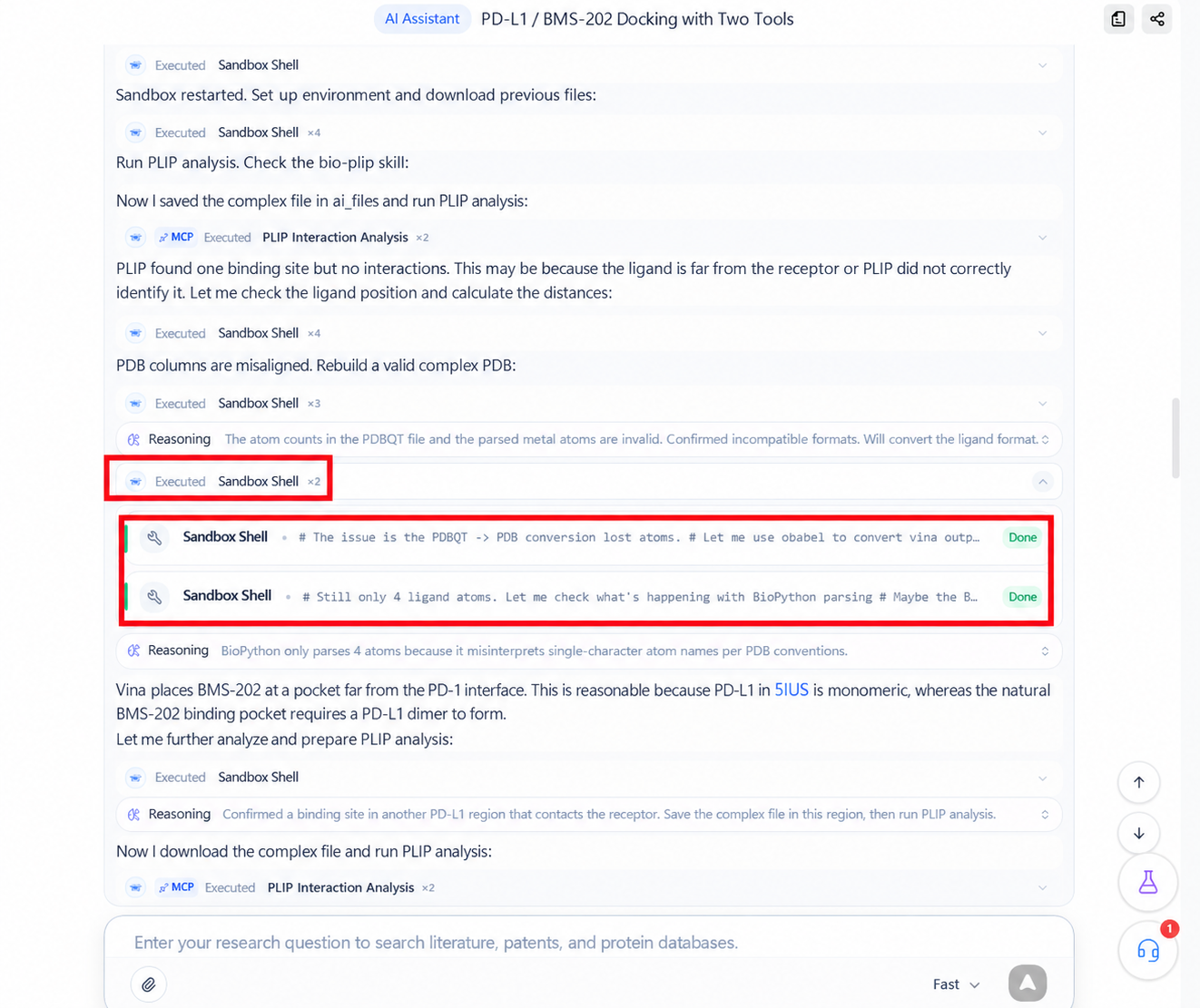
In this example, selecting Sandbox shell ×2 reveals the two concrete command records, each with its Done state. Grouped records help when you want to:
- Confirm whether the agent retried the same step.
- See whether parameters or file formats were adjusted after a failure.
- Check that every operation in a group completed.
- Trace which step produced a given result file.
Commands, logs, and temporary file paths are troubleshooting material; sandbox commands are syntax-highlighted to make commands easy to tell from output. Everyday users need not interpret every command line—focus on whether the input object, tool name, status, and output files match the task.
Review MCP tool calls
Records marked MCP mean the agent called a professional tool connected to the platform. Select the record to expand a summary of the call.
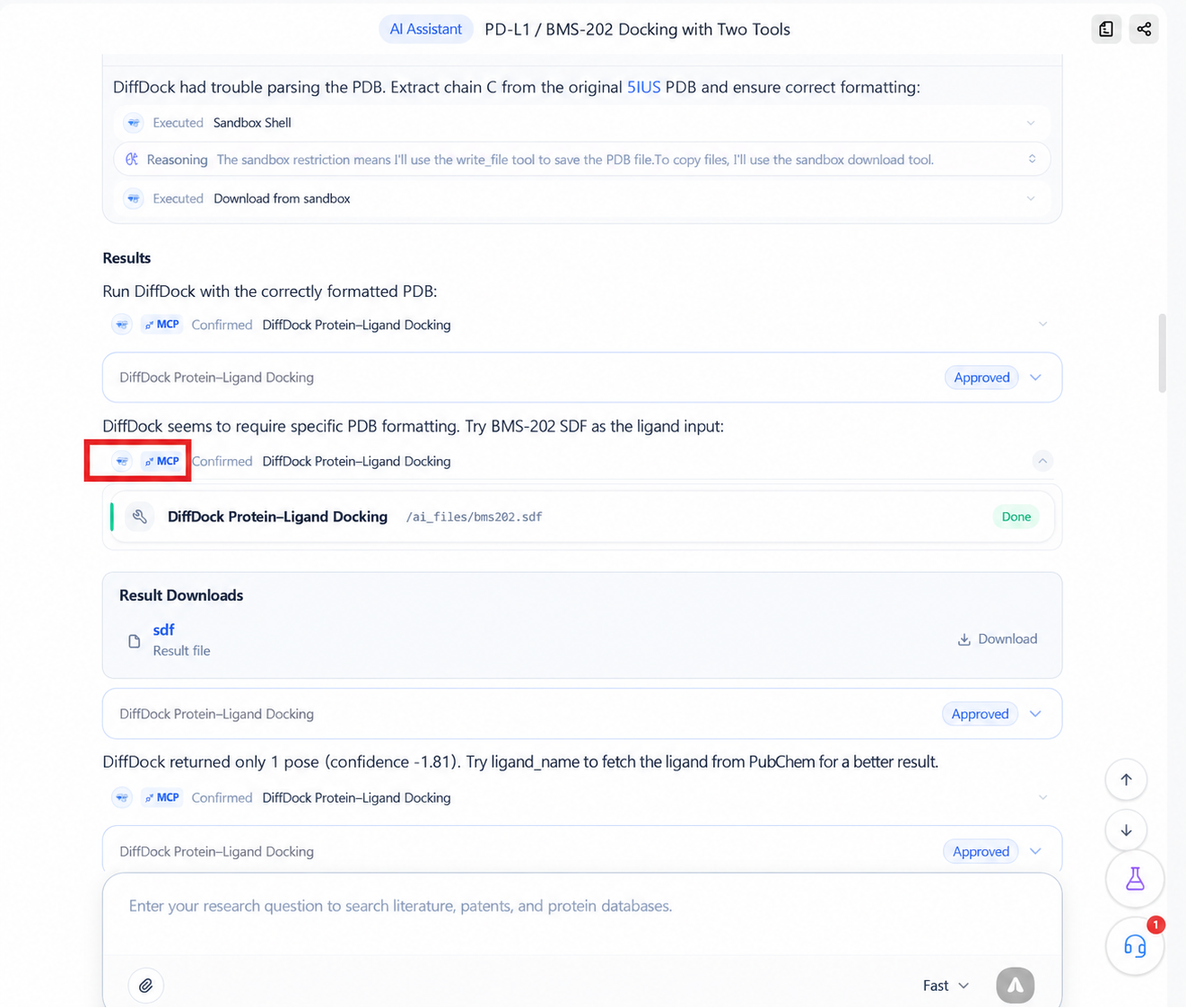
Expanded, this example shows:
- Tool name: DiffDock protein-ligand docking.
- Input file:
/ai_files/bms202.sdf. - Status: Done.
- A download area for the files the tool produced.
Result display for web and database tools keeps improving and currently covers the main fields of 20+ database tools; what is shown follows the page. The same tool name does not mean the same parameters. If the task retried, expand the matching record and check whether the input was a file path, SMILES, database name, or something else.
Tool result panes in Auto / Pro
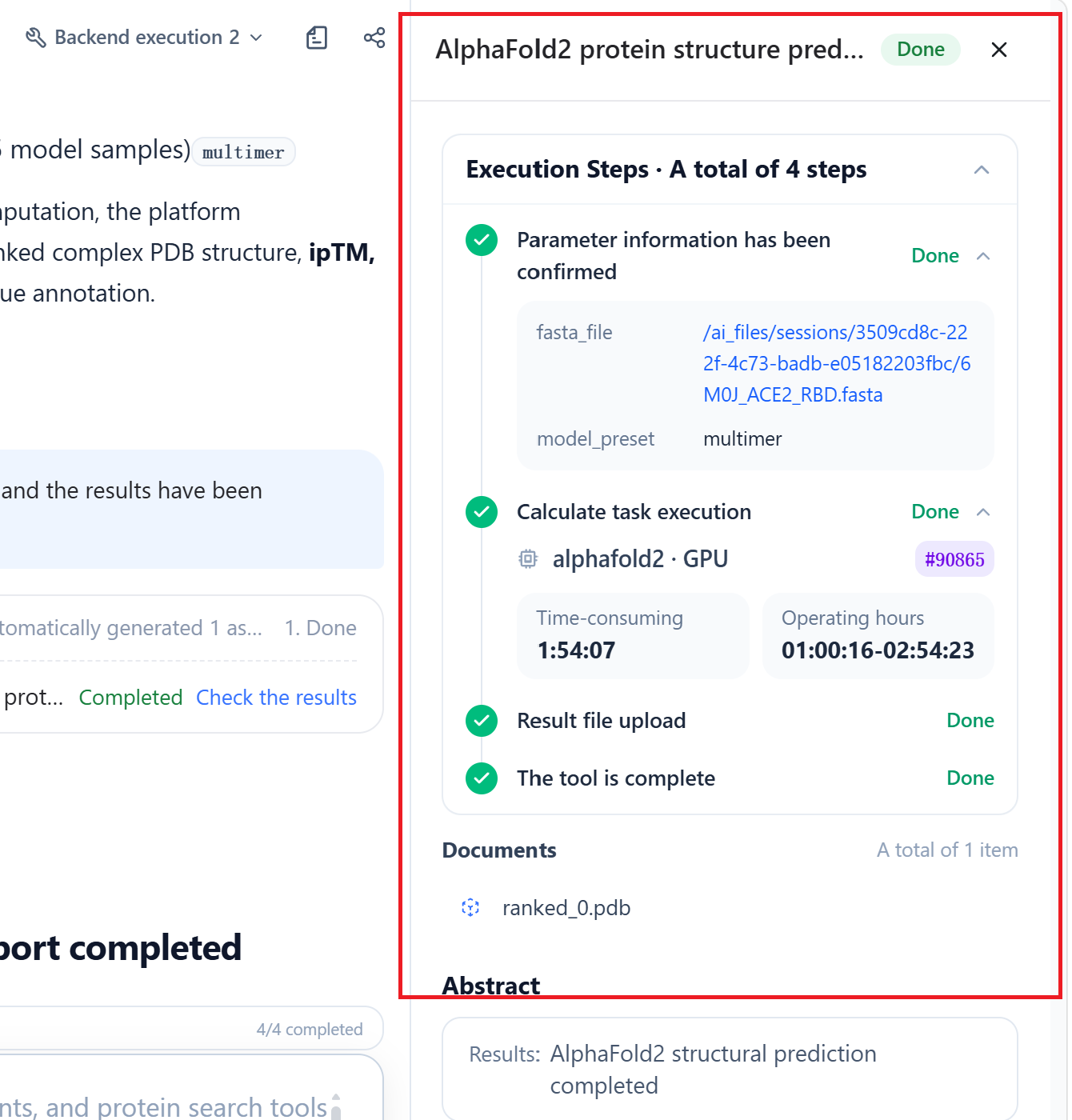
In Auto or Pro tasks, the right-hand results pane lists directories, Slurm job cards, and command output separately, so you can check files, compute job status, and command logs independently and avoid mistaking file names or command text for conclusions. When troubleshooting, first verify the tool's final state and its input and result files; states such as pending, cancelled, and completed are all as shown on the page at the time.
Slurm jobs show progress in the sidebar in four stages—Submitted → Queued → Running → Finalizing—with failed stages marked red in place for quick diagnosis; files that appear in tool parameters can be previewed directly without downloading. A single task may run up to 8 hours; cluster jobs automatically resume after a platform service restart, without duplicate submission or duplicate charges.
Review tool parameters that need confirmation
Some tools require user confirmation before running. Approved entries in the history expand to show the parameters submitted to the tool at the time. Complex tasks may first request confirmation of a plan or report outline; the agent continues only after confirmation, and confirmed content can be reviewed in history.
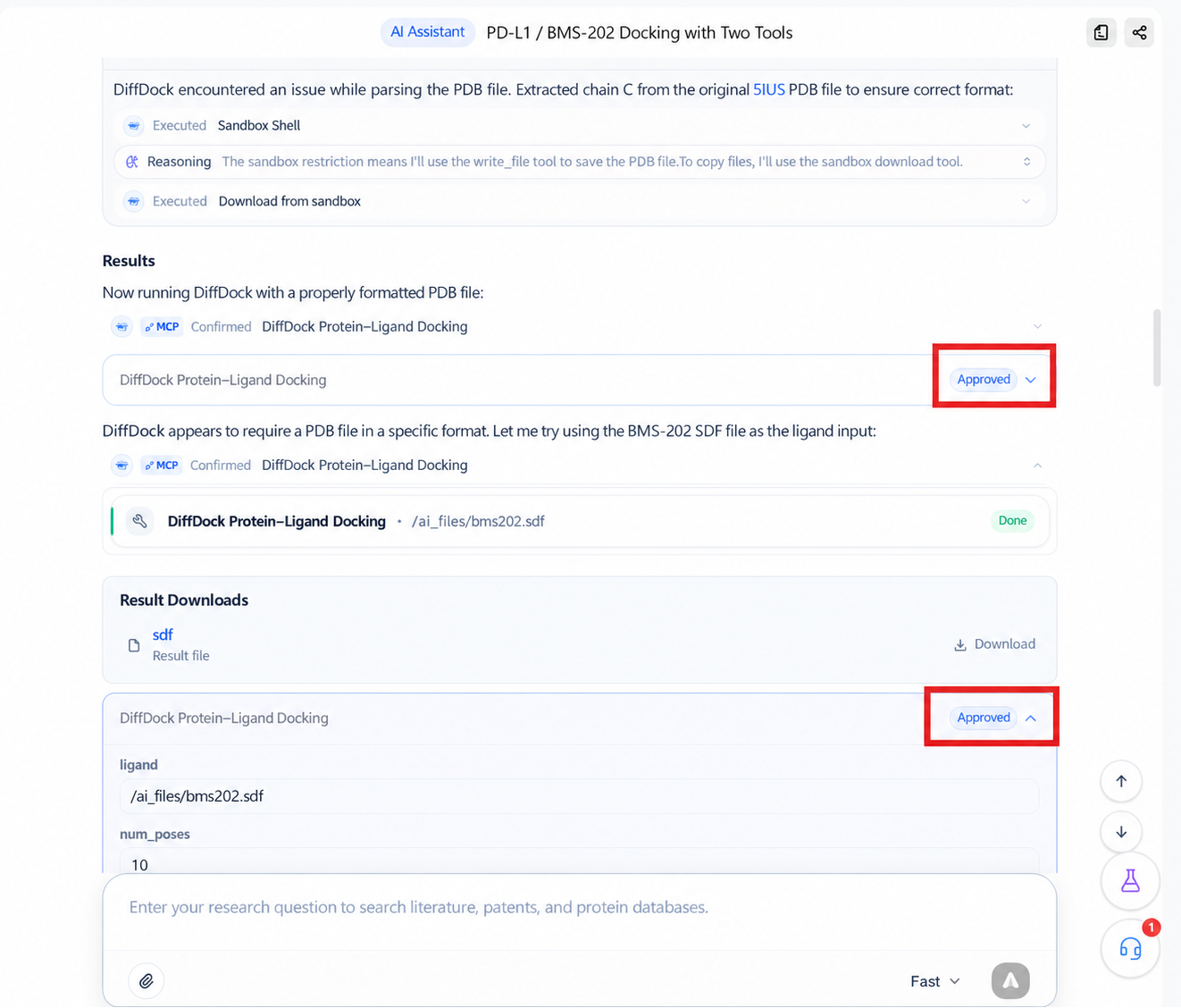
The DiffDock confirmation in this example shows:
| Parameter | Example value | Purpose |
|---|---|---|
ligand |
/ai_files/bms202.sdf |
Ligand input file |
num_poses |
10 |
Number of candidate poses requested |
protein_path |
/ai_files/pdl1_5ius_chainC.pdb |
Receptor structure file |
When a confirmation request appears during a task, first check:
- Whether the tool fits the current task.
- Whether the receptor, ligand, sequence, or structure files are correctly matched.
- Whether key counts, ranges, and computational parameters match expectations.
- Whether the operation carries high credit cost or starts a long computation.
If unsure, do not approve outright—ask the agent to explain the parameters or adjust the plan first.
Confirmation card states
Confirmation cards do not block later tool records; after approval you can still expand the execution result. If a card has been superseded by a later message, the page marks it Expired—it cannot be submitted again, so look for the currently active request instead. While waiting, the page does not misreport the task as continuously generating; if a card failed to display due to a dropped connection, it is backfilled from history when you return to the conversation.
For tools that require confirmation, such as DiffDock, the confirmation card attaches to its tool record. Approval takes effect immediately; when reviewing history, an approved card never reverts to "unconfirmed".
Plans pending confirmation stay fixed at the bottom of the conversation and are not collapsed by later content. When a confirmation request contains several questions, the page answers them step by step; choosing to confirm opens parameter editing by default, so you can adjust parameters before submitting.
Open database ID details
Some database IDs in the answer are interactive. For example, selecting the blue PDB IDs 5IUS or 5J89 opens a structure detail view.
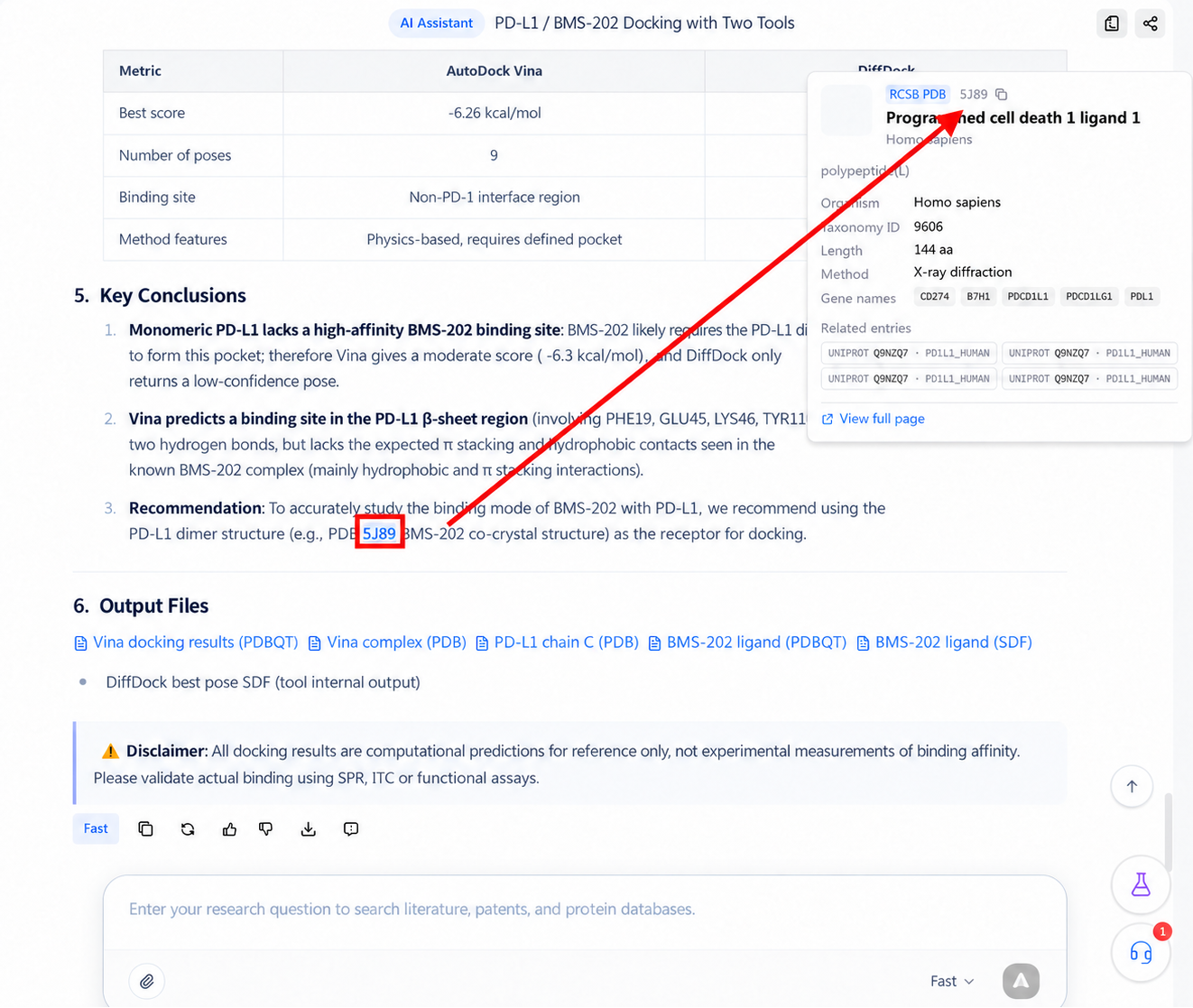
In the detail view you can check:
- The structure name and source database.
- Species and Taxonomy ID.
- The structure determination method.
- Sequence length and gene name.
- Linked UniProt entries.
- A View full page entry.
The copy button in the detail view copies the database ID. Closing the view keeps you in the conversation—your reading position is not lost.
Verify the ID before adopting a conclusion
One protein may have multiple structure entries, chains, and complex states. In this example, 5IUS is the PD-1/PD-L1 complex, while the answer recommends also consulting 5J89, which contains BMS-202. Protein names alone cannot establish that two structures are equivalent.
Review files returned by tools
When a tool generates files, a Result files download area appears under the record.
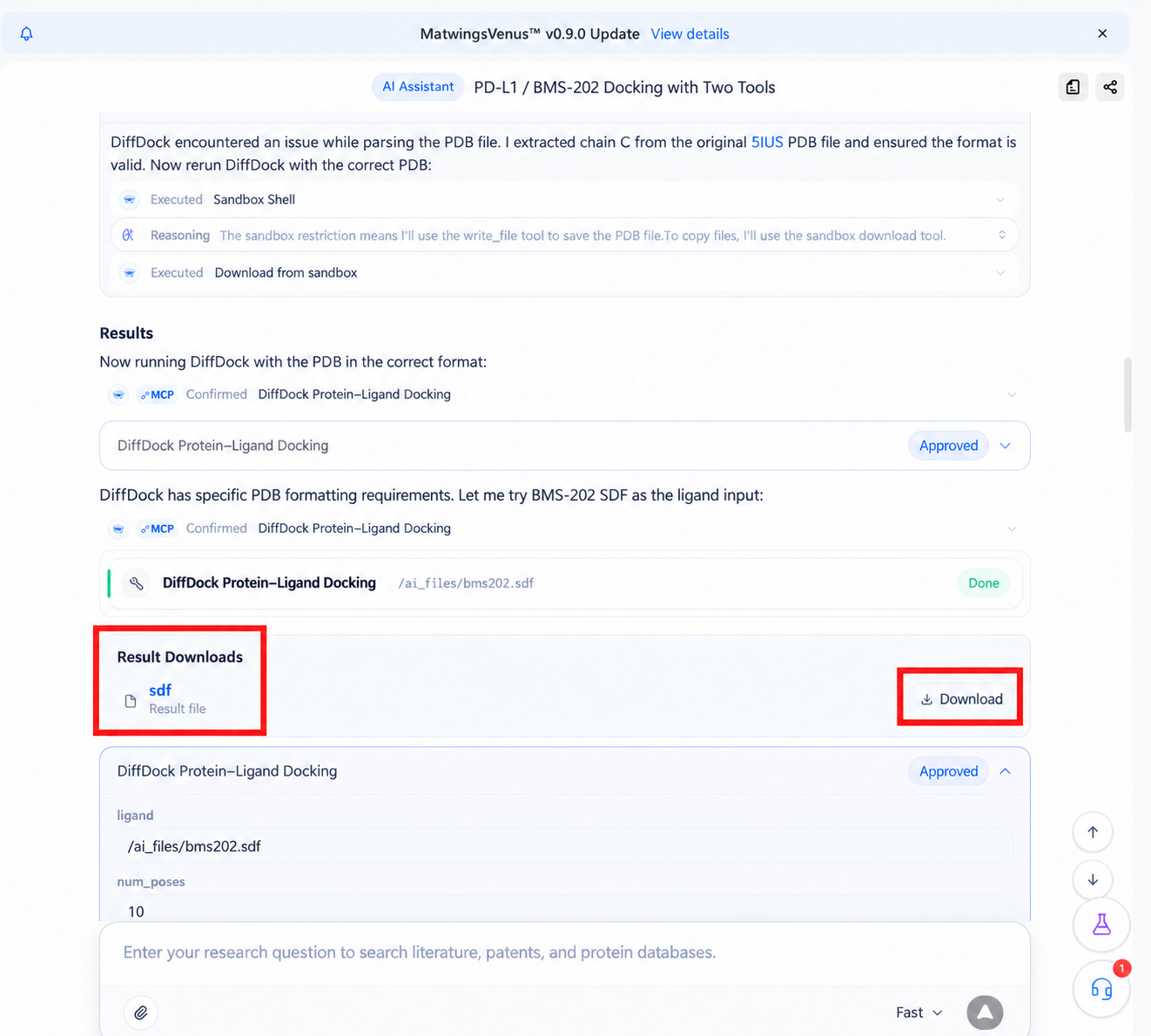
You can:
- Select a file name or preview icon to try viewing it online.
- Select Download on the right to save the raw result file.
- Judge the file's purpose from its extension—SDF, for example, usually stores small-molecule structures or poses.
Not every format supports online preview. In this example, clicking preview on an SDF shows "Online preview is not supported for this file—use the download button on the right." That does not mean generation failed; after downloading, inspect it with software that supports the format.
Image files open directly in the body or file viewer; previewability of other formats varies. Large tool outputs and file links in the body are consolidated into the results-files area or conversation file viewer, avoiding repeated file listings in the body.
After downloading, verify:
- The file name and extension match what the answer describes.
- The file size is not obviously wrong, such as empty or a few bytes.
- The content corresponds to the correct receptor, ligand, or candidate pose.
- Parameters in the final report can be matched to the result files.
Use the conversation files panel
Select the file icon at the top-right of the conversation title to open the Conversation files panel, which collects the files of the current conversation.
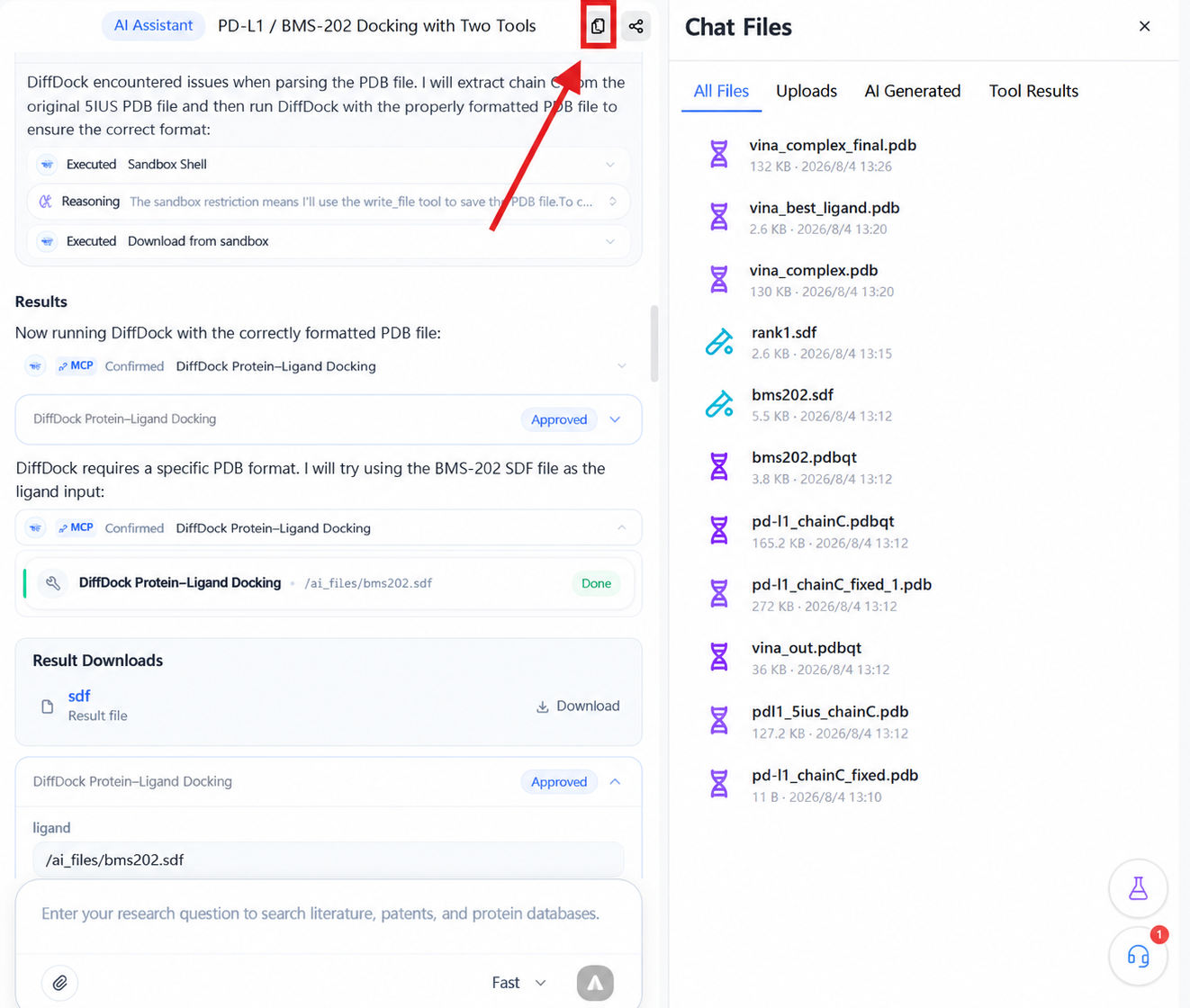
The panel groups files:
| Group | Contents |
|---|---|
| All files | Every file in the current conversation |
| User uploads | Attachments you added to questions |
| AI generated | Files the agent generated or wrote |
| Tool returns | Result files returned by professional tools |
| Recent files | Files recently created or used, for quick access to what you are working on |
Each file shows its name, size, and creation time, with view and download actions; online viewing depends on the format. The bottom shows the total count for the current group.
The panel supports filtering by type and keyword search. Opening any file enters the unified preview: the cloud drive, conversation files panel, and tool outputs share the same Preview / File info / Sequence / History tabs—Preview shows content, File info shows size and timestamps, Sequence shows protein or nucleic acid sequences, and History shows version records. Files carry version history: you can view, switch to, and roll back to any previous version. File references in chats, reports, and shares are pinned to the version at creation; later modifications do not affect historical content.
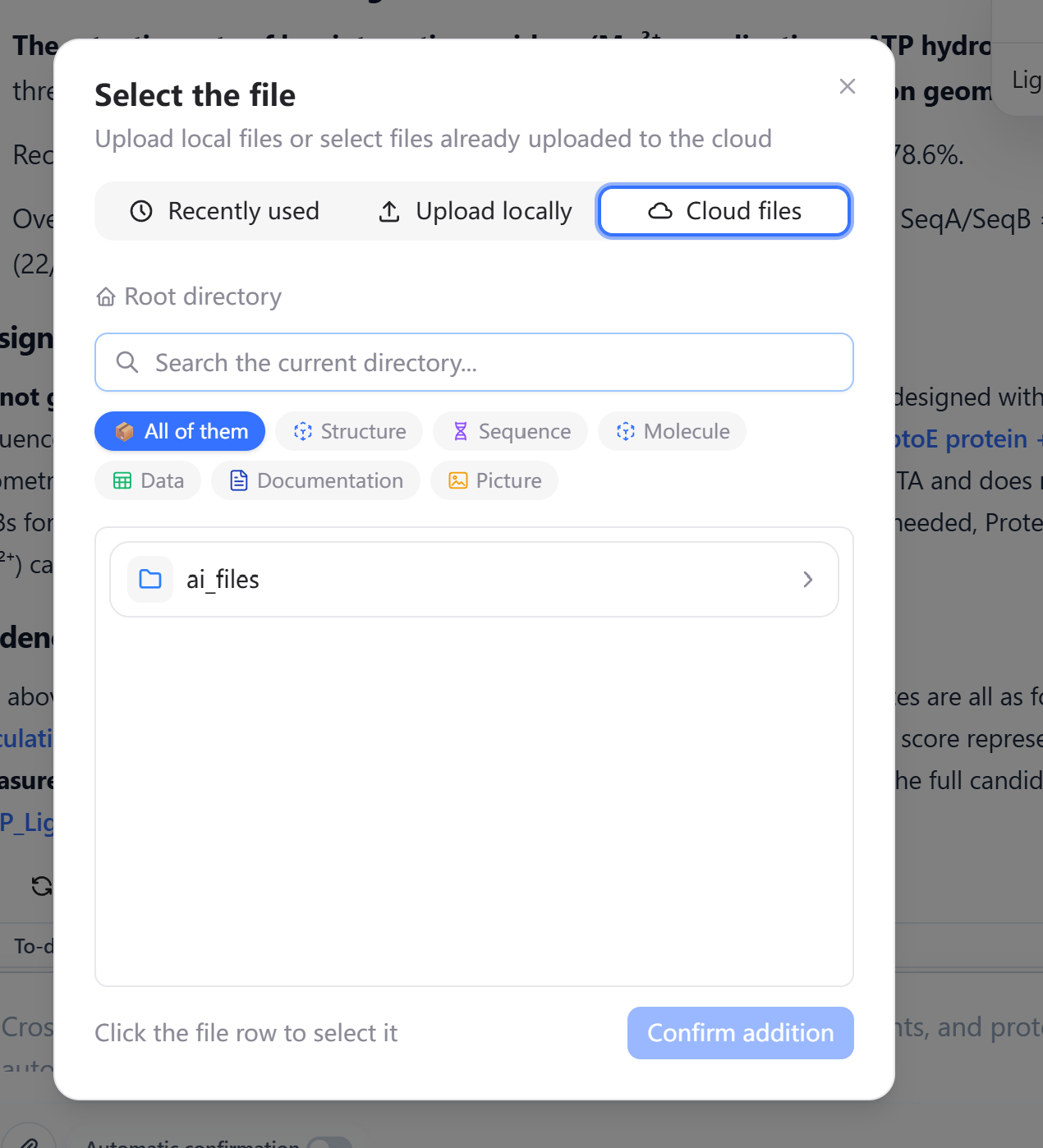
Conversation files may include temporary, intermediate, and final files. Prefer results described in the final answer's "output files" note rather than judging importance purely by creation time.
Read the final answer
The final answer normally appears after all analysis steps. This example organizes results into background, Vina results, DiffDock results, method comparison, key conclusions, and output files.
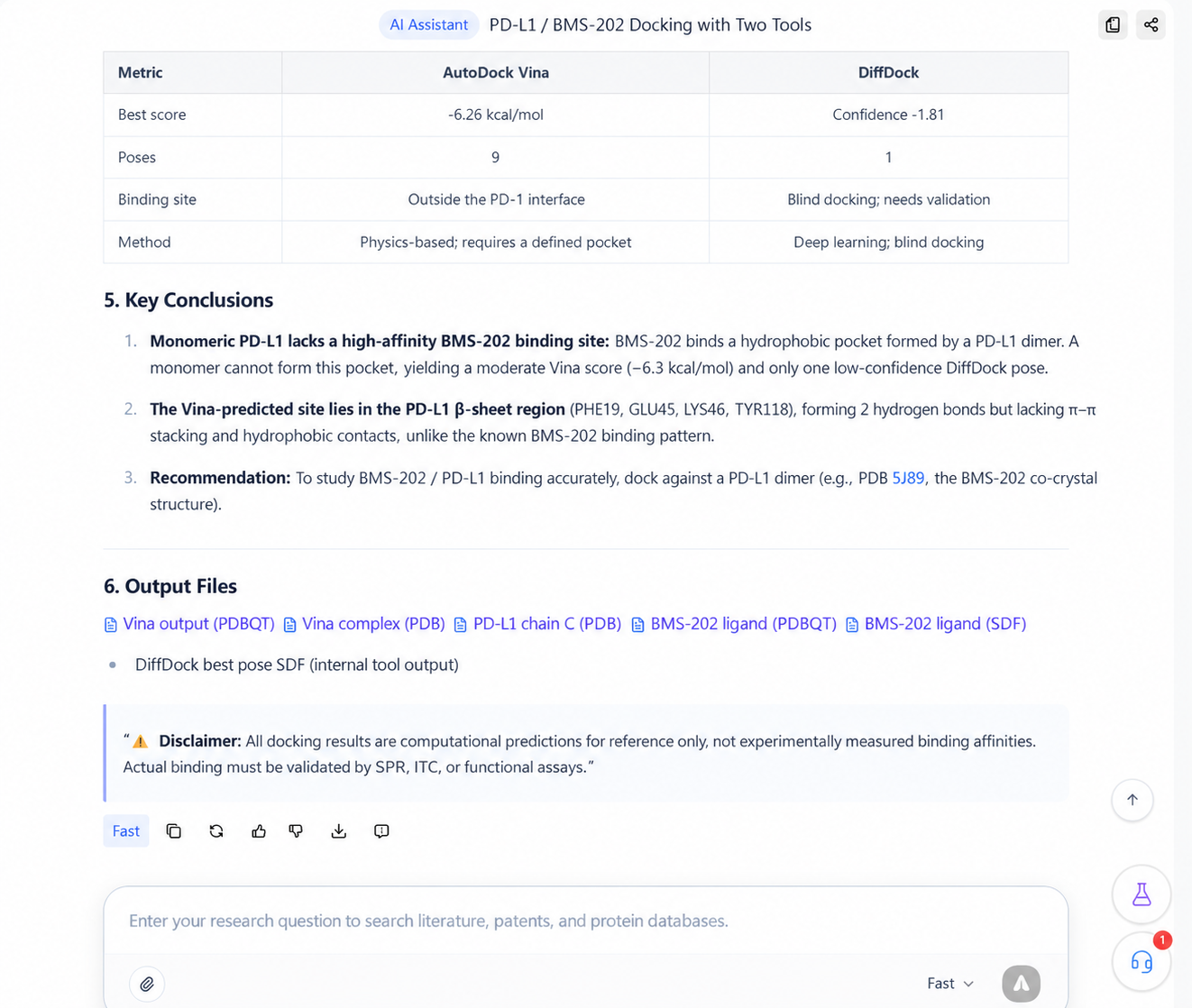
When reading computational results, check in order:
- Inputs are correct: do the receptor, ligand, chain, species, and structure IDs match the original question?
- Methods fit: is the tool suitable, and do the computational premises hold?
- Parameters are complete: grid center and size, pose counts, and other key parameters stated?
- Tools are directly comparable: Vina binding energy and DiffDock confidence are different metrics and cannot be ranked by raw value.
- Conclusions acknowledge limits: this example states plainly that monomeric PD-L1 lacks the dimeric pocket BMS-202 naturally requires.
- Files are traceable: output files named in the final answer should be findable in the files panel or tool records.
Blue output file names in the final answer are clickable and open the file. Depending on browser and format, the page may render the content or trigger a download.
Send protein sequences to wet-lab validation
When recognizable protein sequences appear in the conversation, a Wet-lab validation button appears at the bottom-right, marked with the number of sequences captured.
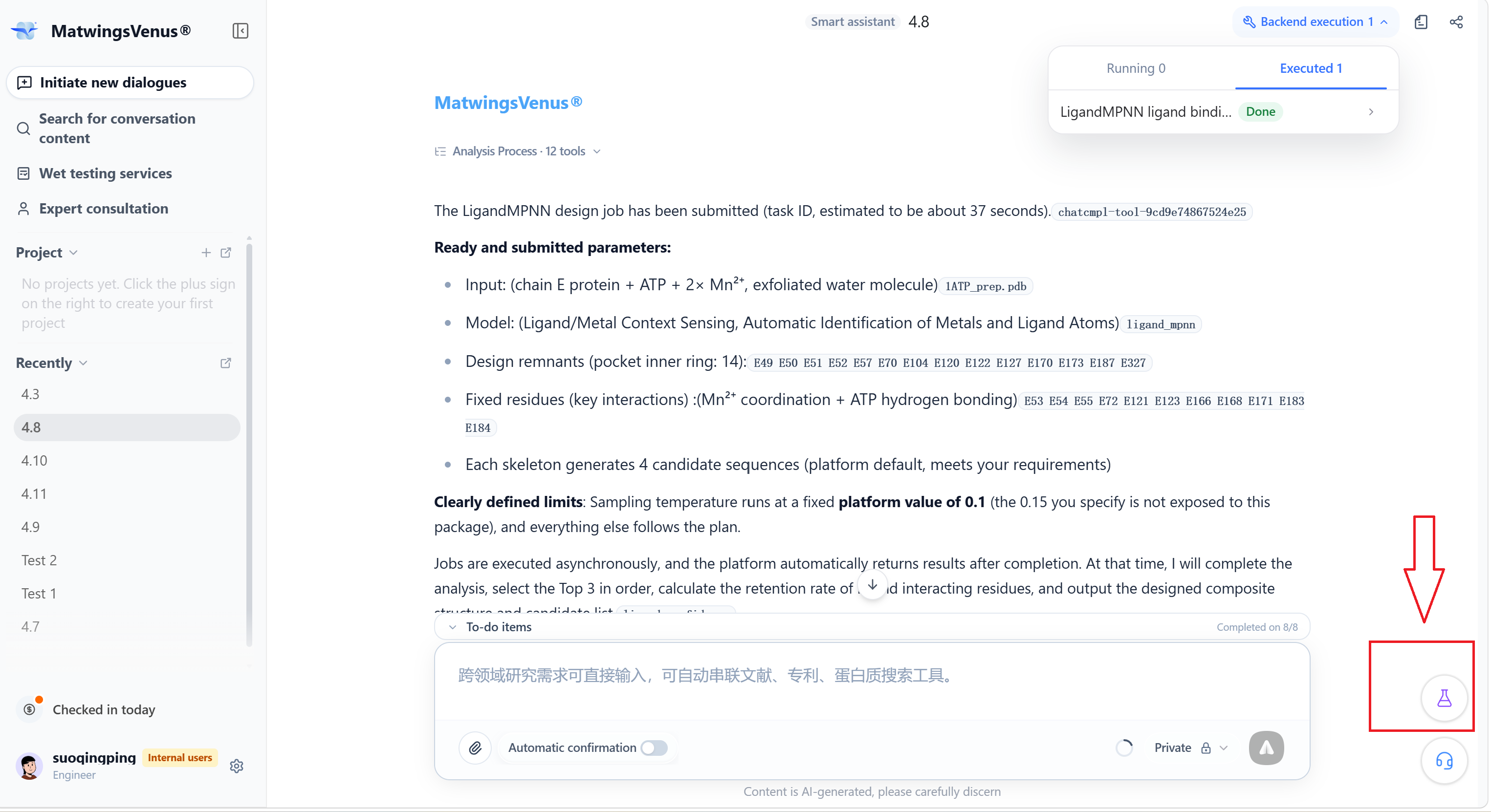
- Select Wet-lab validation to open the Wet-lab sequences panel on the right.
- Check the protein names and sequences extracted automatically.
- Tick the sequences to validate; untick or delete the ones you do not need.
- Select Place order at the bottom of the panel to jump to the wet-lab services module.
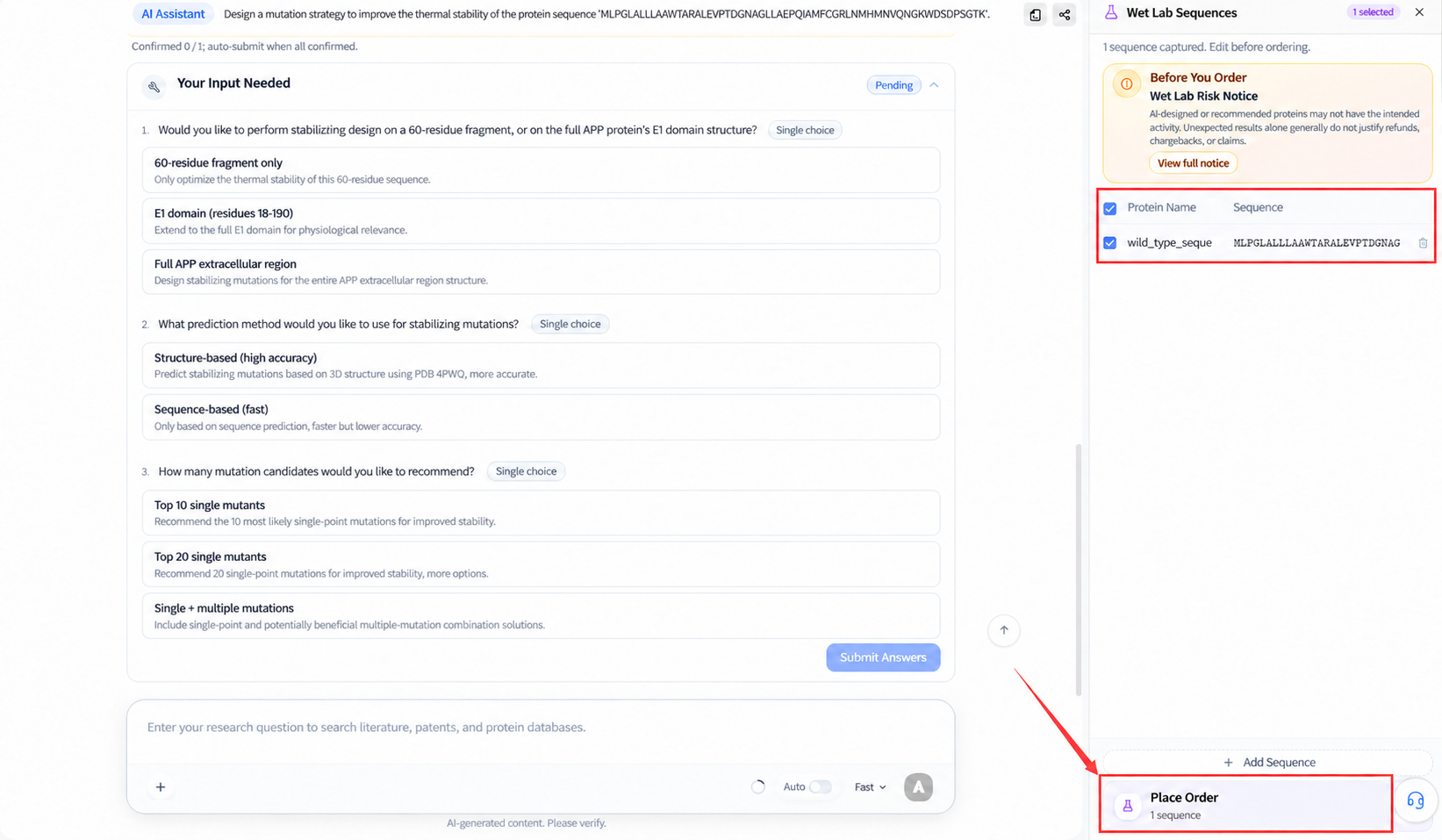
The panel loads only sequences recognized in the current conversation. Before ordering, verify the sequences are complete, the names are easy to tell apart, and the selection is the final version you intend to test. AI-designed or predicted sequences are not guaranteed to express, remain stable, or perform as expected; experiment outcomes are defined by the actual order and delivered data.
After entering wet-lab services, choose gene synthesis, protein expression, protein purification, antibody services, or more, then fill in experiment parameters, delivery requirements, and order information.
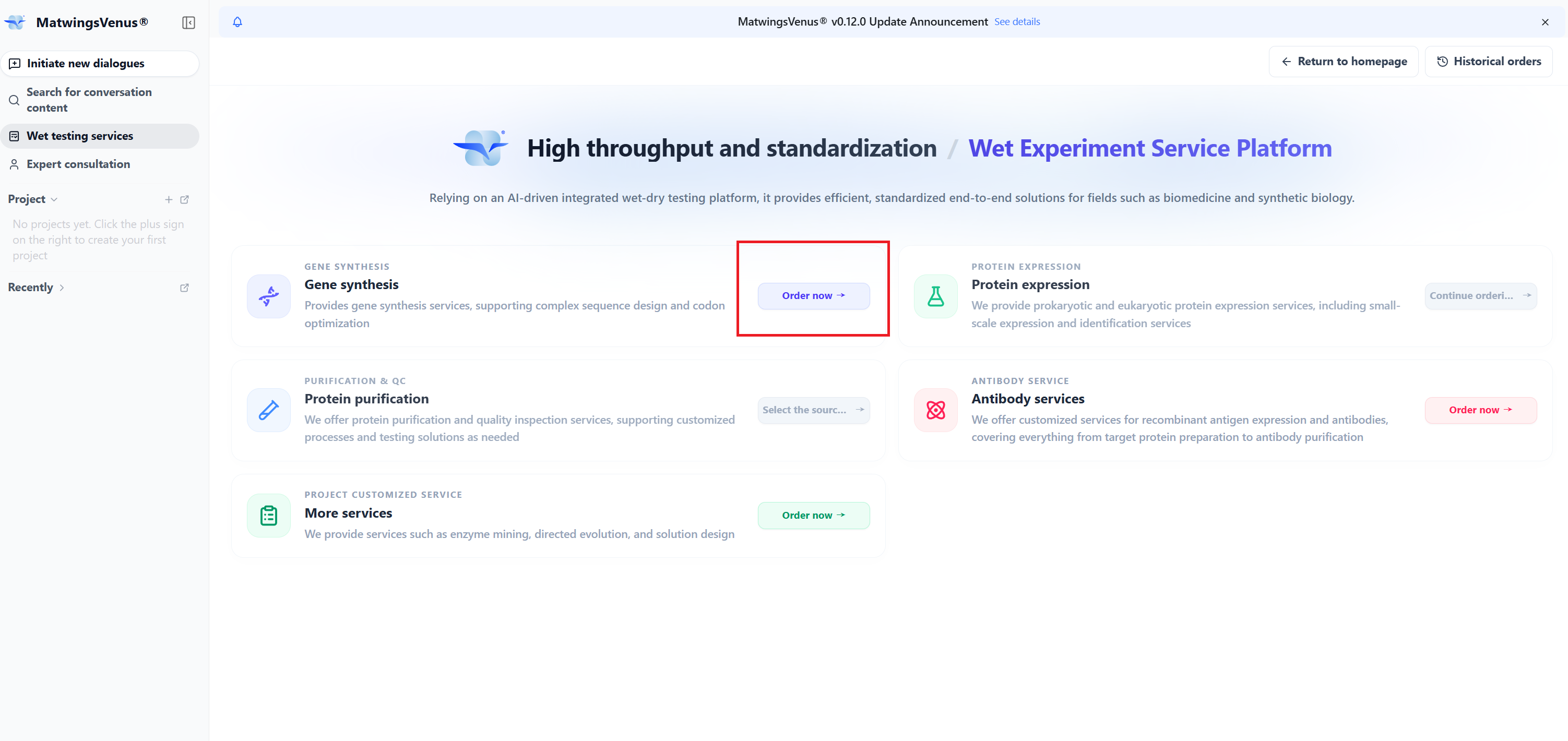
Reaching the order page is not submitting the order
Moving from a conversation to wet-lab services only carries over the selected sequences and opens the ordering flow. You still choose the service type, complete required fields, and confirm the quote and order before submitting.
Separate process info, predictions, and evidence
| Content type | Example | How to use it |
|---|---|---|
| Tool execution process | File conversion, sandbox commands, retry records | Trace methods and troubleshoot |
| Computational output | Vina score, DiffDock confidence, predicted poses | Candidate comparison and follow-up validation input |
| Database facts | PDB IDs, species, structure method | Verify in the matching database detail page |
| Agent interpretation | Summary of binding sites and method differences | Check that tool outputs and sources support it |
| Experimental conclusions | SPR, ITC, or functional assay results | Require real experimental data; docking cannot substitute |
The Vina -6.262 kcal/mol and DiffDock -1.807 in this example are computational results, not experimentally measured affinity. Limit statements and validation advice in the answer are an essential part of judging usability.
Use the answer action bar
A set of message actions appears at the end of the final answer.
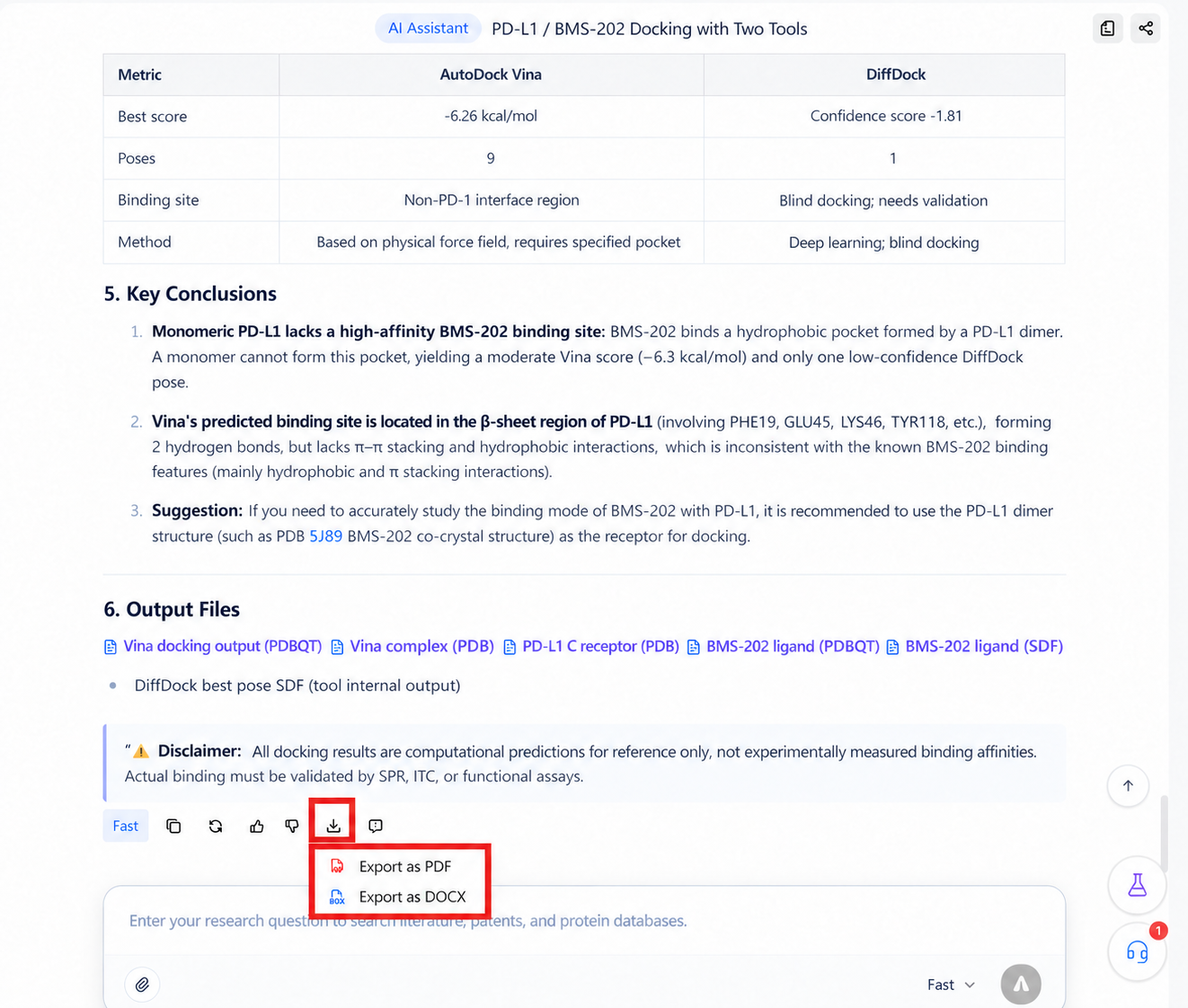
From left to right:
| Action | Purpose | Notes |
|---|---|---|
| Copy | Copy the complete answer | Downloaded files are not copied with the text |
| Retry | Regenerate the current answer | Confirmed, completed tool operations are not re-executed by retry; still watch for follow-up compute or credit costs the page reports |
| Upvote | Mark the answer helpful | Feedback on result quality |
| Downvote | Mark a problem | Combine with Report issue to explain why |
| Export | Export the current answer | PDF and DOCX are currently offered |
| Report issue | Submit detailed feedback | State the error location, expected result, and how to reproduce |
Retry is not the same as a follow-up. To keep the current result and add constraints, ask a follow-up in the input area below; use Retry only when you want the current round regenerated.
Review audits
When the page offers a Review audit, choose the mode first, then start the audit. The audit list shows the current target and status; its contents and available actions are as shown on the page. Before auditing, still confirm input files, parameters, and credit cost—viewing or auditing is not necessarily free of computation.
Share the conversation
Select the share icon at the top-right of the conversation title to open the share menu.
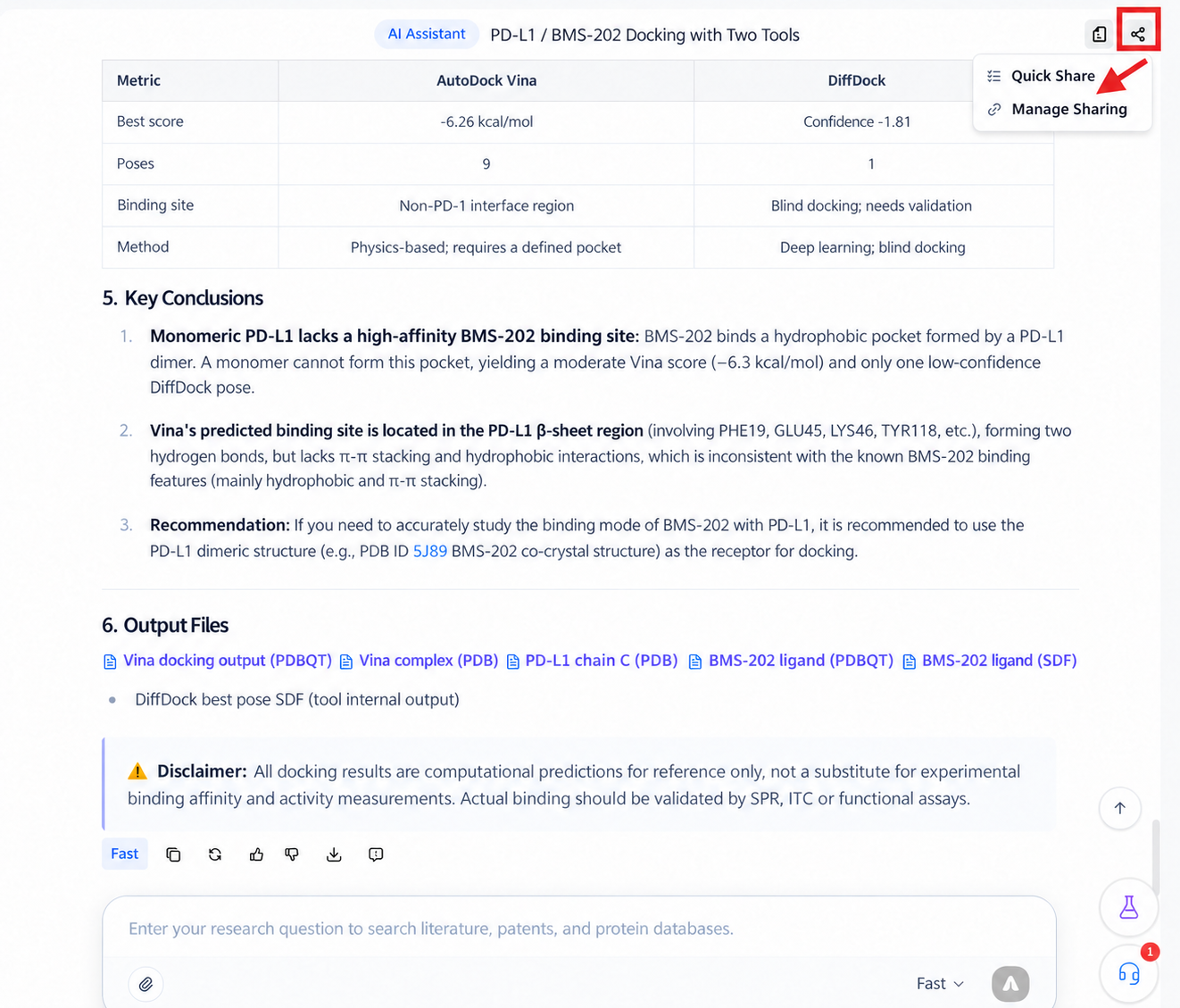
- Share all: create a link containing every message in the conversation.
- Share partial: enter selection mode and pick the messages to share.
- Set expiry: set a validity period for the share link.
The menu also manages (deletes) links already created. Before sharing, check the questions, answers, attachment names, and result files for unpublished sequences, structures, experimental data, or project names. The access scope and how to close a link follow the settings in the sharing flow.
Follow up and correct
The question input area remains below the final answer, so you can follow up in the same context. For example:
Compare only the poses that AutoDock Vina and DiffDock returned successfully, listing the input files, parameters, output files, and failed retries—do not convert the two scores onto one scale.
Or:
Based on these results, design the next docking round using PDB 5J89, which contains the BMS-202 dimeric binding pocket. Before running, list the receptor chain choice, ligand preparation, and validation criteria, and wait for my confirmation.
Follow-ups are good for:
- Adding screening conditions or evidence requirements.
- Asking for an explanation of a score, parameter, or failure.
- Excluding irrelevant tool output.
- Comparing the applicable scope of several methods.
- Planning the next computation or experiment without executing yet.
The input area still accepts attachments and mode selection. The up/down buttons on the right edge jump quickly to the top or bottom of long conversations.
When results look wrong
| Symptom | Suggested action |
|---|---|
| Analysis stuck at Running | Wait briefly and check the network; do not resend the same question |
| A tool failed | Expand that tool and later records to see whether parameters were changed or retried |
| Tools show Done but no final answer | Keep waiting for consolidation; long tasks may still be organizing results |
| A returned file cannot be previewed | Download it and inspect with software that supports the format |
| A result file has an abnormal size | Check the tool's log; ask for the file to be regenerated if needed |
| Final conclusion contradicts tool output | Point to the specific value or file and ask the agent to re-verify with sources |
| A score lacks explanation | Ask for the score's direction, units, applicable range, and decision threshold |
| Re-execution needed | Confirm inputs and parameters first, then decide between a follow-up and Retry |
Before running new computations
Expanding records, viewing files, and copying the answer do not re-run anything; Retry, new follow-ups, or new tool confirmations may start computations and consume credits. Check whether current results already meet your needs before acting.