Earning and using credits
Credits are consumed by tasks or features the platform explicitly marks. Check the available balance and validity before use, and verify sources, deductions, and status in the detail afterwards; credits are not wallet funds and should not be converted to cash at a self-assumed rate.
Credit balance in the sidebar shows credit income and spending, and conversation history helps view conversation consumption; when short, credits may be topped up through activities, top-ups, or subscriptions. Entries, amounts, prices, and validity change frequently—follow your current account page.
View balance and validity
After signing in, two paths lead to the credit pages:
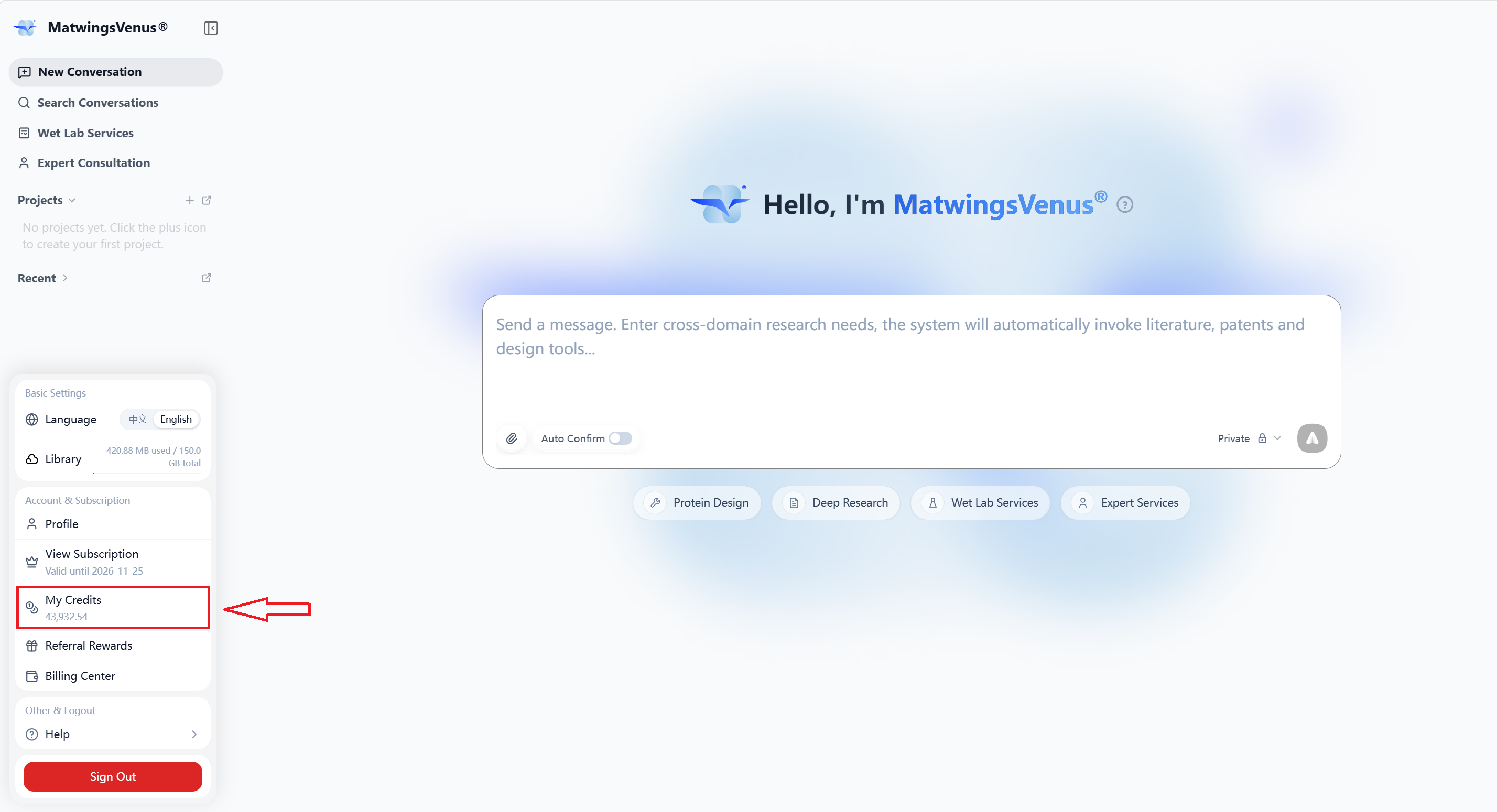
- In the agent workbench, click the avatar at the bottom-left to open the account menu, then click My credits to jump to the credit page.
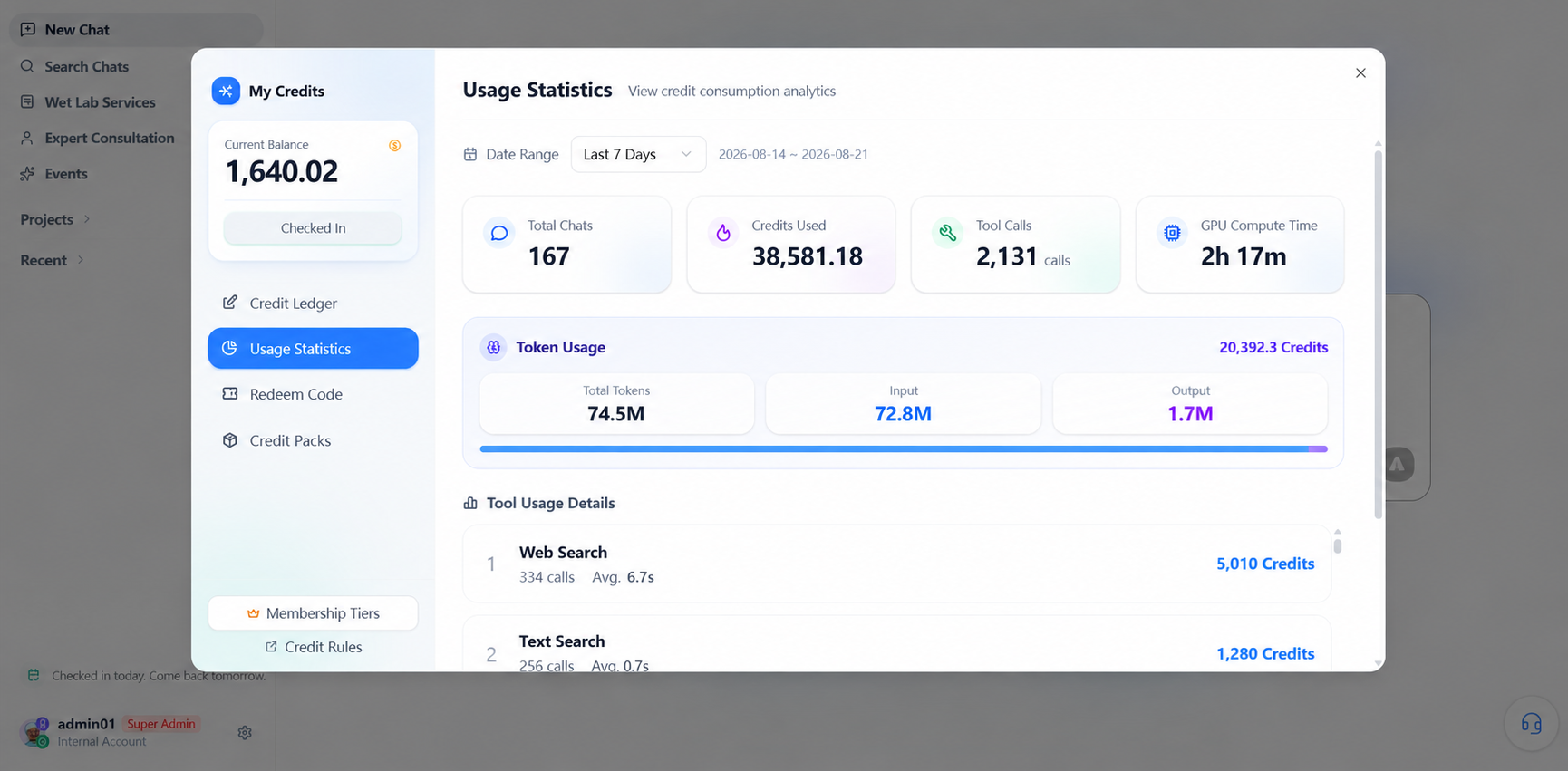
Inside My credits, switch to Usage statistics to see the conversation count, credit consumption, tool calls, GPU compute time, and tool usage detail for a chosen period.
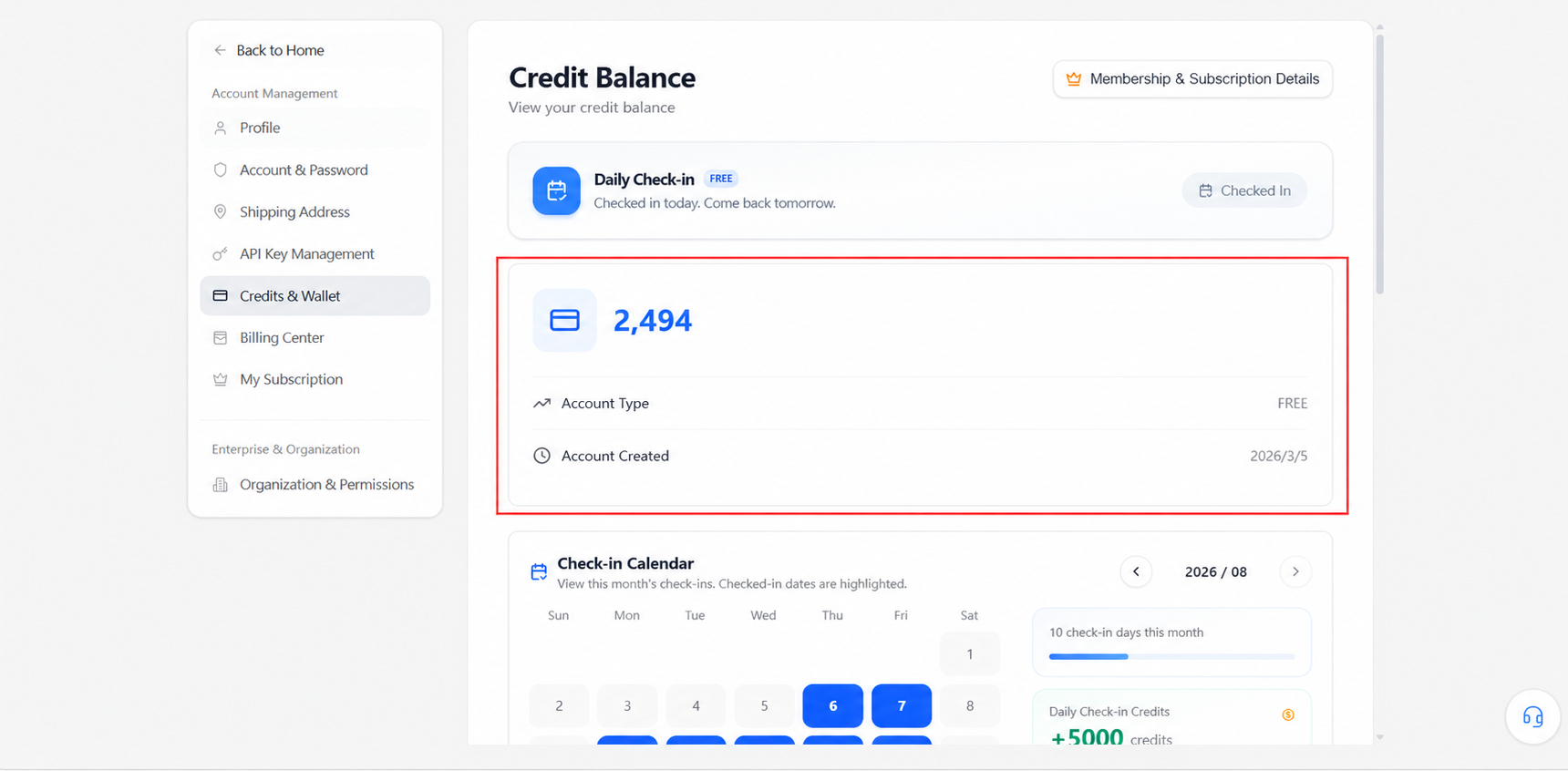
- From the profile page, the credit balance is also visible under credit balance & wallet.
When reading the balance, distinguish:
| Item | How to read it |
|---|---|
| Available credits | Usable now for tasks or page-marked purposes |
| Total credits | When present, may include credits not yet available or in other states—not the same as available |
| Validity | Until when credits are usable; sources may differ |
| Expiring soon | Batches the page flags for attention; usage rules follow the current note |
| Held or pending | When present, temporarily not reusable—not a final deduction |
Record more than one number. For long or multi-step tasks, also check the earliest expiry and recent detail—do not budget expiring, held, or unrecorded credits as available.
Credit rules may differ by source
Credits from activities, redemption, purchases, and membership may have different validity and conditions. Without a unified rule on the page, do not assume all credits expire together or transfer between accounts.
View usage statistics
Statistics show where and when credits go; conversation history may show per-conversation credits and time.
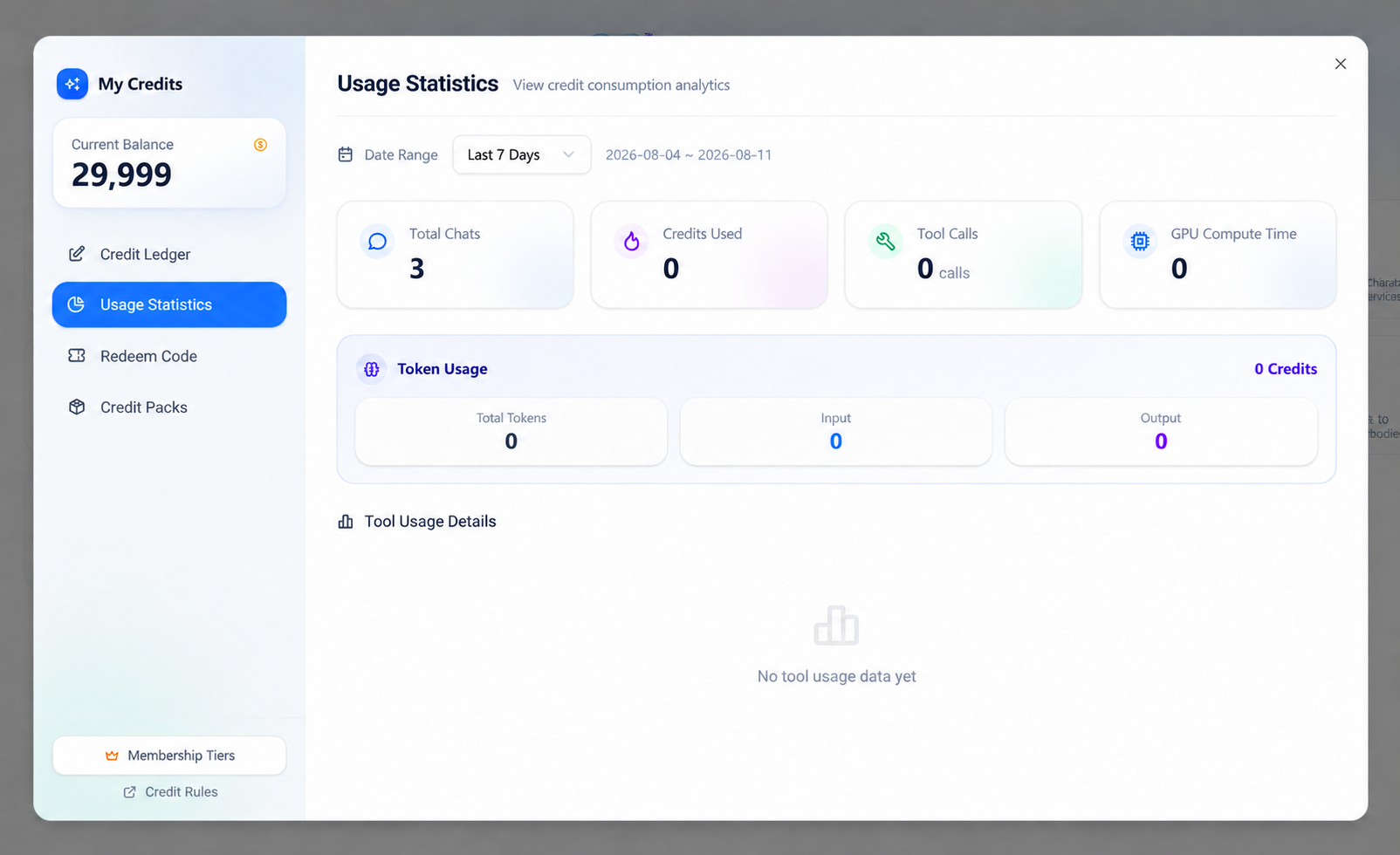
If the page offers statistics, focus on:
| Dimension | Questions answered |
|---|---|
| Time | Which day or period saw spending rise |
| Feature or task type | Which agent tasks or tools consume most |
| Conversation | Which session contains many retries, follow-ups, or long tasks |
| Run mode | Whether mode consumption matches task depth |
| Status | Held, pending, returned, or failed records present |
Statistics support budgeting and anomaly location; they do not replace the ledger. To verify a single deduction, return to the ledger and the linked conversation.
Earning credits
Daily check-in
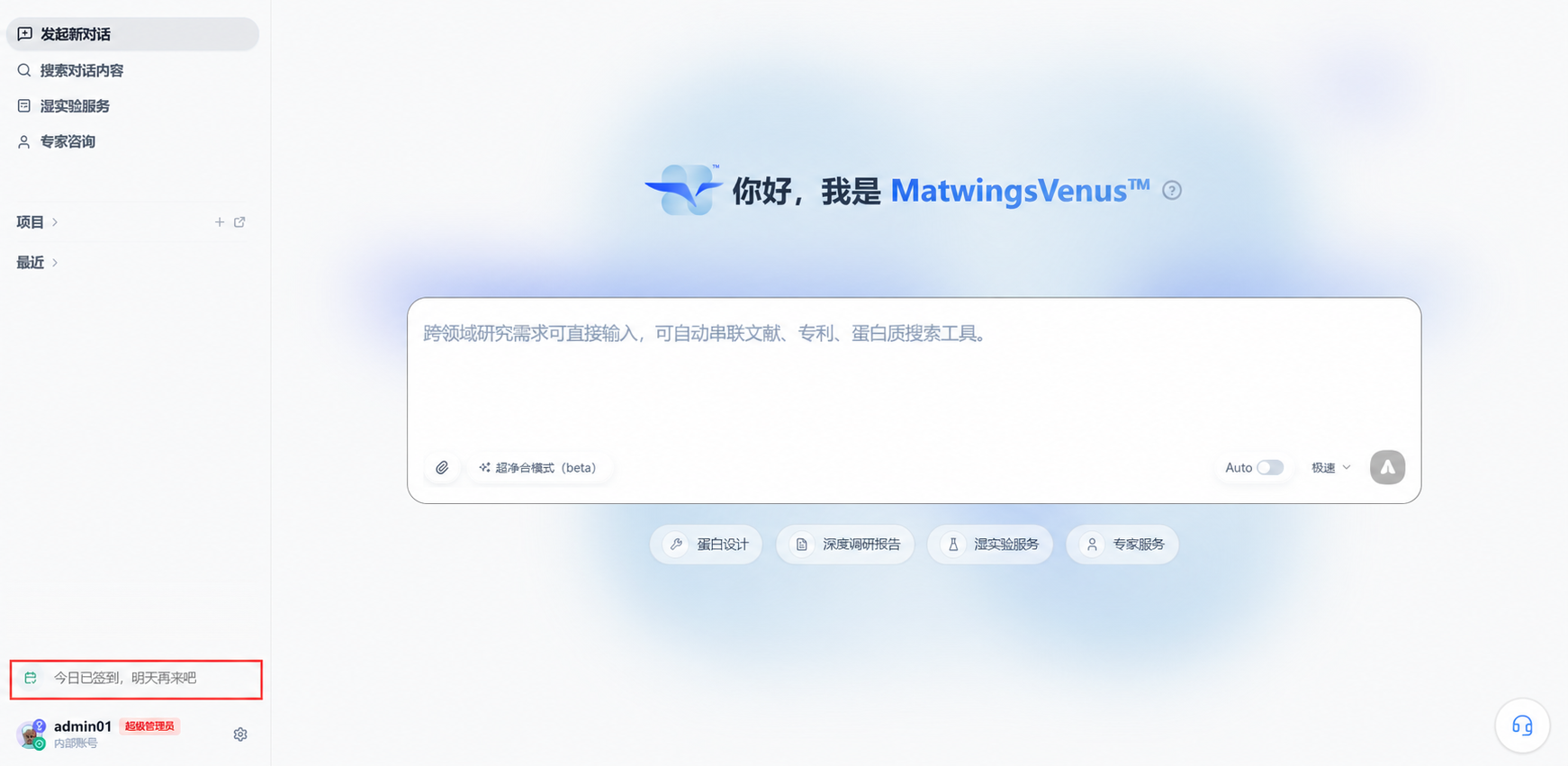
Daily check-in also grants credits. In the agent workbench, click the check-in entry at the bottom-left; after checking in it shows "Checked in today—come back tomorrow".
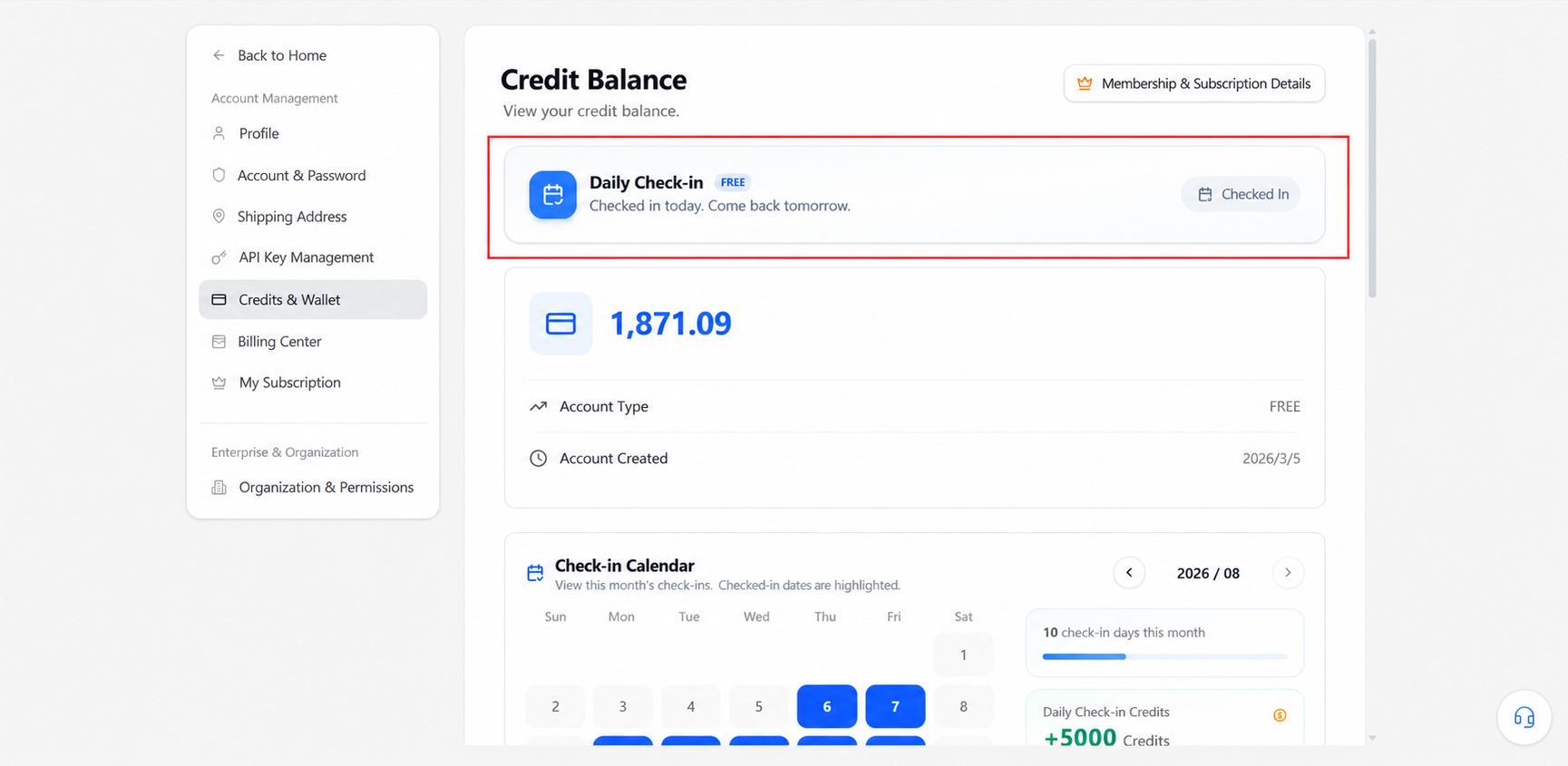
Under Credit balance & wallet, you can see today's check-in status.
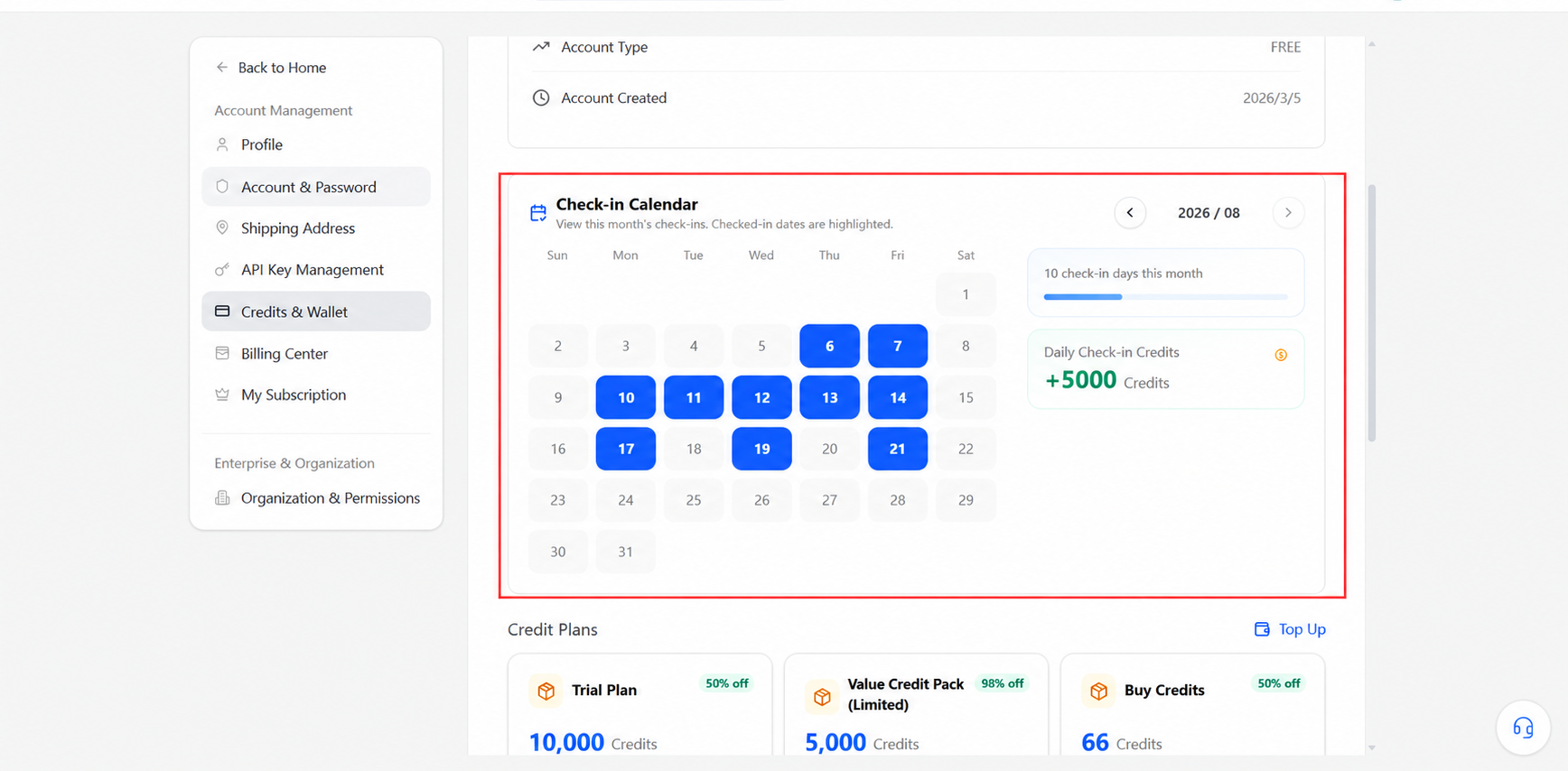
Scrolling to the check-in calendar shows this month's check-in days, dates, and the daily credit shown. Rewards and rules may change—follow the live page.
The public manual notes that insufficient credits can be replenished via activities, top-ups, or subscriptions. The page may also offer profile completion, invitations, redemption codes, or credit packs; whether an activity is active, its rewards, and conditions follow the current page.
Eligible personal accounts automatically receive bonus credits on first login each month—no manual claim needed; these expire at month end. Enterprise subscription accounts do not participate. The grant follows the current account page.
| Method | Check before acting |
|---|---|
| Platform activities | Timing, conditions, how to claim, arrival time, validity |
| Profile or identity verification | Whether the reward still shows, data usage, verification validity |
| Invitations | Conditions, reward triggers, anti-abuse rules |
| Redemption codes | Applicable accounts, deadline, use count, arrival status |
| Credit packs or top-ups | Credit amount, price, validity, payment channel, refund terms |
| Membership | Credits in the plan, grant time, validity, handling on cancel or refund |
This manual records no fixed rewards, pack prices, or rates. Even where old numbers or screenshots exist, re-confirm on the current page when acting.
Buying credit packs
If the account page offers packs or top-ups, verify in order:
- The signed-in account and where credits land.
- Pack name, included credits, and validity.
- Amount, currency, taxes, and invoicing.
- Payment channel and how credits arrive after payment.
- Whether bonus credits are included, with their validity and refund handling.
- Whether the purchase can be refunded, transferred, or used by another account.
- Whether the page also selects membership or auto-renewal items.
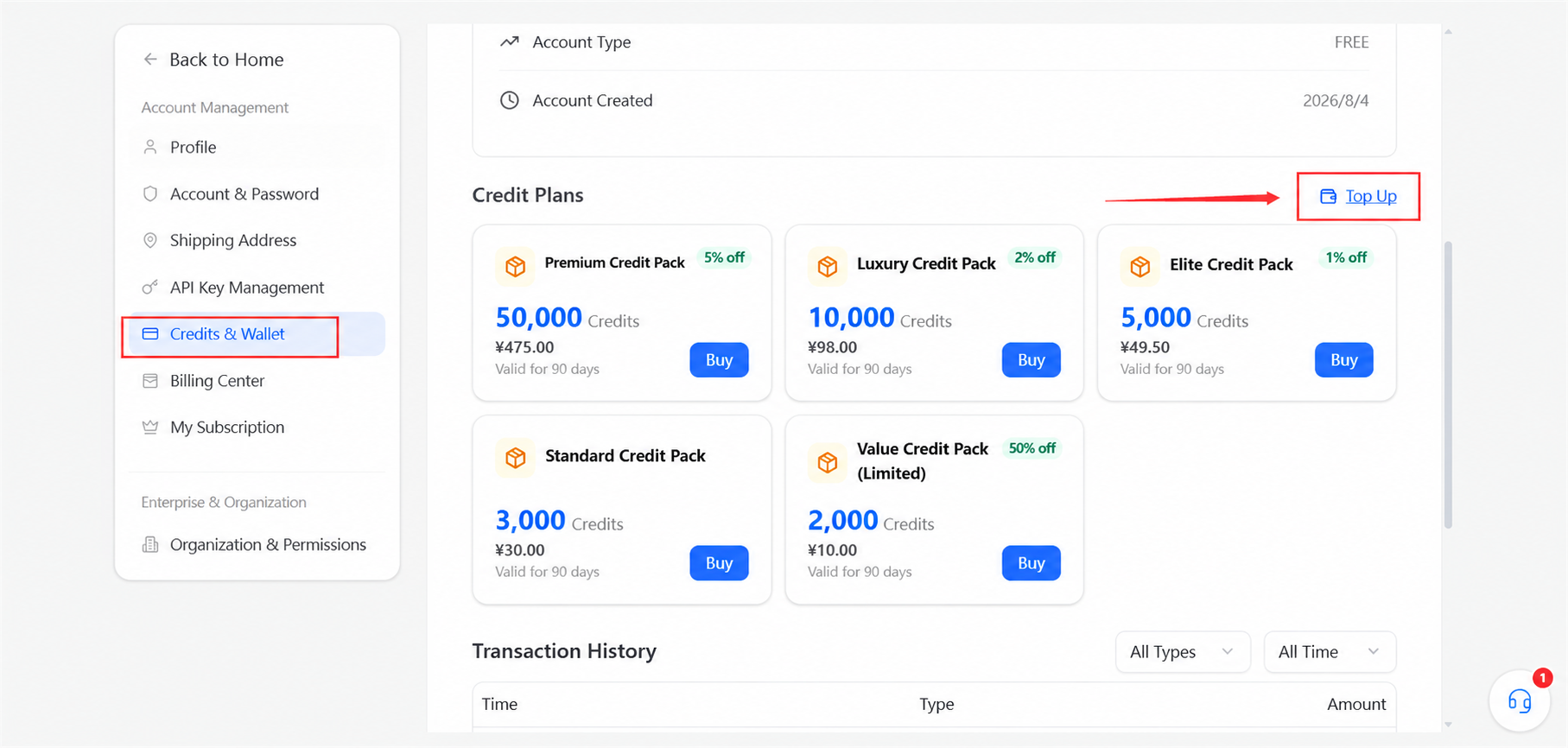
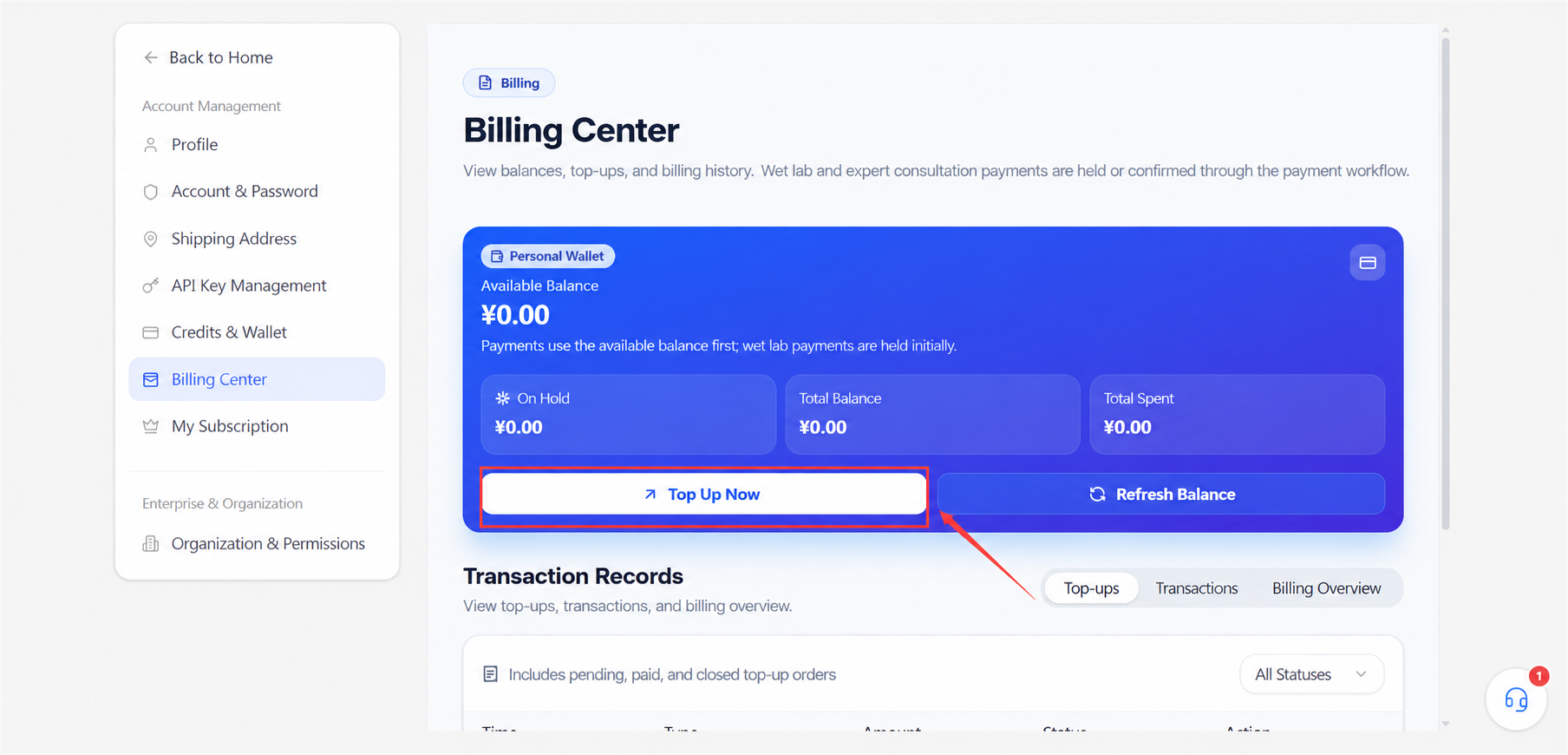
Clicking Go to top-up opens the Billing center; select Top up now in the personal wallet area.
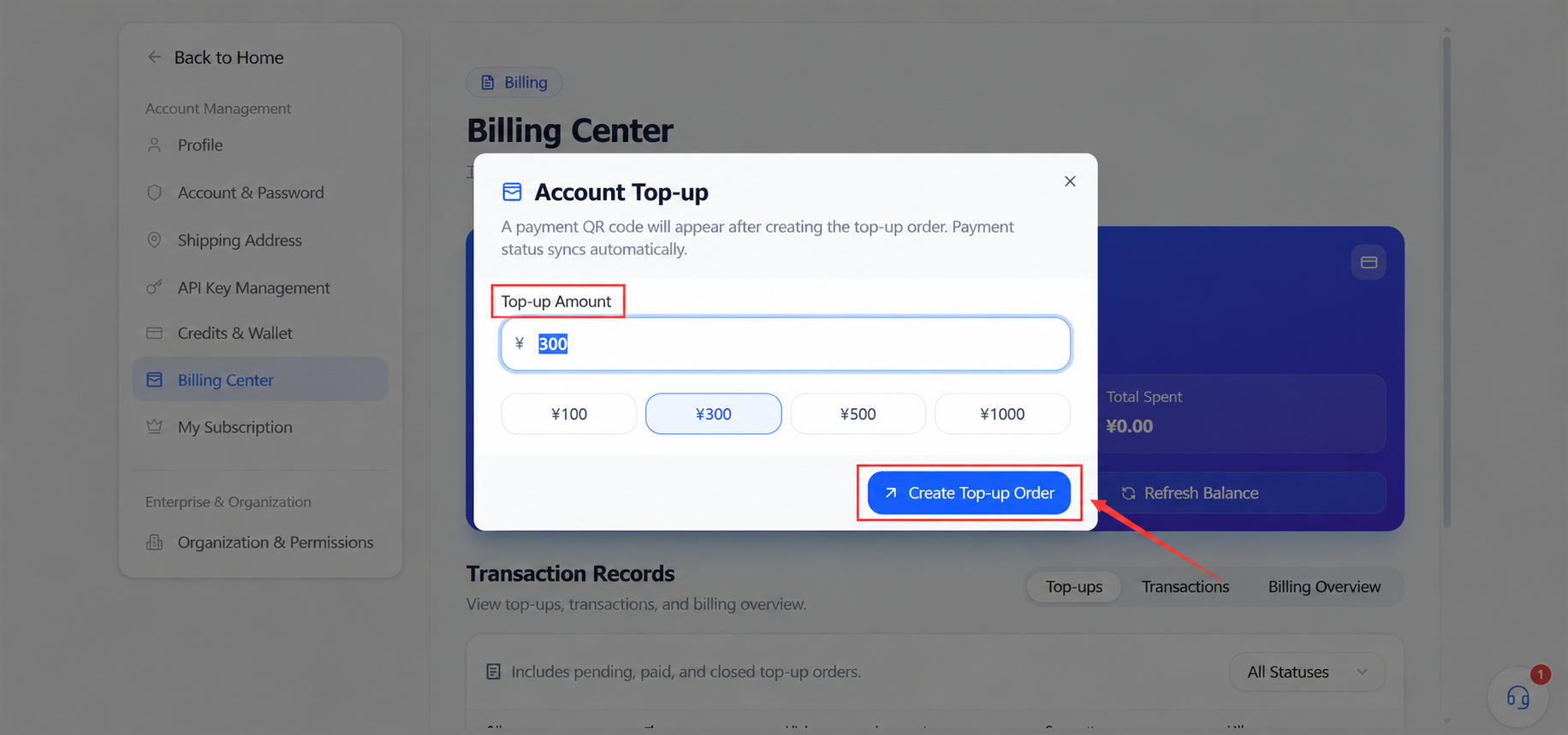
Enter the amount or pick a quick amount, then click Create top-up order. Complete payment per the prompt and wait for the system to sync the status.
After purchase:
- Wait for a clear payment result; do not pay again immediately over a delay.
- Refresh the balance and find the matching record in the ledger.
- Check whether purchased and bonus credits are shown separately with different validity.
- Keep the order status and payment voucher; desensitize screenshots before sharing.
Billing and pre-holds
Tasks differ in depth, tool calls, and consumption. Before submitting, check the run mode and the page's credit prompts—do not fix this task's cost from a similar previous one.
- Holds or pre-deductions are not necessarily the final consumption.
- Final deductions follow the ledger after the task completes.
- Whether failed or cancelled tasks refund, and when, follows the current page state and rules.
- Retry, follow-ups, or reruns may create new billing records.
- Whether expanding results, viewing attachments, or copying text consumes credits depends on whether the page restarts a task.
Do not verify pre-holds by repeating operations
While the page shows processing or pending, resubmitting, retrying, or rerunning after refresh may create new tasks and credit records. Wait for the state to settle and check the ledger before executing again.
When credits run short
On "insufficient credits" or a task that cannot start:
- Confirm the current account and organization are correct.
- Check available credits, validity, and any held or pending state.
- Review the ledger for recent deductions and failed or pending income.
- Confirm the task mode and scope are within the current budget.
- Pick a currently valid activity, redemption, pack, or membership method to top up.
- After credits arrive, refresh and confirm the record in the ledger before rerunning.
To merely test whether a question is clear, narrow the scope or choose a lighter run mode; do not omit key inputs or validation conditions just to save credits. Actual consumption per mode follows the page at submission.
FAQ
| Situation | How to check |
|---|---|
| Balance not updated | Refresh and look for processing or failed income records in the ledger |
| Total shows enough but task says insufficient | Check available credits, validity, held or pending states |
| Cannot find a deduction | Match the ledger against conversation history, retries, and follow-ups by time |
| Redemption code invalid | Check applicable account, characters, validity, use count, activity conditions |
| Paid but credits not arrived | Do not pay again; keep the order status and check the ledger or contact support |
| Task failed but credits not returned | Check whether settlement is still running; confirm failure handling per current rules |
| Credits expiring soon | Check batches and deadlines; schedule tasks sensibly—do not run pointless tasks to burn credits |
| A ledger entry is unclear | Save a desensitized screenshot of time, type, status, and linked object; verify via platform support |
To further separate credits, wallet, and membership, see the account and billing overview; for membership and refunds, see Membership, subscription, and refunds.