Search and browse products
The MatwingsVenus Mall supports finding currently public products and services by category and keyword. After finding candidates, open the detail page to verify purpose, technical features, and applicable conditions; search results only locate entries—they do not imply stock or an existing purchase order.
Browse by category
After opening the mall, use the All and Products entries at the top:
- All shows every product and service the mall currently publishes.
- Products narrows the scope to product entries.
- Selecting a product card in the recommended or best-selling areas goes straight to its detail page.
Categories, display order, and counts may change with updates. Categories suit browsing before a specific product name is fixed; do not treat the home page as the full catalog.
Search by keyword
The search box finds public entries by product name, English name, item number, or tag.
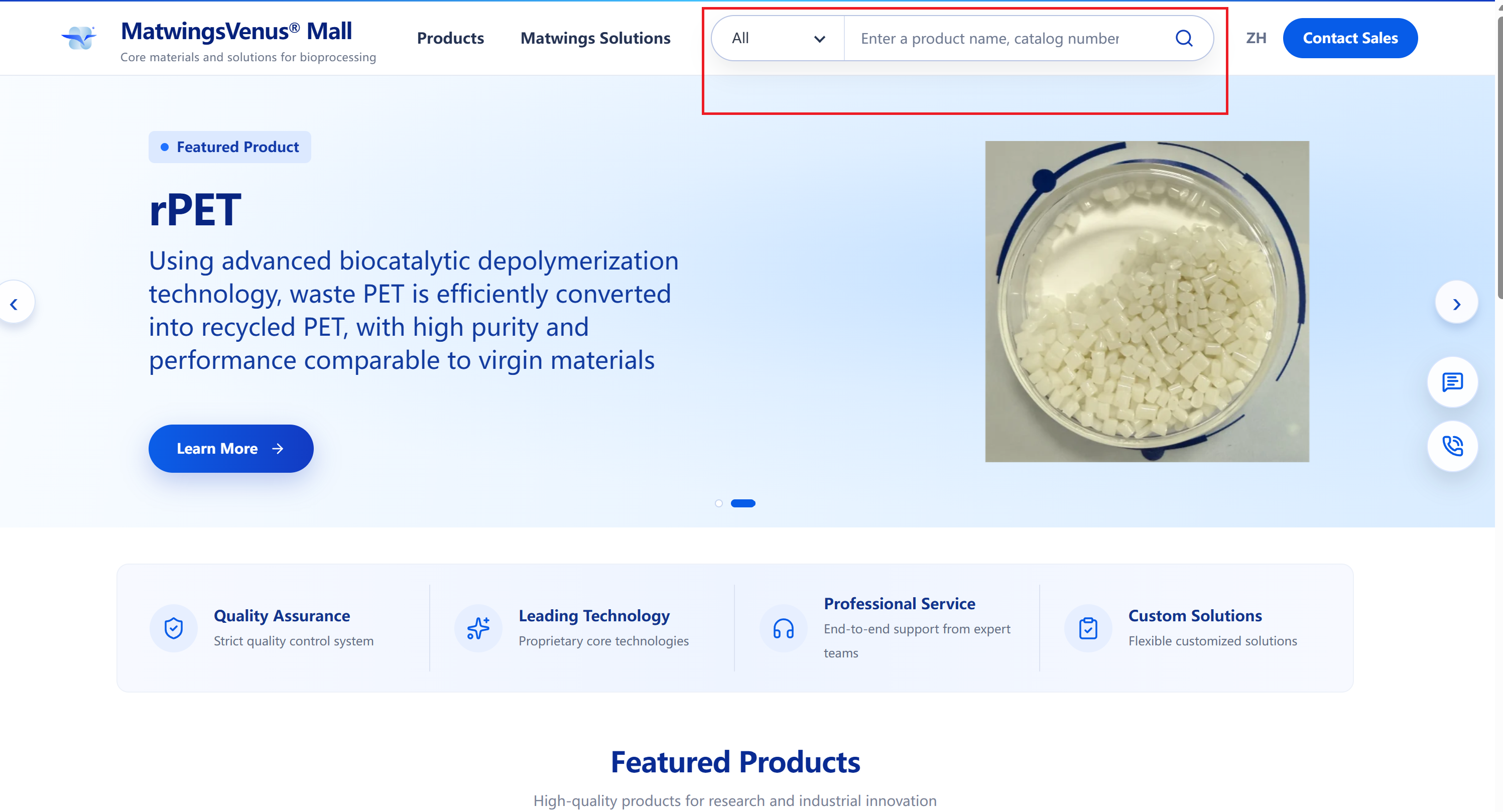
- Choose All or Products on the left of the search box.
- Enter a product name, English name, item number, or short keyword.
- Select the search button.
- Review the count, names, and summaries; select View details on a candidate.
Use short keywords that distinguish direction, e.g. Protein A, Kex2, or a full item number. Entering Protein A currently lists public entries matching that keyword in name or tag.
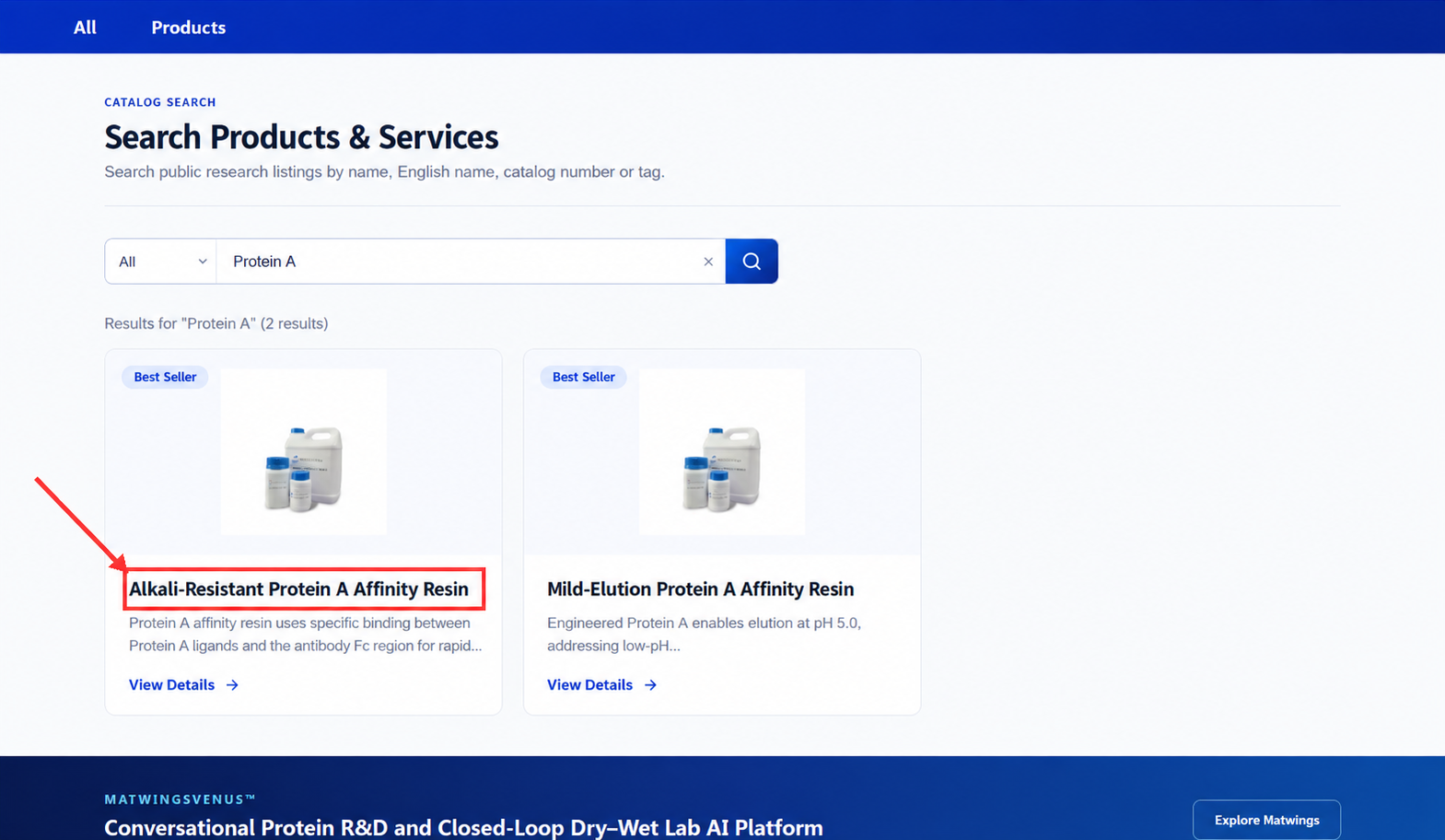
Result cards usually show the product name, a short summary, and View details. Counts and entries follow the current page; one keyword may match products differing in use, performance, or elution conditions—do not substitute based on a similar name alone.
Adjust scope step by step
With too many results, add a more specific name, application, or item number; with none, shorten the keyword, check spacing and spelling in both languages, and switch between All and Products. Change one condition at a time to see which one moves the results.
View product details
Select View details on a result or card to open the detail page. The page helps you judge whether to inquire further—opening it creates no order and submits no contact information.
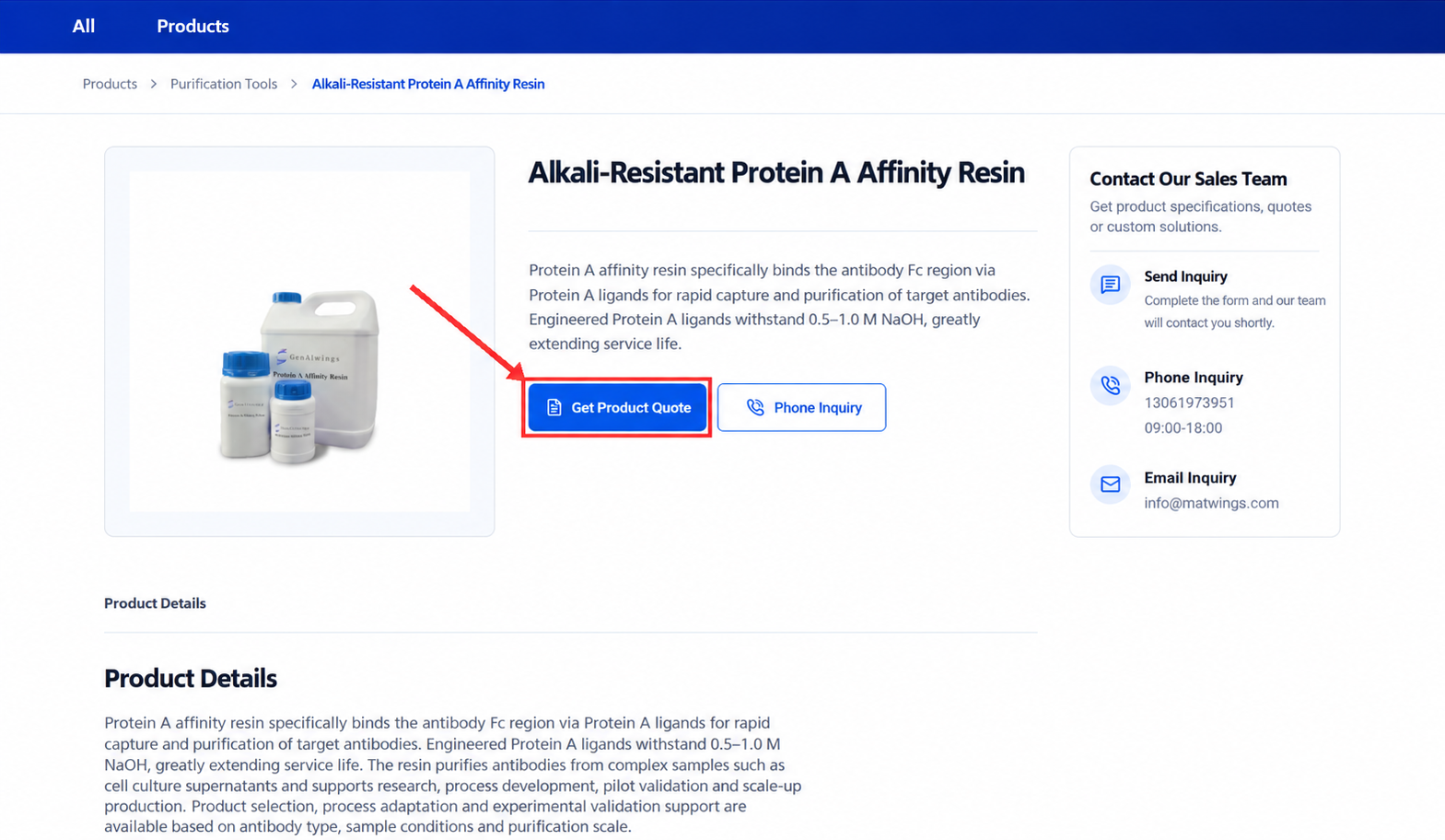
First confirm the page title matches the product you meant, then read the full introduction. Get a quote on the page is an inquiry entry; it does not present a final price, stock, or delivery time.
Verify specifications and technical material
Before inquiring or purchasing, note the full product name and check the following against your use case:
| Check | What to confirm |
|---|---|
| Product identity | Full name, English name, item number, model or version—avoid confusing similar products |
| Intended use | Target sample, process stage, experiment scale, expected outcome |
| Key performance | Activity, purity, capacity, tolerance range, or other use-relevant indicators |
| Specification and packaging | Pack size, quantity needed, availability of trial or scale-up packs |
| Usage conditions | Buffer system, temperature, pH, pressure, cleaning or regeneration, equipment compatibility |
| Storage and shipping | Storage temperature, shelf life, shipping conditions, post-opening requirements |
| Quality documentation | Data sheet, batch test report, and COA, SDS, or compliance files where applicable |
| Supply terms | Current quote, stock, lead time, batch consistency, after-sales technical support |
When the detail page omits an item, do not infer it from similar products. Record the open items with your target specifications and confirm each during the quote or inquiry. Page descriptions also do not replace suitability testing against your actual samples and process conditions.
Do not decide to purchase from search summaries alone
Images and summaries in results are condensed for quick screening. Before purchasing, open the detail page and confirm identity, specification, key indicators, quality documentation, stock, quote, and delivery terms; for first use in critical experiments or production, arrange suitability validation.
When you cannot find a product
When the page shows "No related products" or 0 results:
- Remove overly narrow qualifiers; keep the generic name, English name, or core material.
- Check item number, English spelling, hyphens, and spaces.
- Switch the scope between All and Products.
- Search by parent category or application, then compare detail pages of nearby products.
- If still not found, organize your technical requirements and use the mall inquiry entry to ask about alternatives or custom options.
| Situation | Suggested handling |
|---|---|
| Too many results | Add the full product name, use-case keyword, or item number |
| Zero results | Shorten the keyword, check spelling, switch scope |
| Several similarly named products | Open each detail page; compare use, key performance, conditions |
| Detail page lacks specs or data | Record the gaps; confirm item by item during the quote inquiry |
| No existing product fits | Describe sample, scale, key indicators, and timing; ask about custom options |
For preparation and information boundaries before contacting, see Quotes and inquiries. When no standard product fits and the need spans several R&D or experimental stages, see also Solutions.